

A voice memo is a quick audio recording you can make on your phone. You can use it for many things, but most people use it to save an idea, record a lecture, capture a meeting, practice a speech, or remember something when you do not want to type.
On iPhone, voice memos are made in the Voice Memos app. The app is really easy to use: You open it, press the record button, speak, then stop and save the recording.
In this guide, you’ll learn what a voice memo is, how to make one on iPhone, where to find the voice recorder, and where your recordings are saved.
You don’t need an iPhone to record audio. Try our free Online Audio Recorder instead.
What Is a Voice Memo?
A voice memo is an audio note you can create on your iPhone. Instead of writing something down in the Notes app, you record your voice using speech-to-text technology. You can also use it to record sounds around you.
People use voice memos for many reasons, such as:
- Personal reminders
- Class lectures
- Meeting notes
- Song ideas
- Interview clips
- Practice speeches
- Quick thoughts
- To-do ideas
- Voice messages
- Audio drafts
A voice memo can be as short as a few seconds or even much longer. It depends on what you are recording and how much storage you have on your phone.
The main benefit of using voice memos, like voice texting and even voice mail, is speed and convenience. If you have an idea and do not want to type, you can open the recorder and save it right away. If you would prefer to have your notes in writing but still don’t want to type them yourself, you can learn how to do voice-to-text instead.
What Is the Voice Memos App on iPhone?
Voice Memos is Apple’s built-in recording app for iPhone. It lets you record audio using your iPhone microphone, a headset, or another supported microphone.
What the app can do
The voice memo app has everything you would expect it to. You can use it to record your own voice, a conversation, a lecture, or other sounds around you. After recording, you can play the audio, rename it, trim it, share it, or delete it.
Voice Memos is useful because it is already on most iPhones, so if you own an iPhone you have access to this simple tool. You do not need to download a separate app for recording basic things.

How to Do an iPhone Voice Memo
Making a voice memo on iPhone is really simple. Make sure you have the app on your device before you start. If you do not see it on your Home Screen, search for it or check the Utilities folder. If you can’t find it anywhere, you can download it from the App store for free.
- Open the Voice Memos app.
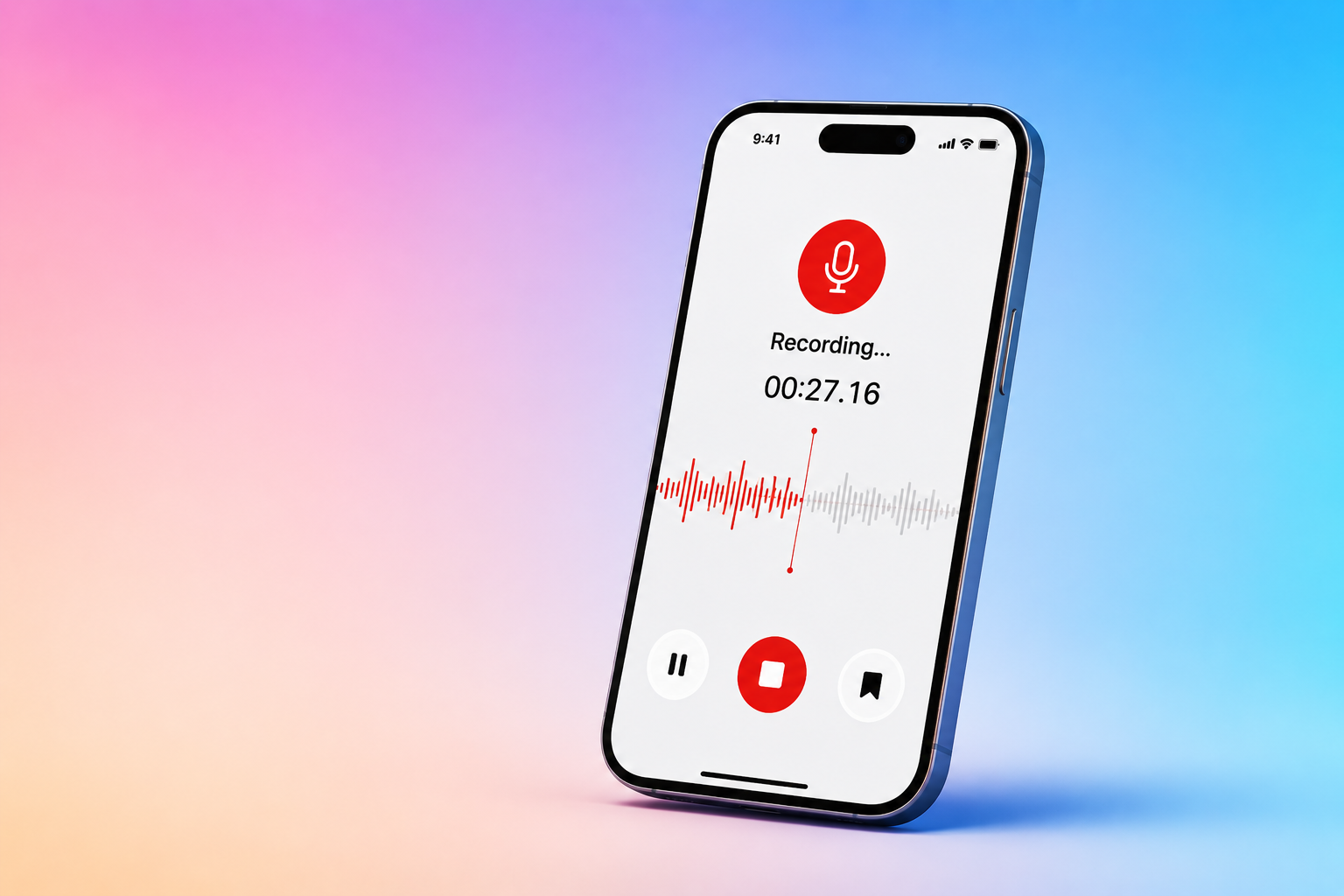
- Tap the red record button to start recording.
- peak clearly and keep the phone close enough to capture your voice.
- When you are finished, tap the stop button.
- Your iPhone will save the recording automatically.
You can then tap the recording to play it back. If you want to rename it, tap the current name and type a new one.
Where Is the Voice Recorder on My Phone?
On iPhone, the voice recorder is called the Voice Memos app. As mentioned before, you can find it either on the Home screen or in the Utilities folder. If you cannot find it there, swipe down on your Home Screen and search for “Voice Memos.” You can also ask your AI voice assistant Siri to open it . Say, “Open Voice Memos.”
If you use Voice Memos often, you can move the app to your Home Screen or add it to the Control Center for quick access. This makes it easier to open quickly when you need to record something.

Where Are the Voice Memos on My iPhone?
Your voice memos are saved inside the Voice Memos app.
When you open the app, you should see a list of your recordings. New recordings may be named “New Recording” or may use your location at the time of recording as the name, depending on your settings.
To find a voice memo:
- Open the Voice Memos app.
- Look at the list of recordings.
- Tap a recording to play it.
- Use search if you have many recordings.
According to Apple, if Voice Memos is turned on in iCloud, your recordings can also appear on your other Apple devices, such as your iPad or Mac, when you are signed in with the same Apple Account.
What Do Voice Memos Look Like?
In the Voice Memos app, recordings usually appear as a list. Each recording has a name and may show the date and time, and the length of the recording.
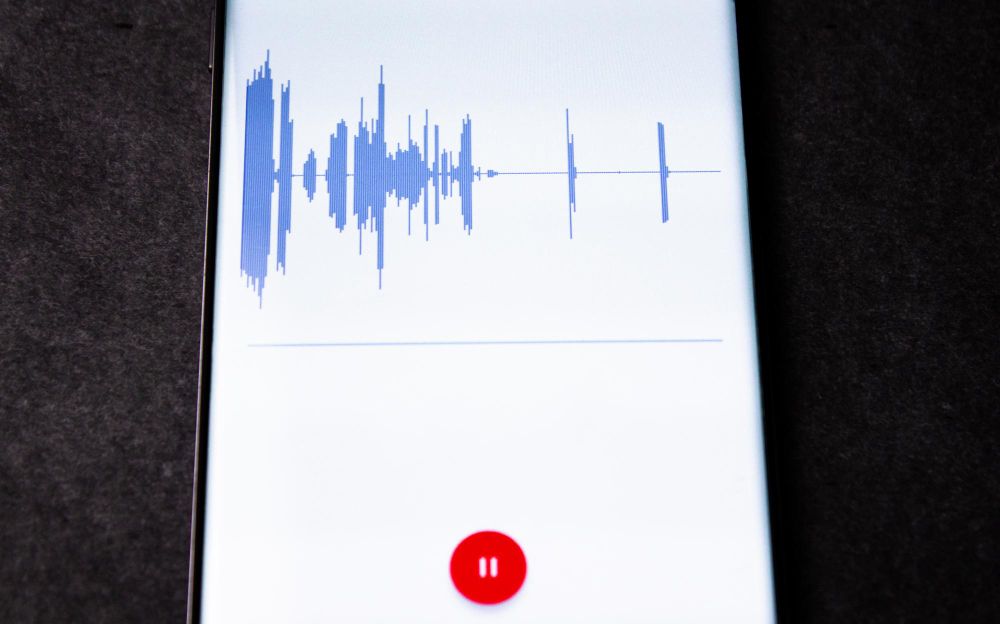
When you open or play a voice memo, you will usually see a waveform or other visual representation of the audio.
During recording, you will also see a timer that shows how long you have been recording.
How to Rename a Voice Memo
Renaming a voice memo is a good idea if you want to make the recording easier to find later.
To rename the voice memo, after you record, tap the recording name. Then type a new name that describes the audio.
For example, instead of keeping “New Recording,” you could rename it to something that fits the content. Here are a few examples:
- Team meeting notes
- Marketing idea
- Lecture on history
- Interview with Sarah
- Song idea 1
- Client call recap
Clear naming for recordings helps if you record often. They make it easier to search your recordings later and find exactly what you are looking for.
How to Get Better Voice Memo Quality
A good voice memo should be easy to hear. You do not need a professional microphone for most recordings, but here are a few simple steps that can help get better sounding recordings.
- Record in a quiet place when possible.
- Background noise can make the recording harder to understand.
- Hold the phone close enough to the sound source. If the phone is too far away, the audio may sound weak.
- Do a short test recording before something important. Play it back and check if the sound is clear.
- Try not to cover the microphone with your hand or phone case.
- If you are recording a meeting, place the phone near the center of the table. If you are recording yourself, keep the phone in front of you and speak clearly.
How to Edit a Voice Memo
After you make a voice memo, you may want to clean it up. The Voice Memos app includes very basic editing tools. You can trim the start or end of a recording, remove parts you do not need, or replace part of the audio.
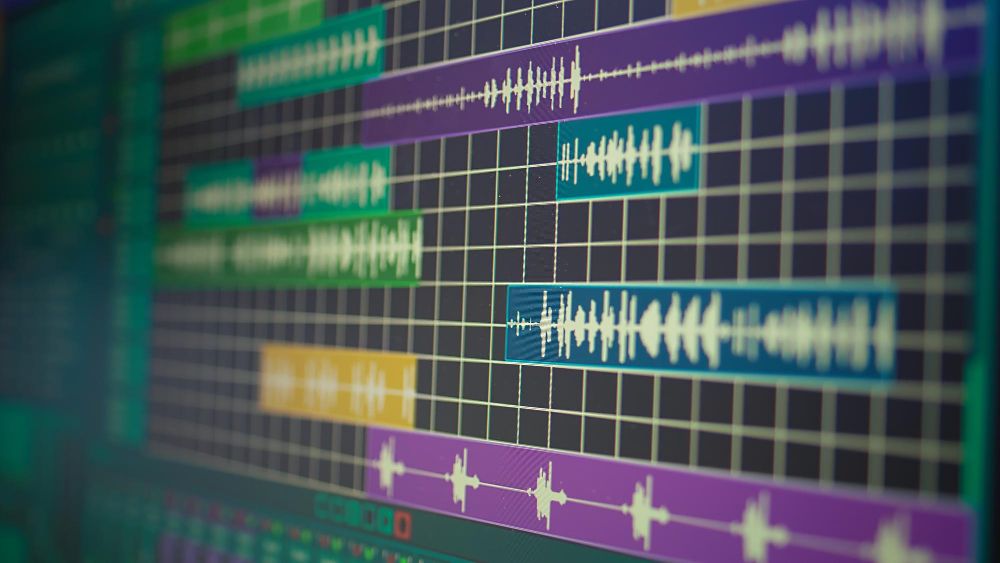
This is useful if the recording has extra silence at the beginning, a false start, or a few seconds at the end that you do not want to keep.
For most simple recordings, trimming is often enough, but if you need to edit the clip more, you may want to use a separate audio editing app. Video trimmers can do the job just as well on audio files, and you can even transcribe the audio to text to make it easier to work with.
How to Share a Voice Memo
You can share a voice memo from the Voice Memos app very easily.
To share it, open the recording, tap the sharing option, then choose how you want to send it. You should be able to share it through Messages, Mail, AirDrop, or other iPhone apps on your device.
Before you share a voice memo, listen to it first and make sure you want to share it. Also, remember that if the file is very long, it may take more time to send depending on your internet connection.
Turn recordings into summaries with AI
A voice memo is one of the easiest ways to save audio on your iPhone. If you want to turn longer recordings into notes, summaries, or next steps, Summary AI can help make spoken content easier to use. It joins your calls on Zoom, Teams, or Meets, and uses AI transcription to capture everything discussed with speaker labels. Finally, the app generates the perfect summary for you, complete with key info highlighted and action items so you always know exactly what to focus on.