
One of the most effective ways to present to a large audience online is by hosting a Zoom webinar. Businesses use webinars for product demos as a way to generate leads, schools use them for teaching online, and others use them to share presentations and build communities.
If you have only used Zoom meetings before, webinars may seem a bit different. They are designed for delivering presentations and give you different features to do it, some of which you won’t use in regular Zoom meetings.
In this guide, you will learn what these features are and how a Zoom webinar works. Building on our guide on how to use Zoom, we’ll go through the steps for how to set up a Zoom webinar and how to host one that keeps your audience engaged from start to finish.
Make the most of your online meetings and webinars by using a AI Note Taker like Summary AI to record Zoom Meetings. It joins your calls, transcribes everything, and creates the perfect summary with key points and action items highlighted. It is the best tool to use for people who have many meetings each week and don’t want to make a summary on their own.
What Is Zoom Webinar?
A Zoom webinar is a product of the video communications company Zoom that works as a virtual event format you can use for presenting to large groups. It is made for situations where you want to be able to control who can speak when and how people interact.
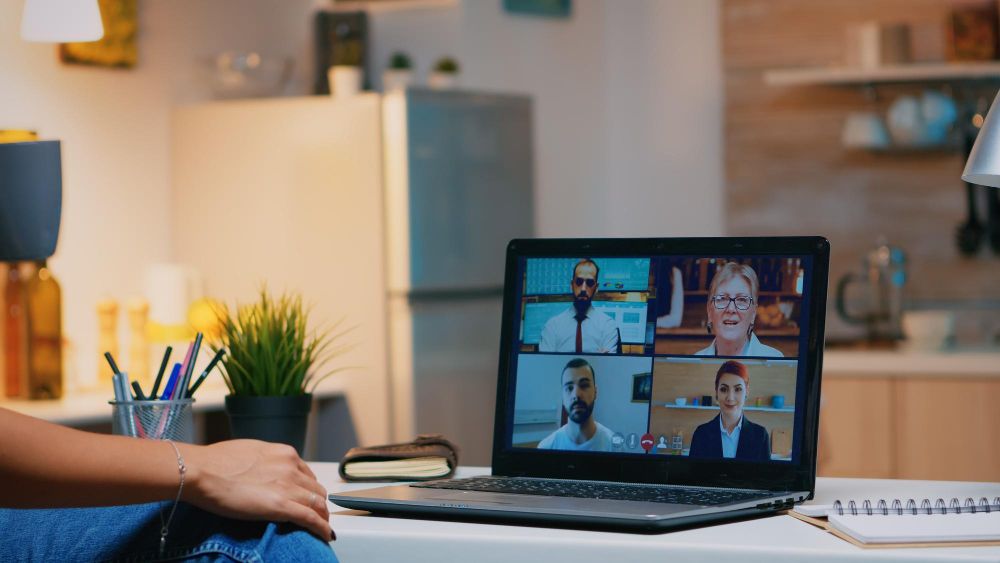
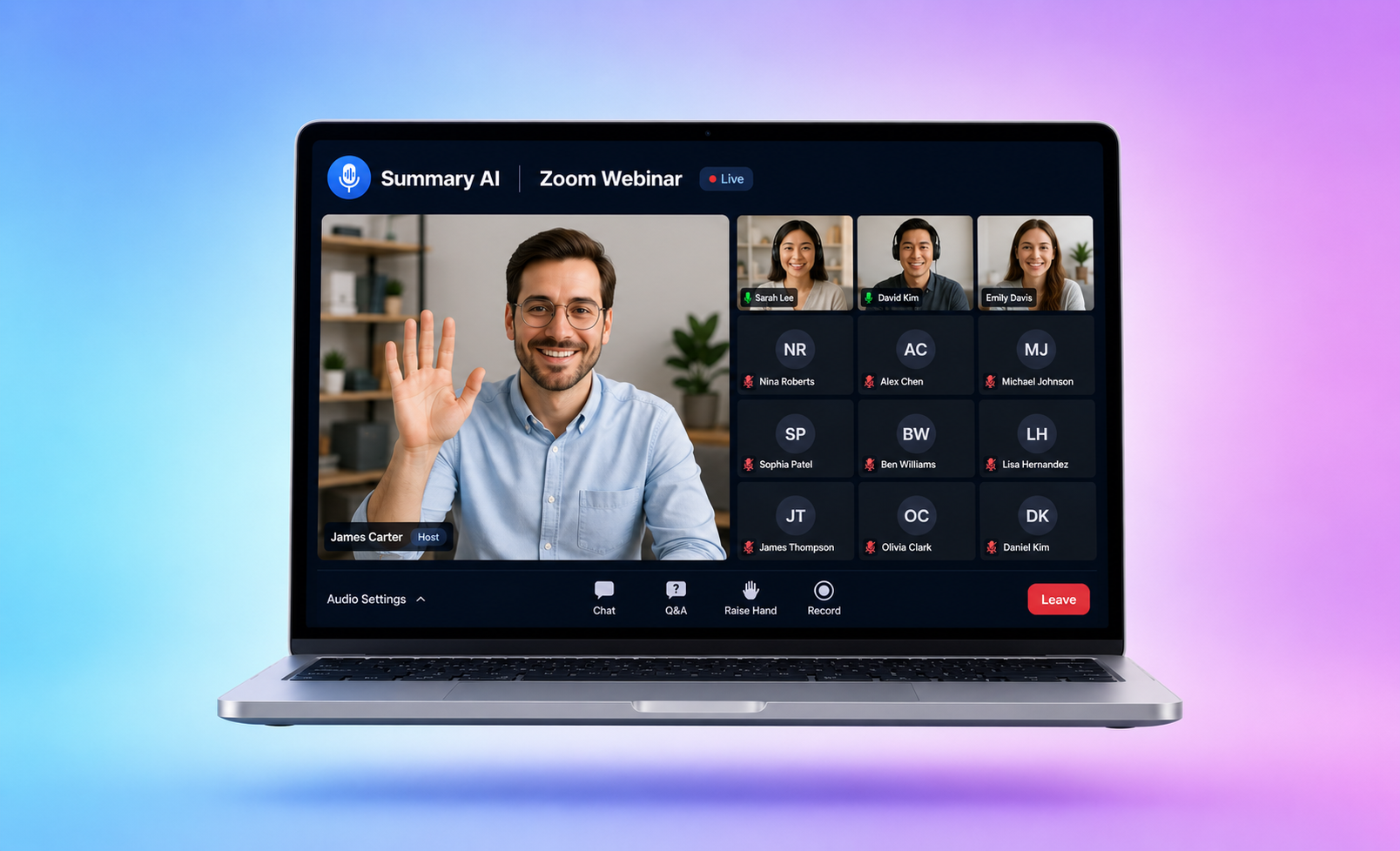
Unlike regular Zoom meetings, attendees in a webinar can not automatically share their video or audio. Instead, they see the presentation and interact using features like Q&A, chat, and polls.
Key features of a Zoom webinar include:
- Support for large audiences, from hundreds to thousands of attendees
- Specific role settings such as host, panelist, and attendee
- Registration and tracking tools
- Tools for engaging with the audience like polls and Q&A
- A layout focused on presentations
The simplest way to think about what a Zoom webinar is this: it is a way to hold online events where a few people present and many people watch.
How Does Zoom Webinar Work?
To understand how Zoom webinar works, you need to know the different roles you can set up and how you can manage interaction between the speakers and the attendees.
There are four main roles:
- Host: The person who schedules and controls the webinar
- Co-host: Helps manage participants, chat, and technical settings
- Panelist: A speaker who can share audio, video, and screen
- Attendee: A viewer who watches and interacts through the tools the host enables
The format is “one-to-many.” This means communication mainly comes from the host and panelists to the audience. Attendees can still interact by submitting questions, answering polls, or using the chat function, but they cannot interrupt the session.
This structure makes webinars an ideal channel for presentations, trainings, and other online events. In marketing for example, it can be a great way to generate leads through marketing automation post-webinar.

Webinar vs Zoom Meeting
A Zoom webinar is not the same as a Zoom meeting. Both use the same platform, but there are a few big differences between the two.
In a Zoom meeting:
- Everyone can turn on their camera
- Anyone can speak unless muted
- It is designed for working together
In a Zoom webinar:
- Only hosts and panelists can speak and share video
- Attendees are mostly viewers
- Interaction is only possible in limited ways
Join a Zoom meeting when you want to discuss something with your team and collaborate. Use a webinar when you want to present something in a clear and organized way for a larger audience.
How Much Does Zoom Webinar Cost?
Zoom Webinar is not included in the free version of Zoom. To use it, you need a Zoom Pro, Business, or Enterprise account and a webinar license as an add-on. Pricing depends on the number of attendees you want to be able to host. Plans usually start with smaller audiences, such as 500 participants, and go up from there.
How to Set Up a Zoom Webinar
Now that you know how Zoom webinars work, lets look at how to set one up, starting with what you need before starting the process.
Before You Start
Before you learn how to set up a Zoom webinar, make sure you are fully prepared.
You will need:
- An active Zoom account with a webinar license
- A clear topic and goal for your webinar
- A defined target audience
- Basic content such as slides or talking points
Planning is important. A well-prepared webinar is much more likely to be a success than one created at the last minute.
How to Create a Zoom Webinar
The process of creating a Zoom webinar is quite straightforward.
- Log in to your Zoom account
- Navigate to the “Webinars” section
- Click “Schedule a Webinar”
- Add your webinar title and description
- Set the date and time
Configure settings like registration, Q&A, and recording
Take time to write a clear title and description. This helps attract the right audience and improves registration rates.
How to Schedule a Zoom Webinar
Scheduling is part of the setup process and helps define how your webinar will run.
- Choose a date and time that fits your audience
- Set the duration (you can go longer if needed)
- Select the correct timezone
- Decide if the webinar will repeat
A useful tip is to schedule your webinar at least one to two weeks in advance so you have time to promote it properly.
How to Create a Webinar Sign-Up Link on Zoom
Setting up registration is one of the most important steps when creating a webinar. It allows you to collect attendee information and manage access to the webinar more effectively.
- Turn on registration in your webinar settings.
- Choose what information you want to collect from attendees.
- Decide whether registrations are approved automatically or manually.
Collecting the right data helps you better understand your audience and follow up after the event.
Create a Zoom Webinar Registration Link
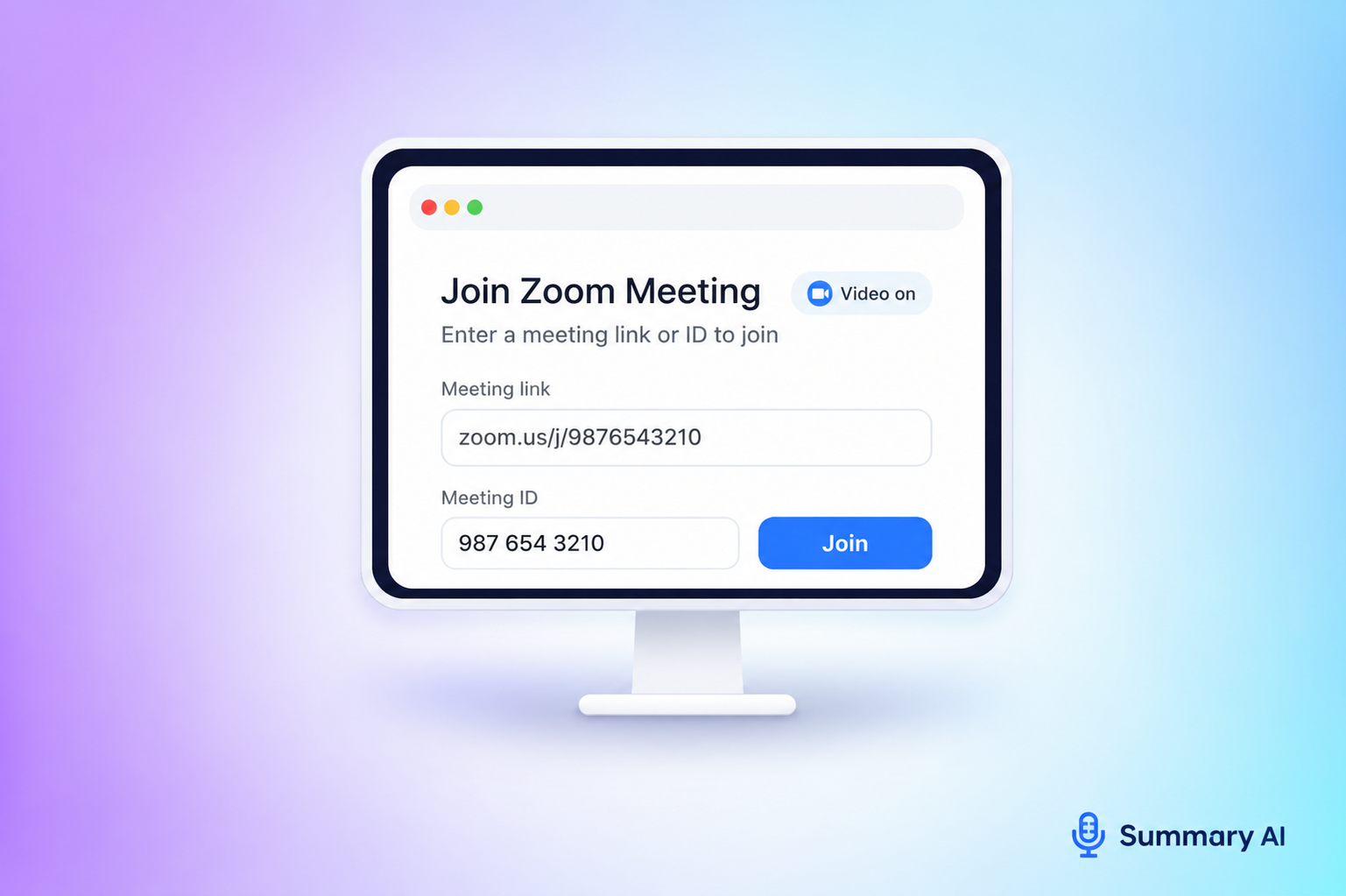
Once registration is enabled, Zoom automatically generates a dedicated sign-up page for your webinar.
- You’ll receive a unique registration link.
- Share it through email campaigns, landing pages, or social media.
- Customize the page with your branding and messaging.
This link is what you’ll use to drive sign-ups and manage attendees.
Are Zoom Webinar Links Unique?
Zoom webinar links are unique by design, which helps keep your event secure and organized.
- Each attendee receives a personal join link after registering.
- These links should not be shared with others.
- Unique links allow you to track attendance and prevent unauthorized access to the webinar.
Using individual links gives you better control over who joins your webinar and improves overall security.
How to Add Panelists to a Zoom Webinar
Adding panelists early helps everything run more smoothly and gives speakers time to prepare.
- Enter panelist email addresses when setting up the webinar.
- Zoom will send them a special invitation.
- Each panelist receives a unique link to join as a speaker.
It’s important to make sure panelists understand their role and are ready ahead of time.
How to Add a Panelist After Scheduling
If your plans change, you can update your panelist list at any time.
- Go to your webinar settings.
- Add the new panelist’s email address.
- Resend the invitation.
This flexibility makes it easy to adjust your speaker lineup without creating a new webinar.
Can a Panelist Start a Zoom Webinar?
Panelists can participate in the webinar, but they cannot start it.
- Only the host or an alternative host can begin the session.
- Panelists can present and speak, but they don’t control the webinar.
If needed, you can assign an alternative host to make sure the webinar starts on time.
How to Host a Webinar on Zoom
Thorough preparation is the key to hosting a good Zoom webinar. Taking time to set everything up properly can help you avoid issues once you go live.
- Test your microphone and camera.
- Review your slides and timing.
- Run a rehearsal with your panelists.
- Check your internet connection and have a backup plan.
Even a short rehearsal can help you catch problems before they affect your audience.
Starting the Webinar
When it’s time for the webinar to go live, focus on creating a smooth start.
- Click “Start Webinar” from your dashboard.
- Admit panelists and confirm their audio and video.
- Begin with a clear introduction and agenda.
First impressions matter, and a strong opening sets the tone for the rest of the session.
Managing Audience Engagement
Keeping your audience engaged throughout the webinar is essential for a good experience.
- Use Q&A to answer questions during or after the session.
- Launch polls to keep attendees involved.
- Use chat when necessary.
Active engagement helps reduce drop-offs and makes your webinar more memorable.
Attendees during webinars
In a Zoom webinar, attendees have a limited role.
- Attendees are not visible. Only hosts and panelists appear on the screen.
- Cameras are off, and attendees cannot turn them on unless promoted to panelist.
- Attendees are muted and cannot unmute themselves.
- Attendees cannot see each other.
- Attendees can use Q&A and chat. Hosts can promote them to panelists if needed.
Advanced Zoom Webinar Features
Advanced Zoom webinar features help you do more than just share your screen and talk. They give you extra ways to manage your event, involve your audience, and see what worked after it is over.
Some helpful advanced features are:
- Breakout rooms, which let you divide people into smaller groups if your plan supports this.
- Polls, which let you ask simple questions during the webinar and see what people think.
- Surveys, which you can send after the webinar to get feedback.
- Branding options, which let you add your logo and custom text to the registration page and emails.
- Reports, which show who registered, who joined, and how long they stayed.
When you use these features, your webinar is easier to run, your audience can take part in more ways, and you get clear information that helps you plan better webinars in the future.

Common Mistakes and Best Practices
Many webinar issues come from simple setup or planning mistakes that are easy to avoid.
- A confusing registration setup can reduce sign-ups or cause drop-offs.
- Skipping audio and video checks can lead to technical issues during the session.
- Panelists who are not briefed in advance may slow down the flow of the webinar.
- Not using engagement tools can make the session feel one-sided.
- Sharing incorrect or incomplete links can prevent attendees from joining.
- To run a more effective webinar, focus on a few core best practices:
- Create a clear and simple registration page with the right information.
- Assign co-hosts to manage chat, Q&A, and technical issues.
- Use polls and questions throughout to keep attendees involved.
- Plan a follow-up with recordings, summaries, or additional resources.
Being prepared and testing evrything helps ensure your webinars run smoothly and deliver better results to your audience.
Take better notes with Summary AI
A Zoom webinar is a great tool for presenting to large audiences in a professional way. Knowing how to set up a Zoom webinar, manage panelists, and guide attendee interaction helps you deliver smooth and engaging events. With enough preparation and a good strategy, your webinars will take you to a new level.
If you host frequent webinars or meetings, Summary AI can help you stay organized. It records your Zoom meetings, generates accurate transcripts, and creates clear summaries with key points and action items, so you can focus on the call instead of taking notes.