



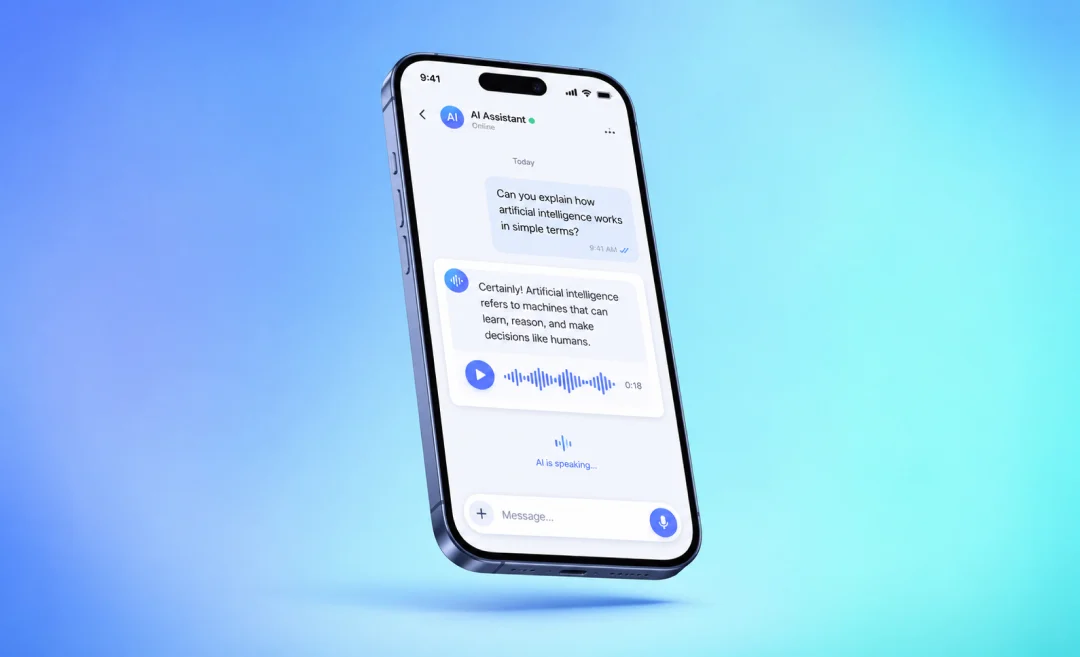



Sending a voice text is a really convenient way to communicate. A voice text is a short audio message you can send instead of typing. You tap a microphone or audio icon, record your voice, and send it so the other person can listen inside their messaging app.
This guide explains how to send a voice text on iPhone, Android, and WhatsApp, and how to use them properly.
How to send a voice text on iPhone

On iPhone, you can send voice texts through the Messages app using the audio message feature.
The buttons can move slightly between iOS versions, but the steps you take are really simple: open a chat, tap the plus button, pick Audio, record, and send.
Sending voice texts on iPhone
The way you can send and receive audio messages in Messages is by tapping the plus button next to the text field, choosing Audio, speaking your message, and then sending it once you are happy with the recording. Apple also lets you play back a recording before you send it if you want to check how it sounds.
iPhone message transcription

Another useful feature that iPhone’s have is being able to transcribe your message. Note, however, that this feature is only available in certain languages. For other languages, you need another way to transcribe them.
If you handle a lot of conversations or more specifically, meetings in your day-to-day work, you should look into AI transcription.
Benefits of transcribing iPhone voice texts
It helps you by saving a lot of time you would otherwise spend taking notes or going through meeting recordings or transcriptions, trying to remember what it was you discussed in the meeting and what you agreed to.
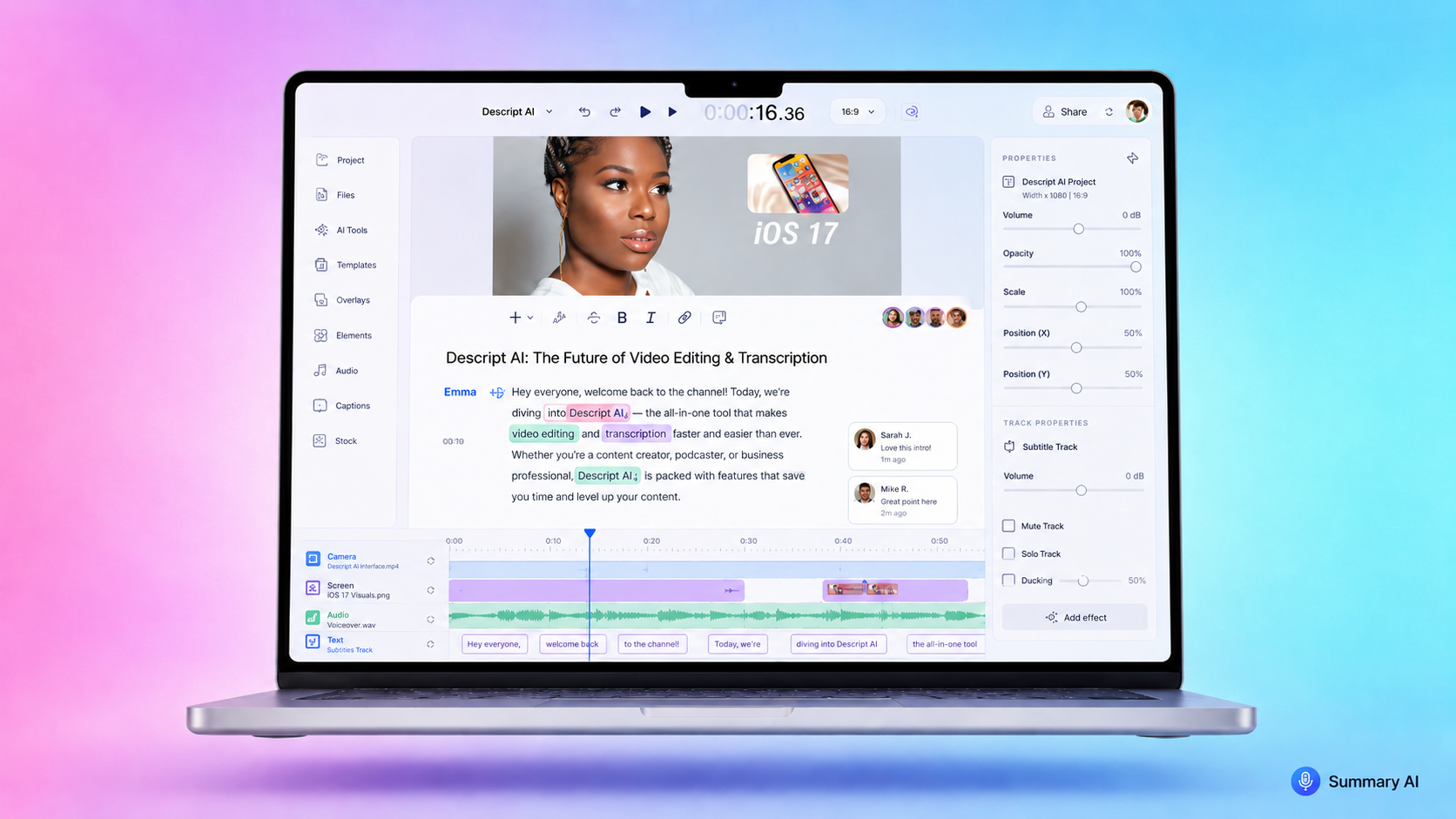
The best software for that is Summary AI, a meeting transcription tool that integrates with platforms like Google Meets and Zoom, joins your calls, and transcribes every word. The best part is that it then generates a meeting summary, complete with action items that you can even email to your colleagues. These summaries help you prioritize what to focus on next. A tool like Summary AI should be in everyone’s toolkit to save time on catching up with meetings.
Step‑by‑step: send a voice text in Messages
Here are the exact steps you have to take in order to send a voice text on your iPhone using the Messages app:
- Open the Messages app on your iPhone.
- Open an existing conversation or start a new one.
- Tap the plus icon next to the text field.
- Tap Audio in the menu that pops up.
- Speak your message into the microphone.
- Tap Stop when you are finished.
- Tap Play to listen if you want
- Tap the Send arrow to send the voice text.
Apple explains in its guide that audio messages can expire after a short time unless you keep them. You can tap Keep under an audio message you want to save, or change the default in the Settings menu. For that, go to Messages, tap Audio Messages, and toggle the Expire menu item so they never disappear.
How to send a voice text on Android

On Android, the exact steps depend on the phone you have and the messaging app you use, but the general idea stays the same. You open a chat, tap or hold a microphone icon, speak your message, and send it.
Step‑by‑step: send a voice text in Google Messages
- Open the Messages or Google Messages app on your Android phone.
- Open the conversation where you want to send a voice text, or start a new chat.
- If you do not see a microphone right away, tap the plus (+) or attachment icon near the text field to open more options.
- Tap and hold the microphone or audio icon.
- While holding, speak your message into the bottom of the phone.
- Release your finger to stop recording and send the message.
In some versions, you can slide your finger to cancel sending your voice message before you let go, or tap a send button after you listen.
You can also use the small microphone on the keyboard for voice typing if you want spoken words to turn into written text instead of an audio file.
How to send a voice text on WhatsApp
WhatsApp uses voice messages, which most people treat as voice texts inside the app. They are easy to send and work the same way on iPhone and Android.
According to WhatsApp’s own tutorials, you can send a voice message by holding the microphone button in a chat, speaking, and then letting go to send. You can also cancel a recording by sliding your finger to the side while you are still holding the button.
Step‑by‑step: send a voice text on WhatsApp
- Open WhatsApp on your phone.
- Tap the chat where you want to send a voice text.
- At the bottom of the screen, next to the text field, press and hold the microphone icon.
- While holding, speak your message clearly.
- Release your finger to send the message right away.
If you want to cancel while recording, slide your finger to the left before you release; this discards the recording instead of sending it.
WhatsApp voice texts are convenient for quick updates, but they can be hard to search later. For important conversations, you might want to follow up with a short text summary, or if they are important to save for late, move longer voice messages into a note.
Tips for better voice texts

While voice messages are a convenient way to text, if the person you are sending the message to can’t hear what you say, it defeats the purpose. Here are a few tips for avoiding classic voice message mistakes.
Choose a quiet spot
Try to move away from loud traffic, wind, or music before you record so your voice is clearly audible.
Stay close to the microphone
Hold the phone near your mouth, but not pressed against it, and speak at a normal pace.
Keep messages short
Short voice texts are easier to replay and understand. Send several short clips instead of one long monologue.
Follow up for important topics
For important messages, send a brief text summary after your voice message.
Learning how to text voice on iPhone, Android, and WhatsApp gives you a quick way to communicate when you are busy or on the move.
When you need to turn those spoken updates into lasting notes, you can lean on workflows that use software like Summary AI’s meeting transcription and audio-to-text tools so your important voice messages are easy to review, search, and share later.

