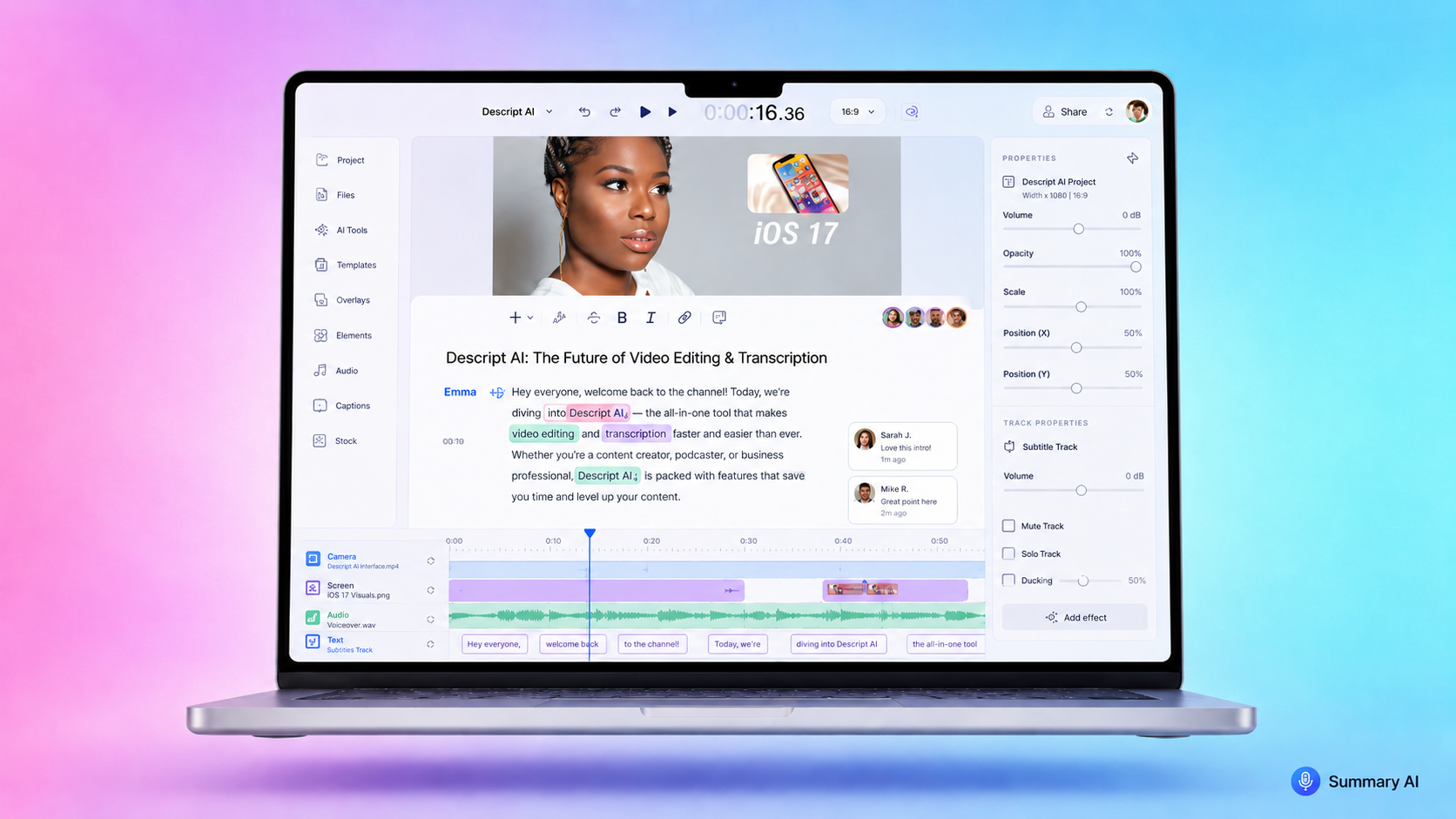


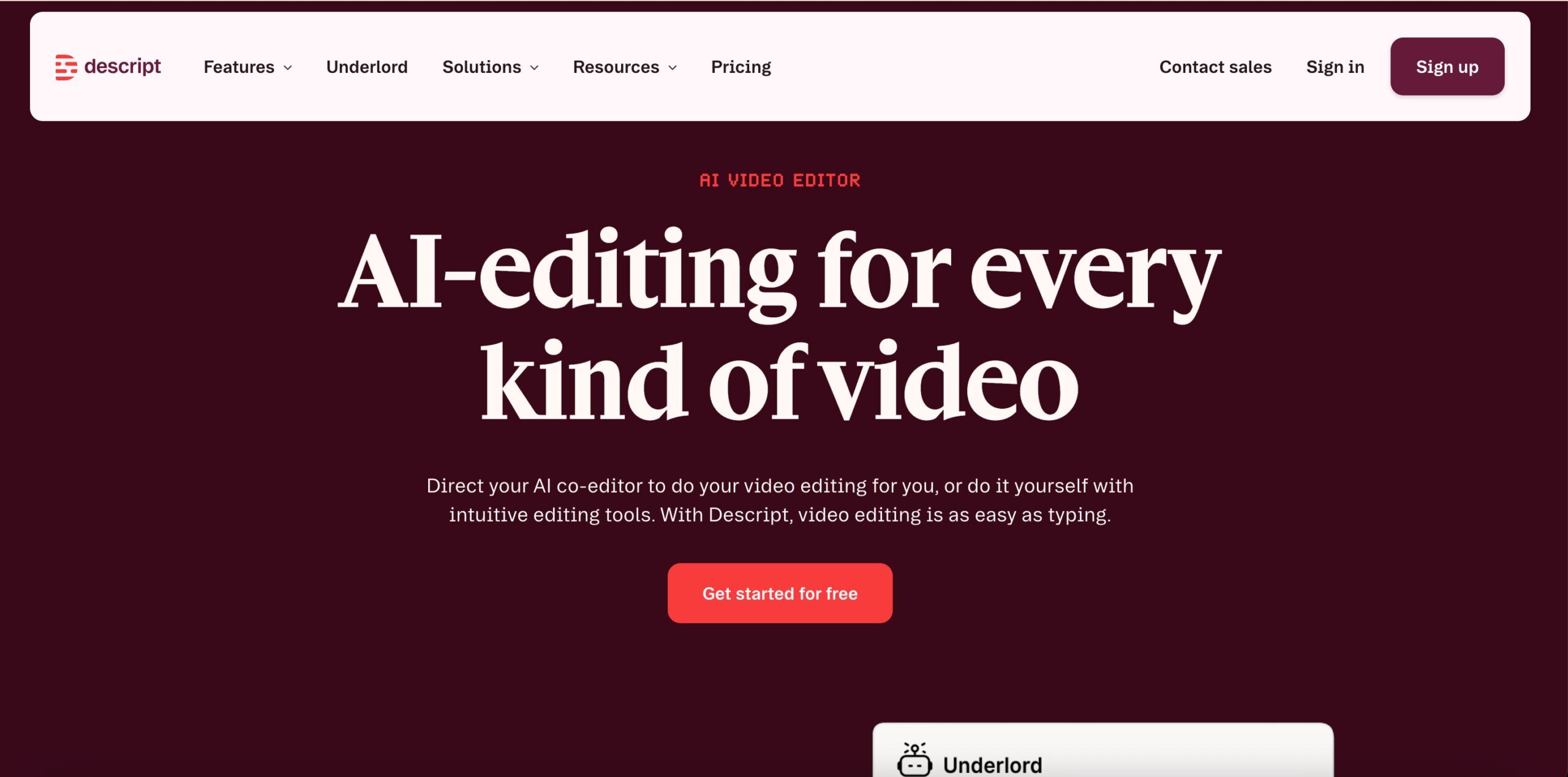
Descript is an audio and video editing tool that lets you edit recordings by editing a transcript. Instead of cutting clips only on a timeline, you can delete words, rearrange sentences, and clean up your content like you are editing a document.
This makes Descript useful for editing podcasts, interviews, talking-head videos, screen recordings, webinars, tutorials, and other spoken-word content. If most of your video or audio is based on people talking, Descript can make editing feel much easier.
It is not the best tool for every kind of video. If you create films, music videos, very visual ads, or projects with heavy color grading and motion graphics, a traditional video editor may still be better. But if your main problem is cutting long conversations, cleaning up speech, adding captions, and making short clips, Descript is one of the most useful tools to try.
The main idea behind a text-based editor like Descript is simple: Descript turns your recording into text, then lets you edit the recording by editing the text.
What is Descript?
Descript is an AI-powered text-based audio and video editor. It works with automatic transcription. When you upload or record audio or video, Descript creates a transcript and links the words in the transcript to the words in the video.
This transcript becomes the thing you actually edit in order to edit the video. If you delete a sentence in the transcript, Descript cuts that part from the audio or video. If you move a section of text, the video moves with it.
This is what makes Descript different from a normal editing workflow. You do not have to scrub through a timeline to edit speech. You can read the transcript, find the part you want to change, and edit it like text.
Descript can be used for all sorts of content like podcasts, interviews, YouTube videos, screen recordings, online courses, webinars, product demos, social clips, and internal training videos.
It also includes tools for captions, screen recording, AI voice, filler word removal, silence removal, multitrack editing, and creating short clips from long recordings as you would with a video trimmer.
How Descript works
Descript works by connecting your media file to a transcript. Once the transcript is ready, each word is tied to the matching part of the recording.
A normal workflow looks like this:
- You upload a video, podcast, or screen recording.
- Descript transcribes it.
- You edit the transcript to cut mistakes, remove repeatitive sections, or rearrange sections.
- After that, you can polish the audio, add captions, adjust the layout, and export the final file.
This makes video editing become more like editing a written script than working with a complicated timeline.
For example, you can delete a rambling answer by removing one paragraph. You can remove filler words like “um” and “uh” without listening and scrubbing the timeline for each one. You can search for a phrase and jump straight to that part of the recording.
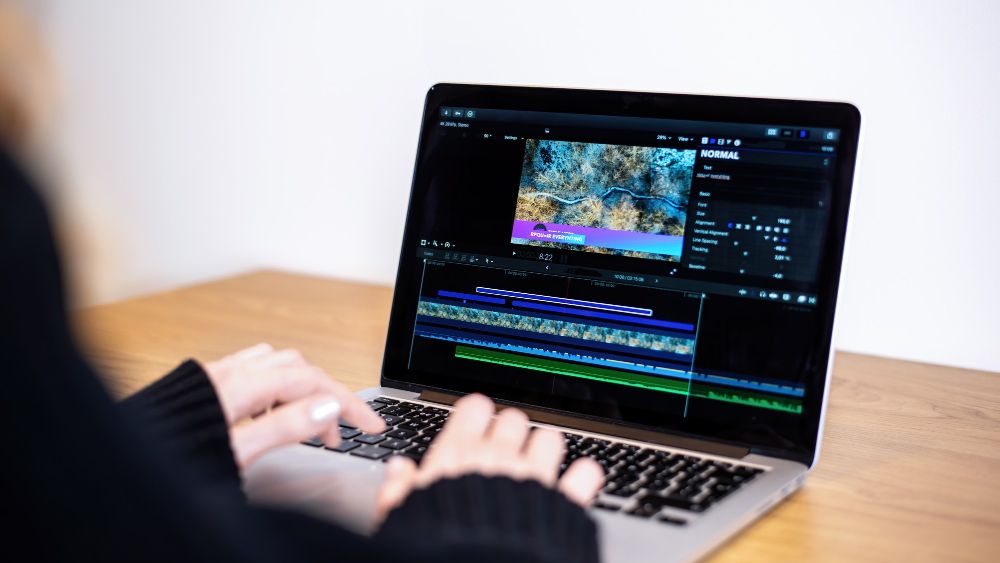
You still have access to a classic editing timeline when you need more control over your editing, but for many podcasts and talking-head videos, most of the rough cut editing work can happen in the transcript.
List of Descript features
Descript has a wide set of features for recording, editing, improving, and repurposing audio and video. Here are the main ones, explained in simple terms.
Video editing
Descript lets you edit video by editing the transcript, so you can cut, move, and polish clips without only relying on a traditional timeline.
Podcasting
Descript gives podcasters a workspace to record, transcribe, edit, clean up, and publish episodes from one place.
Screen recorder
Descript lets you record your screen, webcam, and microphone, which is useful for tutorials, demos, training videos, and walkthroughs.
Rooms
Rooms is Descript’s remote recording feature, made for recording podcasts, interviews, and videos with other people online.
Transcription
Descript automatically turns audio and video into editable text, which you can use for editing, captions, show notes, or repurposing content.
Captions and subtitles
Descript can create captions from your transcript, so you can add subtitles to videos or export subtitle files.
Text-based editing
Text-based editing lets you delete words, sentences, or paragraphs from the transcript and cut the matching audio or video at the same time.
Timeline editing
Descript also includes a timeline for more detailed edits, timing changes, audio levels, transitions, and visual adjustments.
Filler word removal
Descript can find and remove filler words like “um,” “uh,” and “like” to make speech sound cleaner and tighter.
Silence removal
Descript can trim long pauses and dead space so podcasts and videos move faster.
Remove retakes
Remove Retakes helps cut repeated attempts or false starts, which is useful when editing tutorials, scripts, or solo recordings.
Studio Sound
Studio Sound improves voice audio by reducing background noise and making speech sound clearer.
Eye Contact
Eye Contact uses AI to make it look like the speaker is looking at the camera, even if they were reading notes or looking slightly away.
Green Screen
Green Screen helps remove or change the background of a video without needing a physical green screen.
Automatic Multicam
Automatic Multicam helps switch between speakers or camera angles in multi-person recordings.
AI Speech
AI Speech lets you create realistic voice audio from text, using stock AI voices or a custom voice clone.
Text-to-speech
Text-to-speech turns written text into spoken audio, which can be useful for narration, voiceovers, and quick audio fixes.
Regenerate Speech
Regenerate Speech helps fix or replace small parts of recorded speech without recording the line again.
Video Regenerate
Video Regenerate helps repair or improve parts of a video using AI, especially when you need to fix rough sections.
AI voice cloning
AI voice cloning lets you create a version of your own voice for small edits, fixes, or added lines.
Create Clips
Create Clips helps turn long videos or podcasts into short clips for TikTok, Instagram Reels, YouTube Shorts, LinkedIn, and other platforms.
YouTube descriptions
Descript can help write YouTube descriptions, making it easier to publish videos with supporting copy.
Show notes
Descript can turn a podcast or video transcript into show notes, which helps with publishing and repurposing.
Translation
Descript can translate video content, which is useful if you want to reach viewers in other languages.
AI avatars
AI avatars let you create video content with a generated presenter instead of recording yourself on camera.
Generate media
Generate media lets you create video or image assets from a prompt, which can help add visuals to a project.
Brand Studio
Brand Studio helps teams keep videos consistent with approved colors, fonts, layouts, and brand styles.
Templates
Templates give you ready-made layouts and workflows so you can create videos faster without starting from scratch.
Underlord
Underlord is Descript’s AI editing assistant, built to help with editing, cleanup, clips, scripts, visuals, and other video tasks.
API and MCP
Descript’s API and MCP options let developers and AI tools work with Descript.

Descript’s best features
Out of the many tools Descript has to offer listed above, these few features matter more than the rest. These are the ones that make it most useful for creators who work with spoken content and the ones that work the best.
The main Descript features are:
- Text-based audio and video editing
- Automatic transcription
- Captions and subtitle exports
- Filler word removal
- Silence removal
- AI voice tools
- Screen recording
- Multitrack editing
- Social clip creation
- AI editing assistant features
These tools work together in one workspace. That is the main benefit. You do not need one app for transcription, another for editing, another for subtitles, and another for clips.
Text-based editing
Text-based editing is the main reason people use Descript. It changes the editing workflow and for many people, makes working with and cutting speech much easier. It speeds up the time it takes to get to a rough cut.
Instead of scrubbing through a waveform or timeline, you read the transcript:
- If you read a mistake, you delete it.
- Is a section in the wrong place? You move it.
- Looking for mention of specific topic? You search for the word.
This is useful for long recordings because it is much faster to scan text than to listen through a full video file.
Text-based editing is especially useful for cutting unnecessary info, removing repeated info, fixing awkward starts, rearranging sections, finding quotes and memorable sentences, creating rough cuts, and editing interviews.
Automatic transcription and captions
Descript automatically transcribes your audio or video. The transcript is used for editing, but you can also use it for other things.
You can export the transcript as text. You can use it for show notes, blog drafts, internal records, or content repurposing. You can also turn the transcript into captions for social media or use it to create subtitles.
This makes Descript useful for anyone learning how to transcribe audio to text without using a separate transcription service. You can upload an audio file, wait for the transcript, clean it up, and use the text in your workflow for creating content.
It can also help if you need to convert mp3 to text for a podcast episode. Instead of sending the file to one tool and editing it somewhere else, you can handle the transcript and edit together.
Key benefits include:
- Fast, automatic transcription for audio and video files
- Easy export options for text, captions, and subtitles
- Built-in editing tied directly to the transcript
- Useful for repurposing content across multiple formats
Descript’s transcription is useful, but it is not perfect. Accuracy can depend on the usual factors like audio quality, accents, background noise, and overlapping speakers. You may still need to make a few corrections to the transcription.
Filler word and silence removal
Descript can detect and remove filler words and long pauses automatically. This is useful for cleaning up spoken content without making every small cut by hand.
This can make podcasts and videos feel tighter, but you should still use this feature carefully. Removing every filler word can make speech sound too sharp or unnatural. Remove the parts that hurt clarity and pacing, but make sure you don’t make everyone sound robotic.
AI voice and overdub
Descript includes AI voice tools that let you create audio from typed text, using either stock AI voices or a custom voice clone.
This can help when you need to fix a small mistake without recording again. For example, you can correct a word here and there, add a short missing line, or smooth over a rough edit.
For best results, use voice cloning with clear, high-quality recordings and keep edits short so the generated audio blends naturally with the original.
How to use Descript to edit a video
Descript is easiest to understand through the workflow. You start with a recording and end with a finished video, audio file, transcript, or clip.
Here is a simple Descript editing process:
- Import or record your media. Upload a video, podcast, Zoom recording, audio file, or screen recording. You can also record directly in Descript.
- Let Descript transcribe the file. Once the transcript is ready, check the speaker names and correct any obvious mistakes.
- Edit the transcript. Delete tangents, repeated phrases, false starts, and parts you do not want. The media updates as you edit the text.Use cleanup tools. Remove filler words, trim long silences, and apply audio cleanup where needed.
- Fine-tune the timeline. Use the timeline for more precise edits, audio levels, transitions, or layout changes.
- Add captions and visuals. Create captions, add simple titles, adjust the frame, or add branding.
- Export the final version. Export your video, podcast audio, transcript, captions, or short clips.
This workflow is the reason Descript feels different. Most of the editing happens while reading, not while dragging clips around.
Who Descript is best for
Descript is best for people who create spoken content. It’s a good fit for podcasters, online educators, and marketers. It suits teams making tutorials and interviews. It’s also easy to learn for non-editors since it works so much like editing text.
Use Descript if you edit podcasts or talking-head videos or need transcripts, captions, and quick clips.
Who should not use Descript?
Descript is not ideal for advanced video projects. It’s weaker for editing video that does not rely on talking. Heavy effects work, animation, or detailed color work is also best left to other professional video editing software.
Tools like Premiere Pro, Final Cut Pro, or DaVinci Resolve are better for more complex editing and the y give you more control over the visuals.
Descript can still help with transcription or rough cuts, but it shouldn’t replace a full editor if visuals are your main focus.
Pricing
Descript has a free plan and paid plans. Prices can change, so check the official site for the latest details.
Current plans when billed monthly:
- Free: $0/month
- Hobbyist: $24/month
- Creator: $35/month
- Business: $65/month per user
- Enterprise: Custom pricing
Annual billing gives you a discount.
The free plan is good for testing the platform. Paid plans are better if you create content regularly.
Pros and cons of Descript
Descript is great for editing spoken content, but it has some limits.
Pros:
- Easy text-based editing
- Transcription and editing in one place
- Built-in captions
- Removes filler words and pauses
- Includes screen recording
- Good for podcasts and interviews
- Easy to create short clips
Cons:
- Not good for advanced video editing
- Limited visual effects and color tools
- Paid plans can be expensive
- Transcripts may need fixing
- AI voice is not always perfect
- May take time to learn if you use timeline editors
- Works best with clear audio
In short, Descript is fast and simple, but not as trustworthy as professional video editors.

Transcribe your meetings with Summary AI
Descript is a great choice if you don’t want to spend so much time editing and you create podcasts, interviews, tutorials, webinars, or short social clips from longer recordings. Its text-based editing makes it much easier to cut spoken content, clean up mistakes, add captions, and turn one recording into multiple pieces of content.
For publishing audio and video, Descript can save a lot of editing time. But if your main goal is to capture meetings, summarize discussions, and track action items, an AI note taker like Summary AI is the better fit.
Try Summary AI to turn your Zoom, Google Meet, and Teams calls into clear transcripts, summaries, key points, and next steps, so every meeting becomes easier to review, share, and act on.