
Learning how to set up and join Google Meet is useful for all sorts of situations. People use the platform for work, school, interviews, online classes, client calls, and even for keeping up with friends and family. Google Meet is easy to use once you know how to get started.
You can use Google Meet on a computer, phone, or tablet. You can create a meeting link, schedule a meeting for later, or join a meeting someone else sent you or added to your Google Calendar.
In this guide, you’ll learn how to set up and join Google Meet step by step. You’ll also learn how to create a meeting link, join from a phone, fix common problems, and you’ll get answers to the most common Google Meet questions.
What is Google Meet
Google Meet is Google’s video meeting tool. It lets people create meetings online using video and audio and has other features as well for sharing your screen and more.
You can use Google Meet for everything from holding team meetings and having video interviews to joining online classes and talking to your grandmother during summer vacation.
Google Meet works with other popular Google products, such as Gmail and Google Calendar. This makes it really easy to create a meeting, add guests, and send them the meeting link.
You can also join a Google Meet with a meeting link or meeting code, which we will look at in more detail. If you are invited to a meeting, you usually only need to click the link and choose Join. If you get stuck, don’t worry! We’ll cover all of this below.
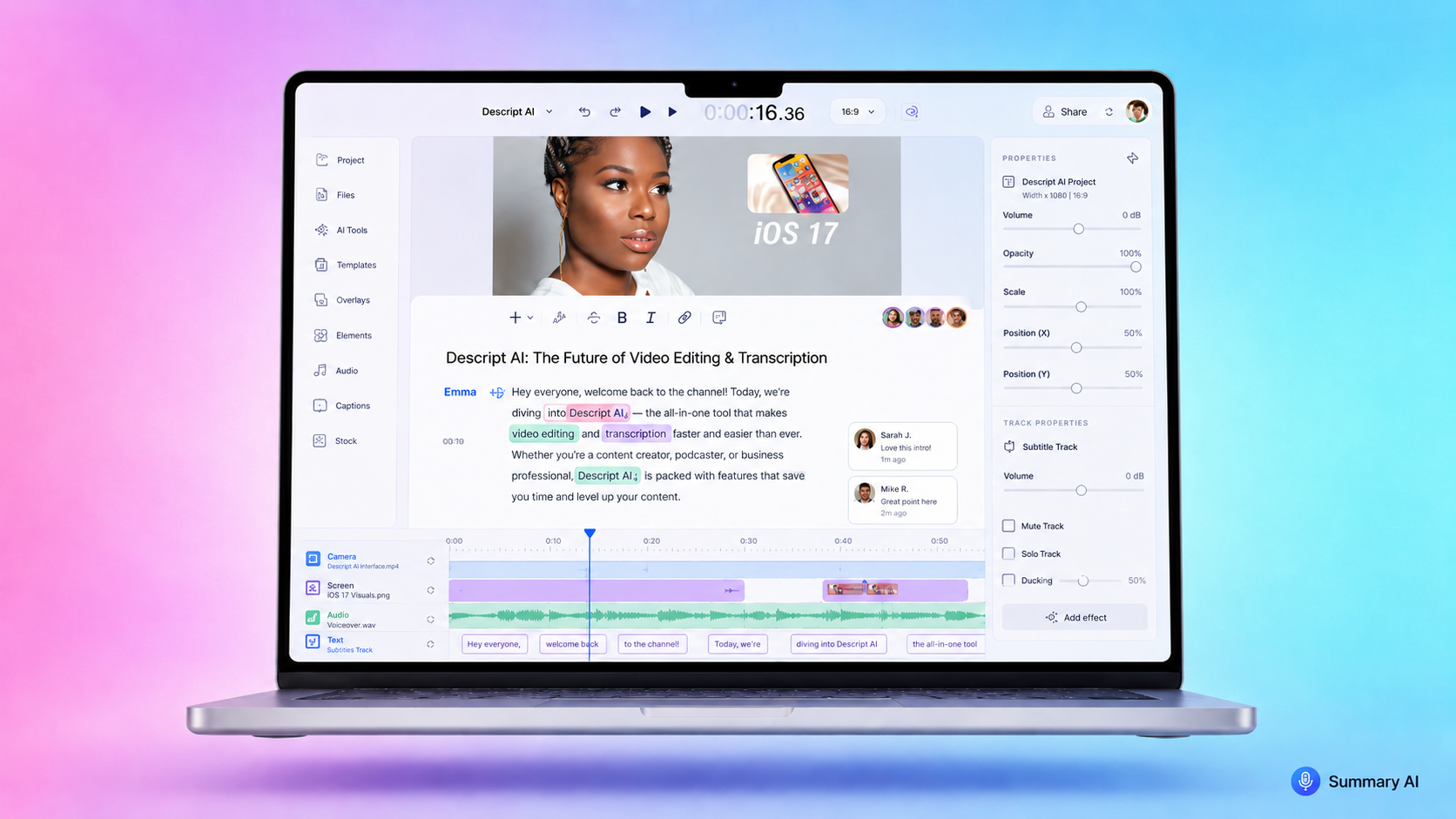
If you have many meetings each week, Google Meet Recording tools like Summary AI can be a real life-saver. This is a productivity tool you can invite to your calls to help you take meeting notes. It records everything using AI transcription and creates the perfect summary of your meeting with action items that you can share with your team.
What You Need Before Using Google Meet
Before we get into how you set up and join Google Meet, make sure you have the basics ready.
You need:
- A computer, phone, or tablet
- A stable internet connection
- A camera
- A microphone
- Speakers or headphones
- A Google Account
If you are only joining a meeting, you do not always need a Google Account. In most cases, you can join as a guest. It depends on how the organizer set up the meeting.
You also don’t necessarily need a microphone or a camera. If you join without either of these requirements, you will still be able to hear others, but you won’t be able to speak and they won’t see you, of course.
If you want to host meetings, schedule meetings, or create Google Meet links, it is best to sign in with a Google Account.
How to Set Up Google Meet on a Computer
You do not need to install anything to use Google Meet on a computer, because it works in a web browser.
To set up Google Meet on a computer:
- Open your browser.
- Go to meet.google.com.
- Sign in with your Google Account.
- Allow camera and microphone access if your browser requests it.
- Check that your camera and microphone are working.
Once you do this, Google Meet is ready to use.
If your camera or microphone does not work, check your browser permissions. You may need to allow Google Meet to use your camera and mic in Settings. You can also use headphones to avoid echo, especially if you are in a noisy room.
How to Set Up Google Meet on a Phone
If you are using a phone or tablet, the easiest way is to use the Google Meet app.
To set up Google Meet on your phone:
- Download the Google Meet app from the App Store or Google Play.
- Open the app.
- Sign in with your Google Account.
- Allow camera and microphone access.
- Check that your sound and video work.
After setup, you can create meetings or join meetings from the app on your phone.
You may also open a Google Meet link from Gmail, Calendar, Messages, or another app. Your phone will usually open the meeting in the Google Meet app or request permission to do so.
How to Create a Google Meet Meeting
There are a few simple ways to create a Google Meet meeting. The option you choose depends on whether you want to meet now or later.
Create a Meeting from Google Meet
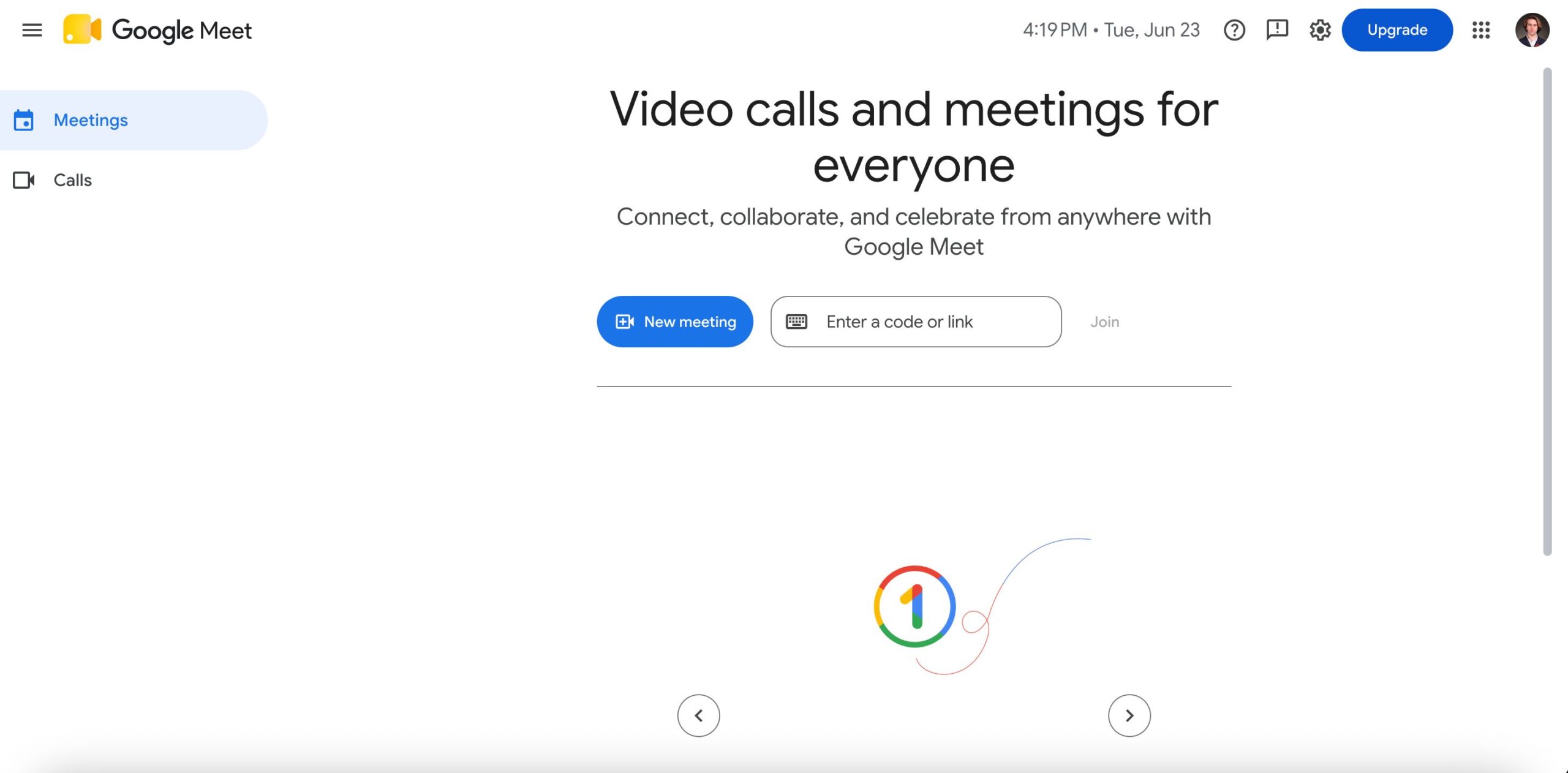
To create a meeting from Google Meet:
- Go to meet.google.com.
- Click New Meeting.
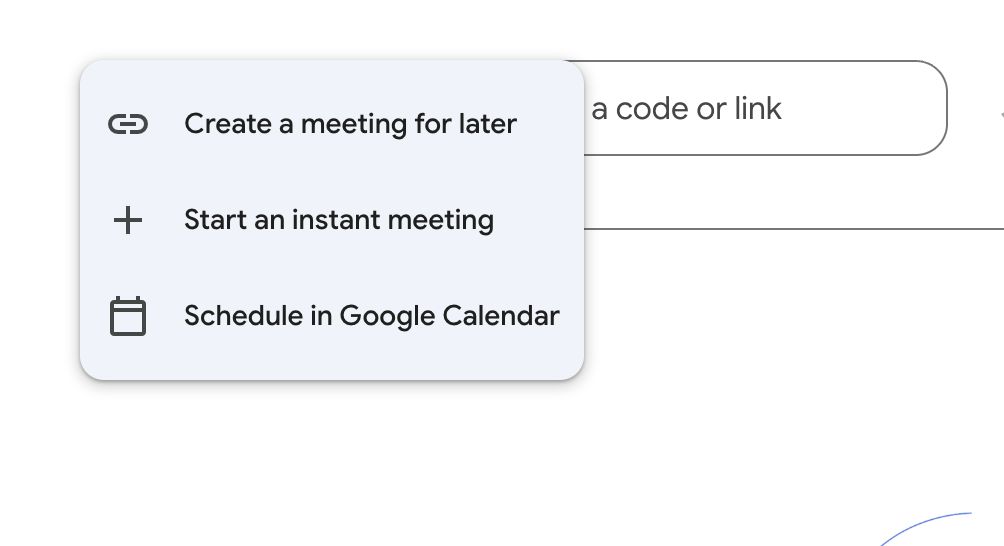
- Choose one of the options.
You may see options like:
- Create a meeting for later
- Start an instant meeting
- Schedule in Google Calendar
Choose Create a meeting for later if you only want the meeting link. You can copy the link and send it to people.
Choose Start an instant meeting if you want to begin the call right away.
Choose Schedule in Google Calendar if the meeting should happen at a set date and time.
Need help with your calendar? Read our guide on how to create a new Google Calendar to get started! If you already have one you can choose to share your Google Calendar with someone. Adding new meetings is as easy as importing an ICS file to your Google Calendar.
Create a Meeting from Google Calendar
Google Calendar is best when you want to plan a meeting in advance.
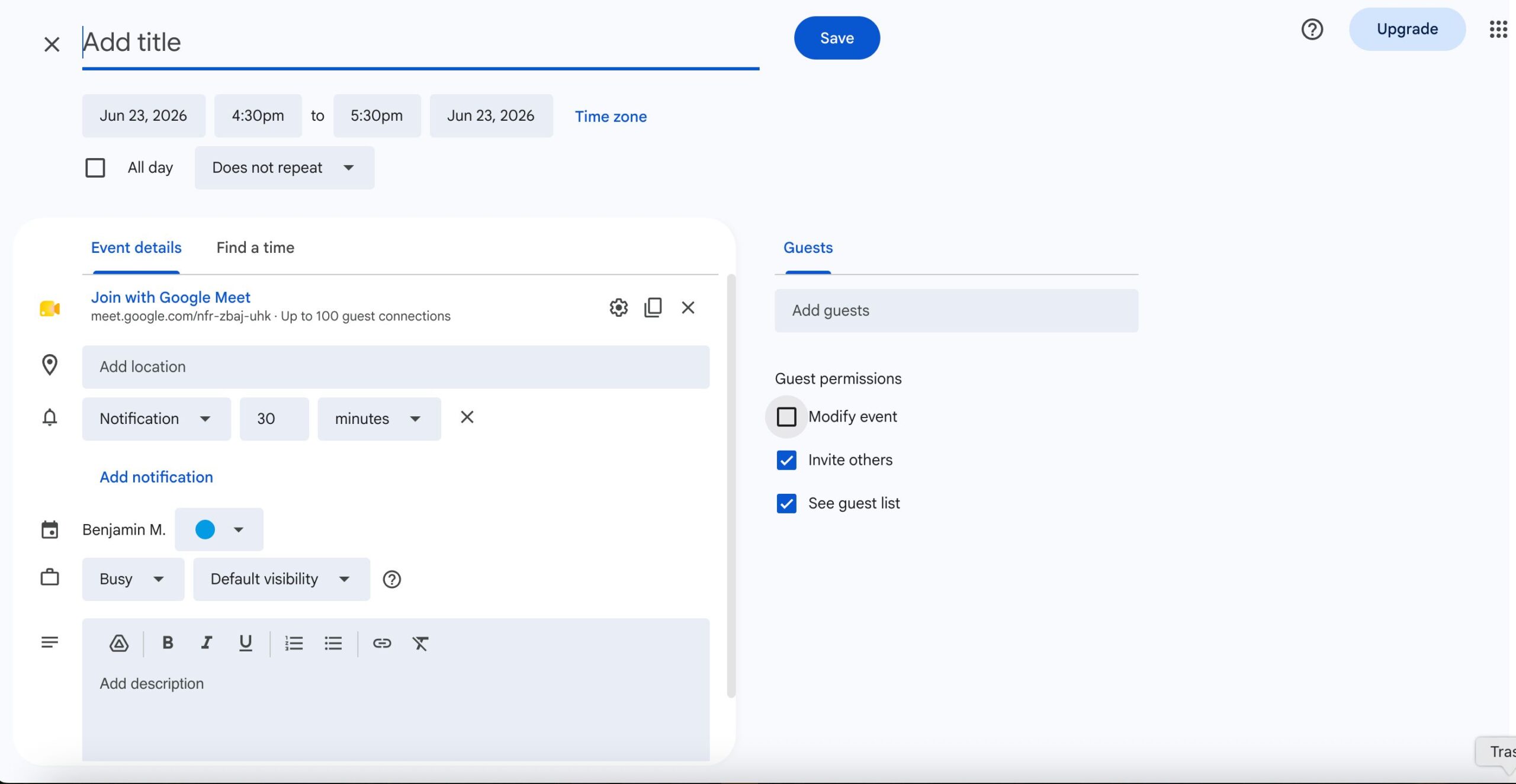
To create a Google Meet from Google Calendar:
- Open Google Calendar.
- Click Create.
- Add the meeting title.
- Choose the date and time.
- Add guests.
- Click Add Google Meet video conferencing if it is not added already.
- Click Save.
- Send the invitation.
This creates a calendar event with a Google Meet link. Guests can join from the calendar invite. This is one of the best ways to set up and join Google Meet because the link, time, and guest list are all in one place.
Create a Meeting from Gmail
You can also start a meeting from Gmail that can send an invite to the inbox of your invitees.
To create a meeting from Gmail:
- Open Gmail.
- Find the Meet section.
- Click New meeting.
Copy the meeting link or send the invite. Join the meeting when you are ready. This is useful when you are already in your inbox and need to start a quick call.
How to Join Google Meet
Joining Google Meet is usually simple. You can join with a link, a meeting code, or a calendar invite.
Join with a Meeting Link
If someone sends you a Google Meet link:
- Click the meeting link.
- Choose the Google Account you want to use, if asked.
- Allow camera and microphone access, if asked.
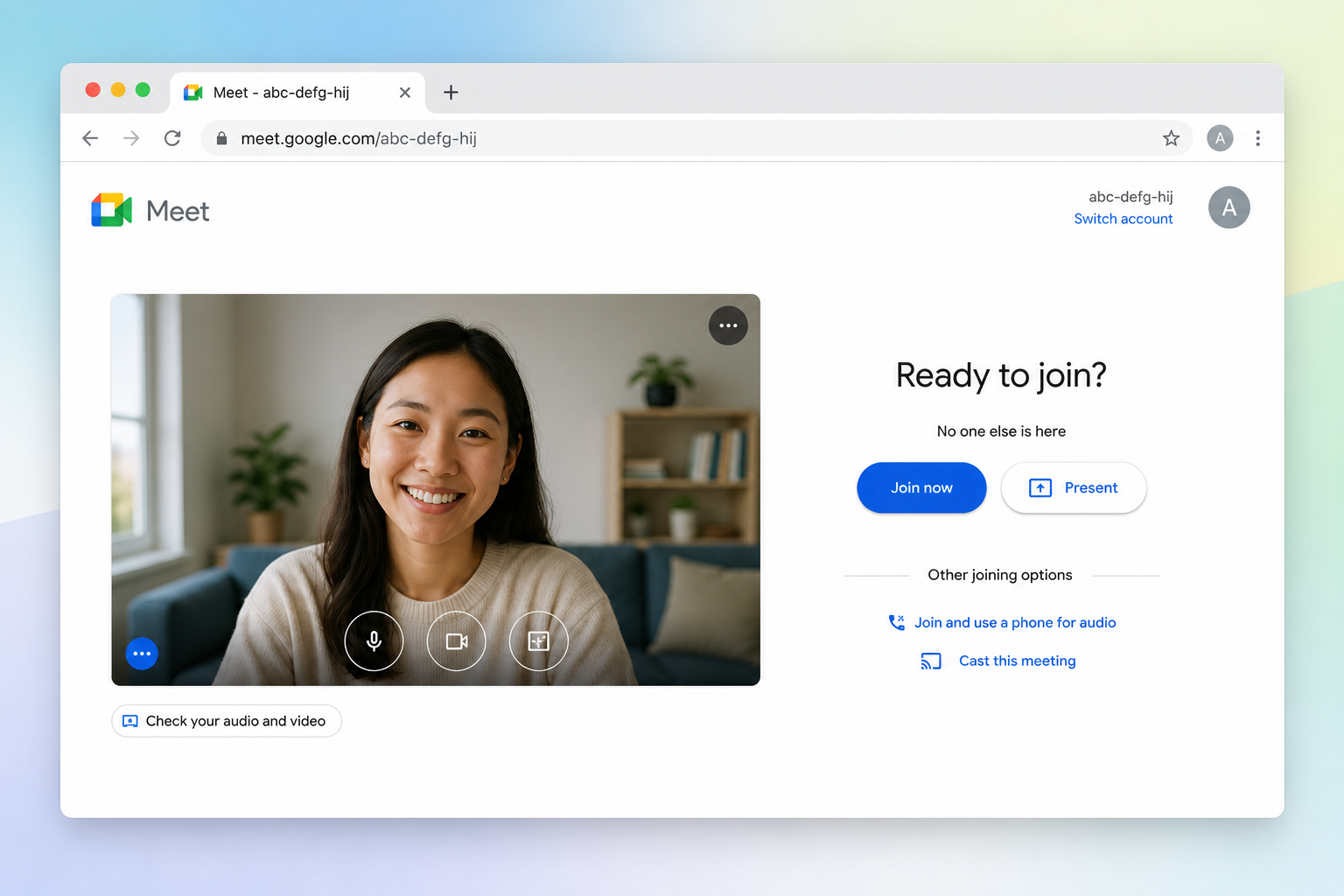
- Check your camera and microphone.
- Click Join now or Ask to join.
If you are invited to the meeting, you may enter right away. If you were not invited, you may need to ask to join and wait for someone to let you in.
Join with a Meeting Code
A Google Meet code is the last part of the meeting link. It usually looks like a group of letters separated by hyphens.
To join with a code:
- Go to meet.google.com.
- Enter the meeting code.
- Click Join.
- Check your camera and microphone.
- Click Join now or Ask to join.
This is helpful if someone gives you a code instead of a full link.
Join from Google Calendar
If the meeting is on your calendar:
- Open Google Calendar.
- Click the event.
- Click Join with Google Meet.
- Check your camera and microphone.
- Click Join now.
This is the easiest option for work meetings scheduled in advance because the invite already has the meeting link.
Join from a Phone
To join Google Meet from your phone:
- Open the meeting link or Google Calendar event.
- Tap Join with Google Meet.
- Allow camera and microphone access.
- Check your audio and video.
- Tap Join now or Ask to join.
If the link does not open, make sure the Google Meet app is installed and updated.
Check Your Cam and Mic Before Joining
Before you join a meeting, take a moment to check your setup. This helps you avoid problems once the meeting starts.
On the preview screen, check:
- Your camera
- Your microphone
- Your speakers or headphones
- Your background
- Your lighting
- Your display name
You can turn your camera off before joining if you do not want to appear on video right away. You can also mute your microphone before entering. Doing this quick pre-join check is a good habit for work, interviews, and calls with clients.
Record Google Meet calls with Summary AI
Learning how to set up and join Google Meet makes online meetings easier, whether you are hosting a call or joining one from a link. Once you know how to create a meeting, share the link, check your camera, and join from any device, the process becomes really simple. A Google Meet Recorder like Summary AI can help after the call by turning your meetings into clear summaries with key points and next steps.