



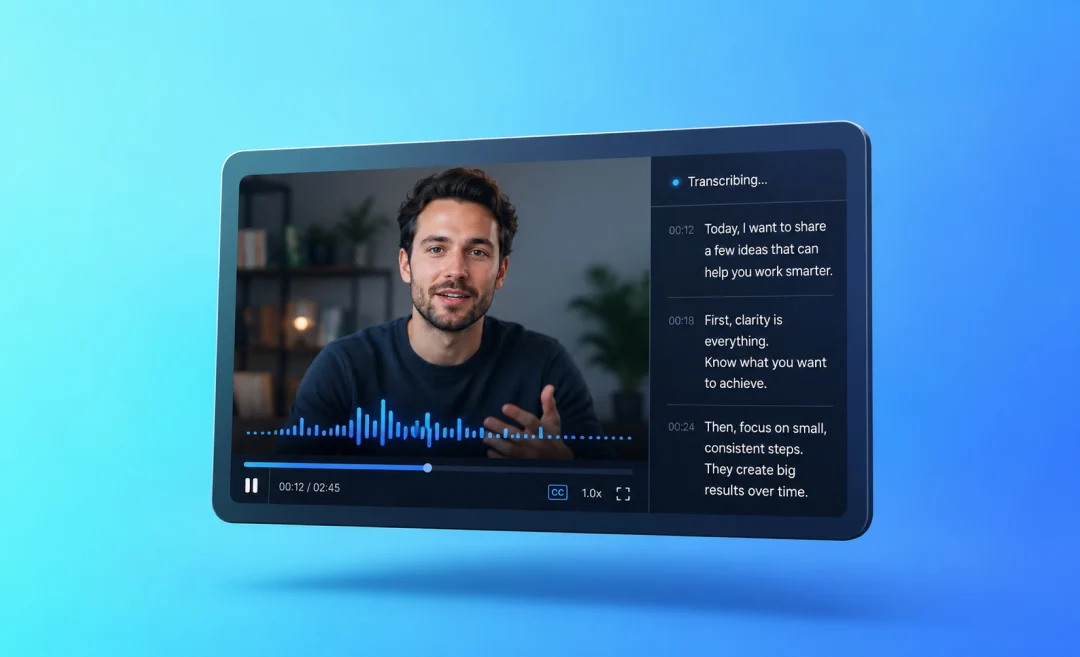


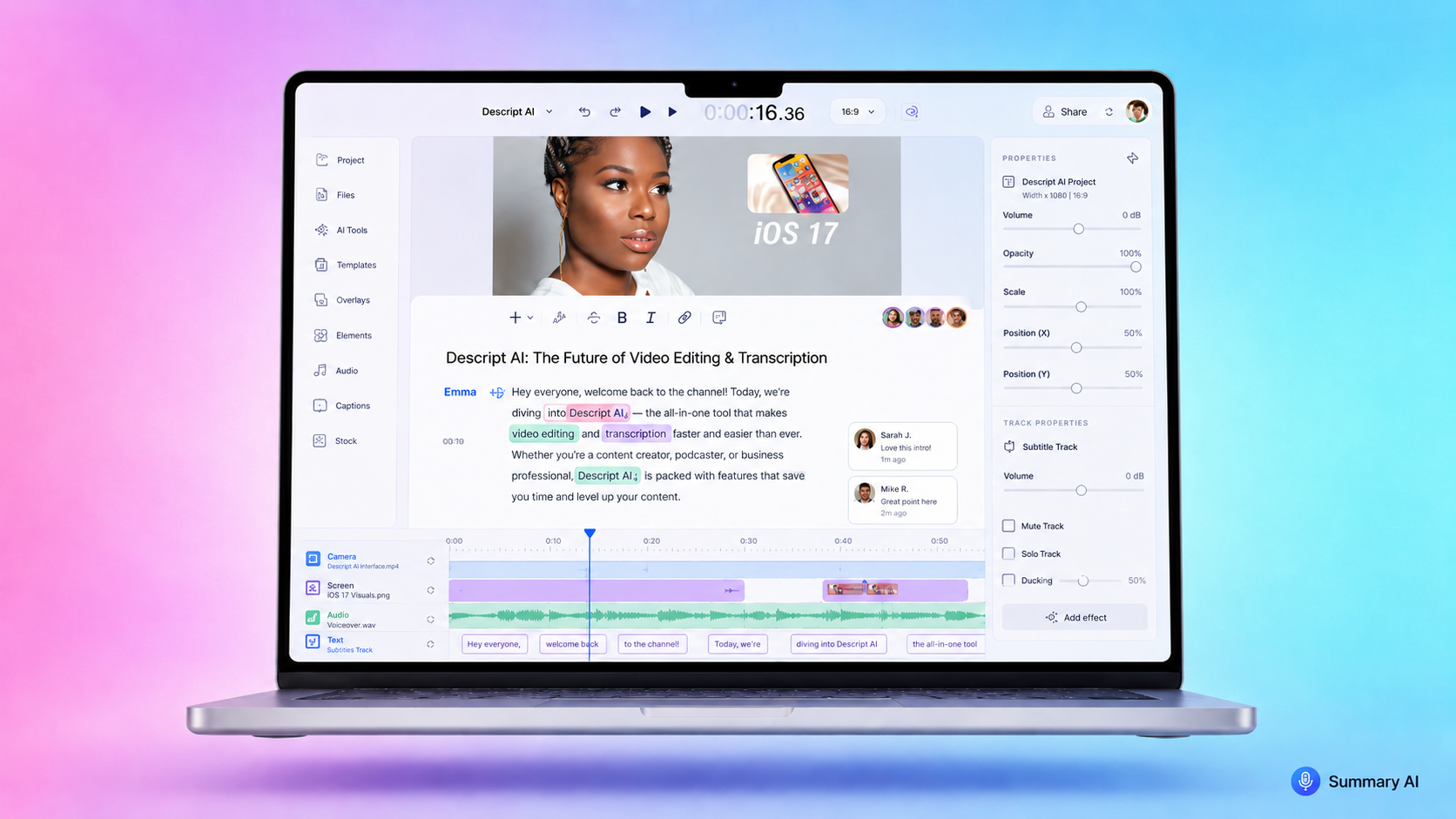

Everyone should learn how to transcribe video to text. It helps you get more value from every recording. With video to text transcription, you can easily turn a single video into notes and other written content like blog posts and social media posts. The problem with doing it manually is that typing everything by hand takes a lot of time.
The good news is that you can now transcribe video to text using free (or paid) AI tools, built‑in features in software you probably already know like Microsoft Word, and a few free options.
In this guide, you will learn simple ways to turn video into text, when to use each method, and how to clean up your transcript so it is easy to read and reuse.
What does it mean to transcribe video to text
Before we look at how to transcribe video to text, it helps to be clear on what transcription means in the first place.
To transcribe a video means you take the spoken words from the video and you turn them into written text, and you save that text in a document.
Why transcribing video to text is useful

Once you have a transcription, you can then search the text instead of scrubbing through the video and copy important quotes or take meeting notes. You can even use the transcription to turn the video into blog posts, emails, or scripts for other videos, e.g. for social media. You can even use the transcript to add subtitles or closed captions to a video.
How video to text transcription works
There are three main ways to transcribe a video to text:
- Use AI transcription tools to transcribe video to text, which is the fastest way
- Use built‑in tools to convert video to text
- Transcribe video manually for accuracy
When you decide how to convert video to text, think about:
- How long the video is
- How perfect the transcript needs to be
- Whether you will use a free or paid option
If you also plan to shorten the transcript into summaries, it may help to read Summary AI’s guide on how to make a summary.
Now that that is out of the way, lets get straight to the methods of transcribing a video.
How to transcribe video to text with AI tools

The fastest way to transcribe video to text is to use an AI tool built for this job. These tools use speech‑to‑text technology to listen to the audio and write the words for you.
How AI video to text tools work
Most AI tools use a very simple process for transcribing your video:
- You upload your video file (for example an MP4 or MOV file)
- The tool detects the speech in the audio
- It creates a draft transcript of the video
- You edit the text and export it as a document or subtitle file
Summary AI’s video to text transcription tool works exactly this way. You upload your video, wait a short time, and then you can read, edit, and download your transcript.
This is the best way to transcribe video to text when:
- You have long videos like webinars or podcasts
- You want a quick draft for notes or recycling content
- You do this often and you need a workflow
Once you have the transcript, you can also make a summary, like with the method we describe in our article on objective summaries, to turn long text into short recaps.
How to transcribe video to text in Microsoft Word
Another option to transcribe video to text is using a built‑in tool. Microsoft Word is one such tool you can use for this option. If you use Microsoft 365, you can use the Transcribe feature in the web version of Word.
Microsoft explains in its help article on transcribing your recordings in Word that you can upload an audio or video file and get a transcript directly within your document.
Steps to convert video to text with Word Online
- Open Word in your browser
- Start a new document
- On the Home tab, choose Dictate, then Transcribe
- Click Upload audio and upload your video or the audio from it
- Wait for Word to finish the transcription
- Review the text that appears
- Click Add to document to insert the transcript
This is an easy way to transcribe video to text if you already have Microsoft 365. It may not be perfect, but it is a good starting point.
How to transcribe video to text manually

Manual transcription means you listen and type everything yourself. This is probably still the most accurate way to transcribe video to text, but also the slowest way.
Here’s how to do it:
- Open the video in a player that lets you pause and rewind easily
- Play the video at a slower speed (for example 0.75x)
- Type what you hear, pausing and rewinding as needed
- At the end, read the whole text again and fix any mistakes
Manual transcription makes sense when:
- Audio quality is poor
- There is a lot of technical or niche language
- You need exact wording
A faster way to work is to first use AI to transcribe the video to text, then manually correct the errors. This speeds up the workflow quite a bit but you still have accuracy thanks to your second pass.
Once your text is corrected, you can turn that transcript into shorter formats using techniques like the ones in our guide on how to summarize an article.
How to clean up your video transcript

No matter how you transcribe video to text, you will almost always need to clean up the result a bit.
Here is how to do that in a few steps:
- Remove filler words: Delete “um”, “uh”, repeated words, and unfinished sentences that do not add meaning.
- Fix names and key terms: Correct names of people, products, and places that AI often gets wrong.
- Add punctuation and breaks: Add periods, commas, and paragraph breaks so the text is easy to read.
- Group by topic: Split the transcript into sections based on topics, questions, or agenda items.
- Create a short summary: Use the cleaned transcript to write a simple summary, identify a list of key points, add action items.
After this, your transcript is ready to use.
Transcribe Any Video to Text with Summary AI
Efficiently transcribe video to text with our mobile app or desktop software, and get accurate AI transcriptions with Summary AI.
It’s designed to make remote meetings more productive. Summary AI works with the video conferencing software of your choice and connects with your tech stack to simplify post-meeting actions.

