
Learning how to screen record on iPhone is useful when you want to save what is happening on your screen. You might want to use your recording for a tutorial or to save a video clip or maybe even capture a bug before you report it.
The good news is that you do not need to download a separate recorder app for screen recording. Your iPhone already has a built-in recording tool. Once you add it to Control Center, you can start recording your screen in just a few taps.
In this guide, you’ll learn how to turn on screen recording on your iPhone, how to record with microphone audio, where to find your recordings, and what to do if the screen recording button is missing.
What Screen Recording on iPhone Does
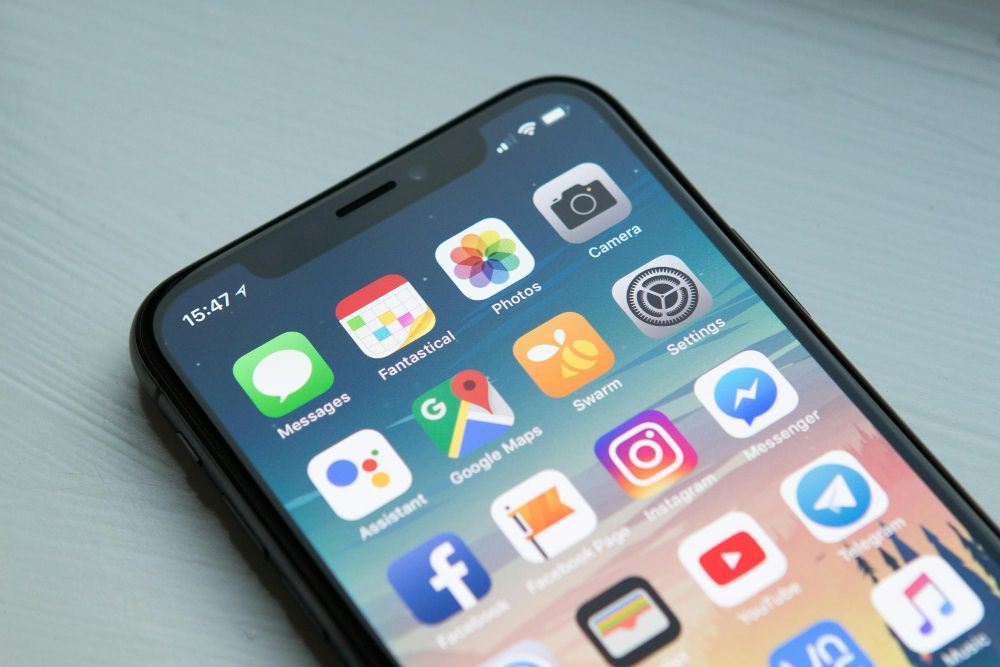
Just like screen recording on Macbook, your iPhone also lets you save a video of what is happening on your screen. It records everything shown on the screen including your taps, swipes, apps, websites, settings, and anything else you do.
You can use iPhone screen recording to:
- Create a tutorial
- Record an app issue
- Record a video call
- Record gameplay
- Save something for later
A screen recording is saved as a video in the Photos app. You can watch it, trim it, edit it, or share it like any other video.
Just keep in mind that screen recording does not always work in every app. Some apps block screen recording for privacy, security, or copyright reasons. Similarly to recording calls, you need to make sure you follow the rules and ask permission.
How to Screen Record on iPhone
Starting a screen recording on iPhone is really simple. Here’s how to do it:
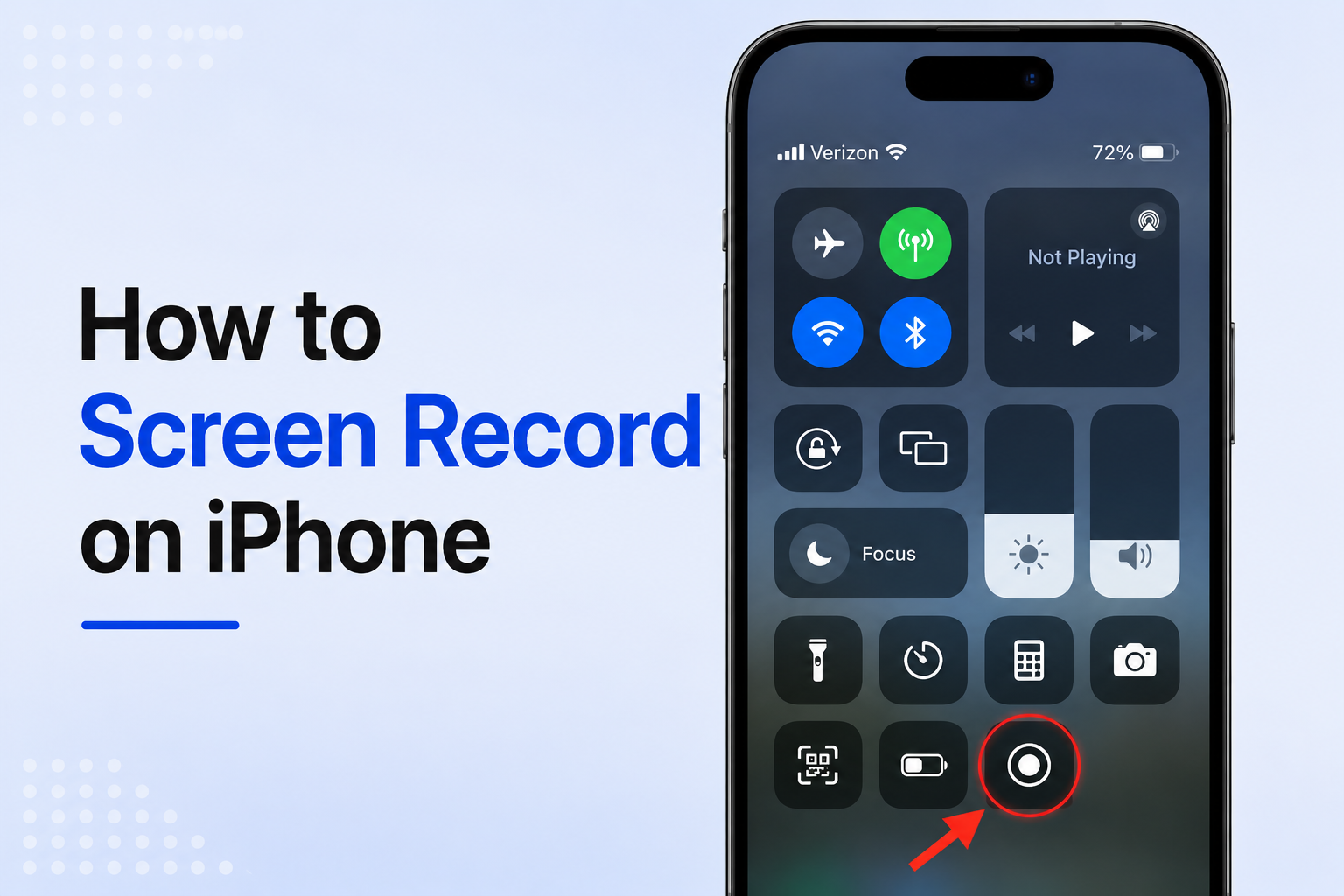
First, open Control Center.
- On an iPhone X and later models, swipe down from the top-right corner of the screen.
- On older iPhone models, swipe up from the bottom of the screen.
Next, tap the Screen Recording button. It looks like a solid circle inside another circle.
Your iPhone will show a three-second countdown. After that, the recording starts.
Close Control Center and do whatever it is that you want to record. Everything on your screen will be captured until you stop the recording.
To stop recording, tap the red recording button or red bar at the top of your screen, then tap Stop. You can also open Control Center again and tap the Screen Recording button.
Your screen recording will be saved in the Photos app.
How to Screen Record on iPhone With Audio
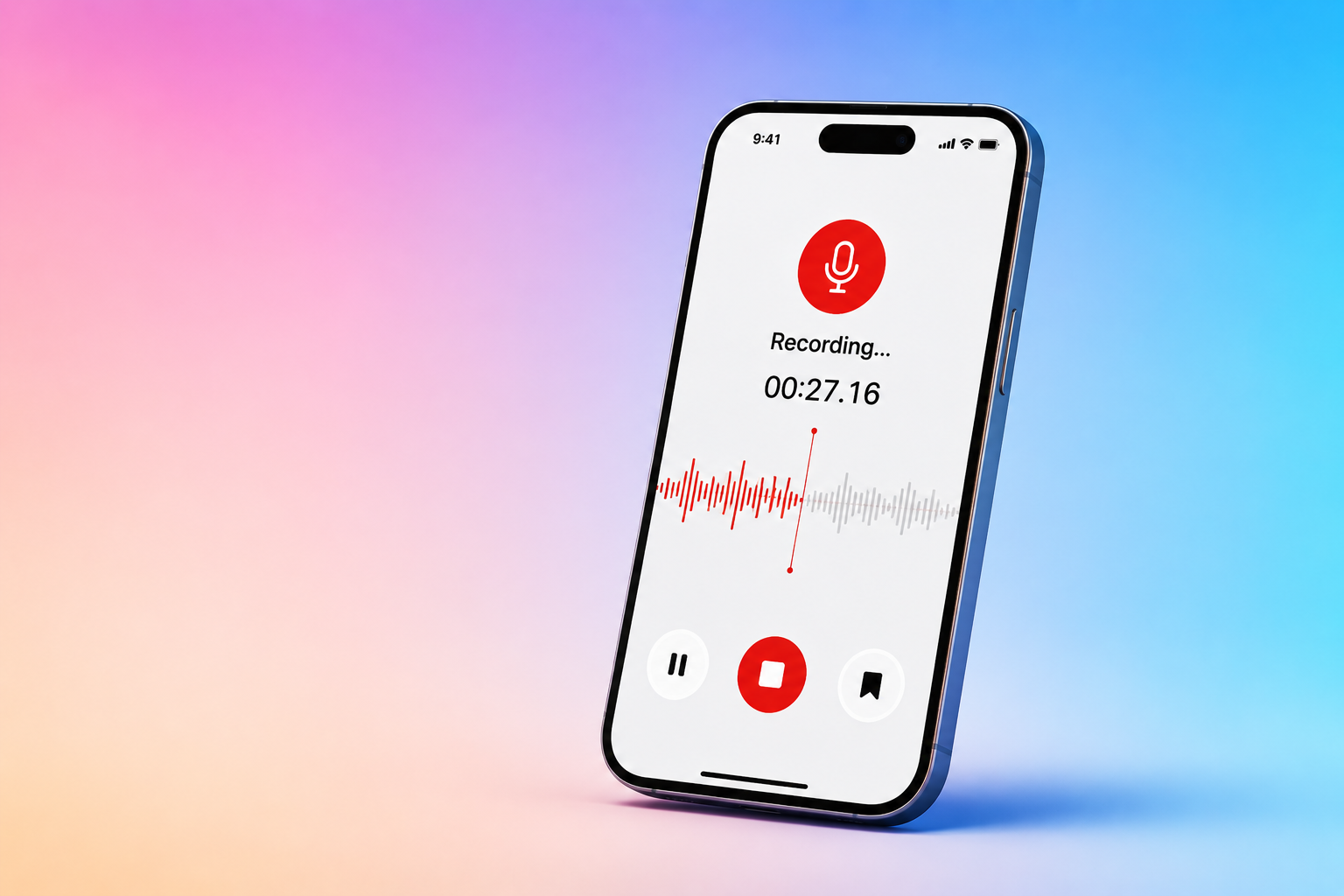
Similarly to recording audio on a Macbook, iPhone screen recording captures the screen and some system audio. If you want to record your voice too, you need to turn on the microphone.
Open Control Center and press and hold the Screen Recording button. Then tap Microphone to turn it on.
After that, tap Start Recording and wait for the three-second countdown.
This is helpful if you want to explain what you are doing while you record. For example, you can talk through a tutorial, explain a problem, or guide someone through how to use an app.
If you do not want to record your voice, make sure the microphone is turned off before you start.

How to Add Screen Recording to Control Center
If you do not see the Screen Recording button in Control Center, you may need to add it there first.
On newer iPhone versions, open Control Center, touch and hold the background, then tap Add a Control. Search for Screen Recording and add it to Control Center.
On some older iOS versions, you may need to go to Settings, then Control Center, then add Screen Recording from the list of available controls.
After you add it once, it should stay in Control Center for future recordings.
This is a common reason people cannot screen record on iPhone right away. The feature is available, but the button may not be added to the control center yet.
Where to Find Screen Recording on iPhone
After you stop recording, your iPhone saves the video in the Photos app.
To find it, open Photos and go to your Library. You can also go to Collections, then Media Types, then Screen Recordings.
From there, you can watch the video, trim the beginning or end, share it, or delete it.
If you just finished recording and cannot find the video right away, wait a few seconds. Longer recordings can take a little time to save.
How to Edit a Screen Recording on iPhone
After you screen record on iPhone, you may want to clean up the video before sharing it. For this, you can either use a video trimmer or just edit it right on your iPhone.
For the latter, open the recording in Photos and tap Edit. From there, you can trim the start or end of the video. This is always the first step because most screen recordings include a few extra seconds at the beginning or end. You probably also want to cut out the part when you opened Control Center or stopped the recording.
In general, it’s best to keep the final video short and clear to make sure the important part is easy to find.
Tips for Better iPhone Screen Recordings
A clear screen recording is easier to understand. Before you start, take a few seconds to prepare your screen.
- Close apps you do not need.
- Turn on Do Not Disturb or Focus mode if you do not want notifications to appear in the recording.
- Check that you are not showing private information, such as passwords, personal messages, bank details, email addresses, or private files.
- If you are recording a tutorial, move slowly. Fast taps and swipes can be hard to follow.
- If you are recording with your voice, speak clearly and keep the phone close enough to capture your audio.
- If you make a mistake, do not worry. You can stop, delete the video, and record again.
Why Screen Recording May Not Work
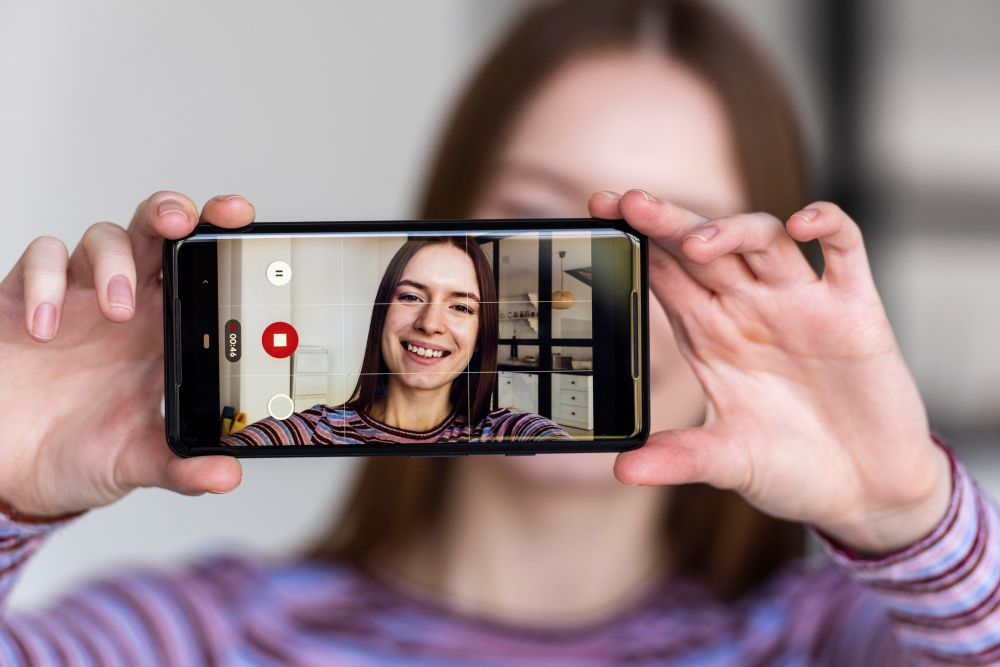
Sometimes screen recording does not work at all or does not work the way you expect. Here are the most common problems people run into and a few possible fixes.
- The Screen Recording button may not be in Control Center yet. In that case, add it first.
- Some apps may block screen recording. This can happen with streaming apps, banking apps, private content, or apps with copyright protection.
- Screen recording may also fail if your iPhone is low on storage space. If there is not enough space to save your recording, delete files you don’t need or buy more cloud storage before trying again.
- You also cannot use screen recording and screen mirroring at the same time. If your iPhone is mirrored to another screen, turn off mirroring before you start recording.
- If the recording has no sound, check whether the microphone was turned on. Also remember that some apps do not allow audio to be recorded.
Turn your recordings into perfect summaries
Knowing how to screen record on iPhone makes it easier to save tutorials and share information with others. Once the Screen Recording button is in Control Center, you can start, stop, edit, and share recordings in just a few taps. If you use recordings for work, meetings, or training, Summary AI can help turn those recordings into clear summaries and next steps.
Summary AI is a meeting recorder that joins the calls you invite it to, transcribes every word with speaker labels, and generates perfect summaries every time complete with key points and action items. Perfect for busy people who want to focus on taking part in the meeting rather than taking notes, Summary AI is the best tool for productivity.