

Zoom is one of the most popular tools for online meetings. It is popular for all sorts of things from classes to interviews, and events. People use it for work, school, and even catching up with friends.
If you are new to Zoom, you might be wondering how to join a Zoom meeting and what you need to get started. The good news is that joining a meeting is easy. You have several options depending on your device and setup.
In this guide, you will learn every way to join a Zoom meeting, whether you are using a computer, phone, or browser. We will also cover whether you need an account to join a meeting and other common questions.
For a more in-depth guide, read our article on how to use Zoom.
Before Joining a Zoom Meeting
Zoom is one of the most popular video meeting platforms. People who use it for work use it for dozens of meetings each week. If you don’t want to take notes during meetings you can use an AI note taker like Summary AI instead. Thanks to its Zoom Meeting Recorder integration it can join your calls and create the perfect summary of your meetings with action items and speaker labels.

Before you join a meeting in Zoom, make sure you have everything you need:
- A stable internet connection
- A meeting link or Meeting ID and passcode
- A device to use for joining the meeting such as a laptop, desktop computer, tablet, or phone
- Optional: a microphone and camera
Once you have these, you are ready to go.
Do You Need to Download Zoom to Join a Meeting?
You don’t necessarily have to download Zoom to do it. You can use the Zoom app or join from a browser.
Joining through the Zoom app has a few benefits:
- Generally more stable and reliable
- Better audio and video quality
- Full access to features like screen sharing
However, joining from a browser also has its own benefits, which is that no download is required, making it quick and convenient for one-time use. However, this method has limited features compared to the app.
So, while you do not need to download Zoom to join a meeting, the app usually gives a better experience.

Do You Need a Zoom Account to Join a Meeting?
You do not need a Zoom account to join most meetings. You can join as a guest using a link or Meeting ID. However, some meetings may require you to sign in because hosts can restrict access to logged-in users only.
Creating an account is optional in most cases but it is useful if you attend meetings often. It lets you save settings, schedule meetings, and manage your profile.
How to Join a Zoom Meeting
To join a Zoom Meeting, you have two main options: you can either join by clicking on a meeting link sent to you by the host of the meeting or you can join using the meeting ID. You can join Zoom without an account. We will cover these in more detail next.
Join a Zoom Meeting Without an Account
Joining a Zoom meeting without an account is really easy. All you have to do is follow these steps:
- Click the meeting link
- Choose “Join from your browser” if prompted
- Enter your name
- Join as a guest
Keep in mind that some features may be limited, and certain meetings may require you to log in if the host has set it up to be required.
Join Zoom with a Meeting Link
The easiest way to join a Zoom meeting is by using an invitation link.
- Click the Zoom link shared with you (usually by email, message, or calendar)
- Your browser will open Zoom automatically or ask you what to do
- Enter your name when asked
- Click “Join” to enter the meeting
This is the fastest option if you are wondering how to join a Zoom meeting with a link.
Join Zoom Using a Meeting ID
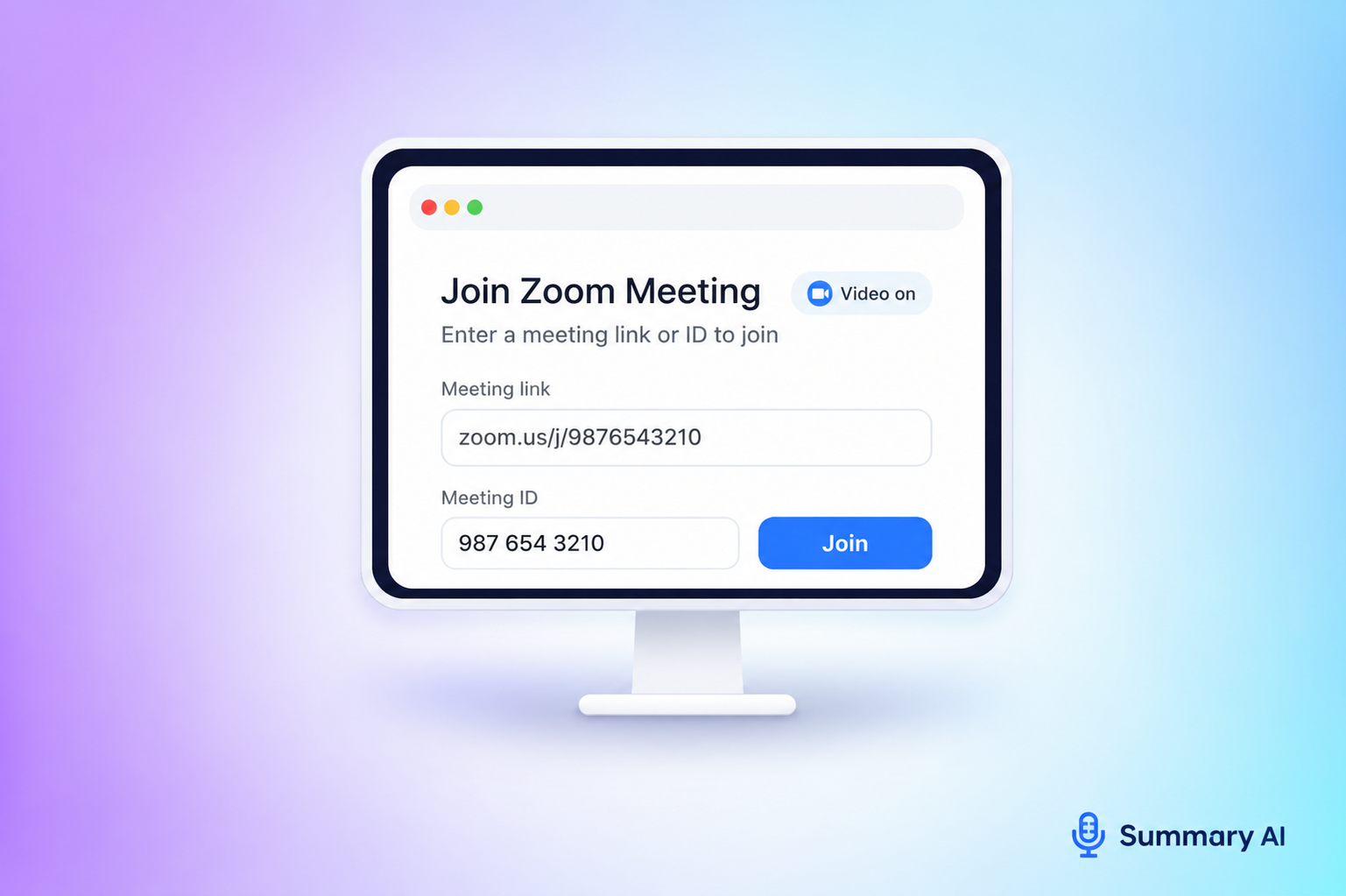
You can also join a Zoom Meeting without a link if you have the Meeting ID.
- Open the Zoom app or website
- Click “Join a Meeting”
- Enter the Meeting ID
- Add the passcode if required
- Enter your name and join
This method is helpful if you want to join a Zoom meeting with ID.
How to Join a Zoom Meeting from a Browser

Joining from a browser is the simplest way to join a meeting and does not require installation.
- Click the Zoom meeting link
- When prompted, choose “Join from your browser”
- Enter your name
- Allow microphone and camera access
- Click join
Supported browsers include Chrome, Edge, and Firefox.
If you cannot join the meeting, you can try:
- Updating your browser
- Disabling pop-up blockers
- Switching to another browser
This is useful if you want to join a Zoom meeting from your browser without having to download the app.
How to Join a Zoom Meeting on a Phone
You can easily join using your smartphone. Joining on an iPhone or on Android follow the exact same steps. To join on your phone you have to download the Zoom app. On iPhone you can download Zoom from the App Store. On Android, you can get it from Google Play.
To join on your phone:
- Open the app and tap “Join”
- Enter the Meeting ID or click a link
- Add your name and join
Joining a Zoom Meeting by Phone Call
If you do not have internet access, you can also join using a phone call.
- Dial the Zoom phone number provided in the invite
- Enter the Meeting ID using your keypad
- Enter the passcode if needed
This method gives you audio only, but it is reliable when your internet connection is weak.
Join a Zoom Meeting for the First Time

If this is your first time joining a Zoom call, follow these steps:
- Click the meeting link or enter the Meeting ID
- Allow Zoom to access your microphone and camera
- Test Zoom (especially your audio) before joining
- Choose whether to join with video on or off
Checking these things should cover most of the basics of joining a Zoom call and help avoid the most common issues first time users have.
Common Problems When Joining a Zoom Meeting
Joining a Zoom meeting can sometimes be tricky, but most problems are easy to fix if you know what to check.
- If the meeting link doesn’t work, make sure it’s correct and that the meeting has already started.
- If you see an “Invalid Meeting ID” error, re-enter the ID and confirm the passcode.
- If your audio or camera isn’t working, check your device settings and permissions, and close any other apps using them.
- If you’re stuck in the waiting room, wait for the host or contact them if the delay is too long.
- If you can’t join from your browser, try another browser or use the Zoom app.
Once you know how to join a Zoom meeting, the rest should come naturally. According to Zoom, you can even join two meetings simultaneously if you want to.
Zoom is a great tool for video communications that is very popular for all sorts of scenarios from work to school and keeping up with friends and family who live far from you. For work, it can be especially useful to learn how to record Zoom calls.
Make the Most of Zoom with Summary AI
If you attend many meetings each week, Summary AI can make it much easier. It’s Zoom Meeting Recorder records your Zoom calls, creates accurate AI transcripts, and generates clear summaries with key points and action items so you never miss anything important.