




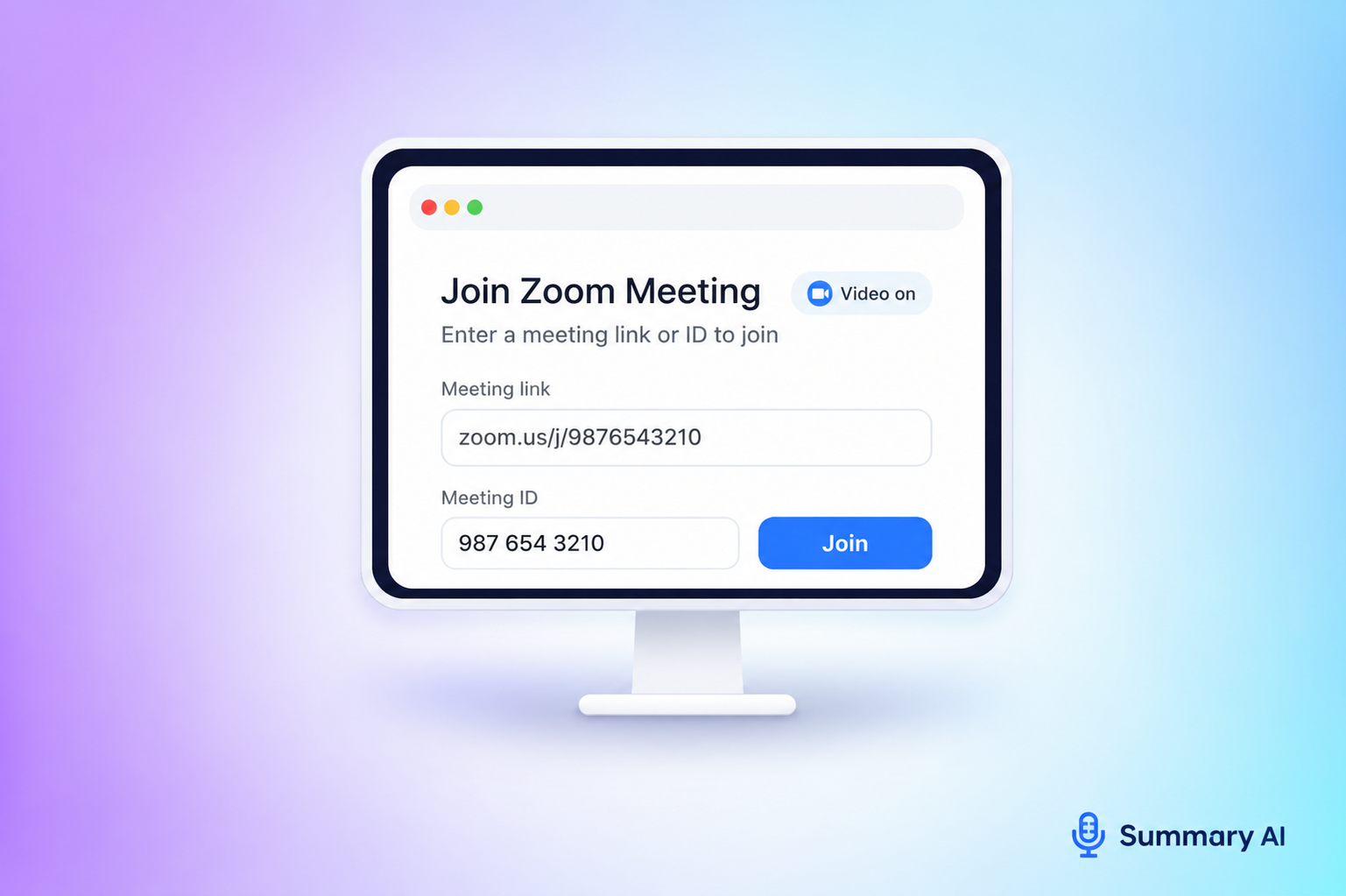

Zoom Video Communications has become one of the most essential tools in modern remote work, online education, telehealth, and digital collaboration. Whether you’re joining a quick meeting, hosting a webinar, or recording a class, knowing how to download Zoom Video Communications properly is an essential first step.
This comprehensive guide walks you through downloading Zoom on every device, optimizing its performance with AI tools, using Zoom with Summary AI, solving common installation issues, and understanding which Zoom version is right for you.
What Is Zoom Video Communications?
Zoom Video Communications is a cloud-based platform that lets users communicate through:
- High-quality video conferencing
- Voice calls
- Webinars
- Screen sharing
- Messaging
- Cloud recording
Its apps are available for Windows, Mac, Linux, Android, iOS, and browsers—making it one of the most accessible video tools on the market.
How to Download Zoom Video Communications (All Devices)

Below are fully updated 2025 instructions for downloading the official Zoom app, avoiding fake download pages, and installing the correct version for your device.
Download Zoom on Desktop (Windows, Mac, and Linux)
Step-by-Step: How to Download Zoom on Windows
- Visit the official Zoom Download Center.
- Under “Zoom Desktop Client”, click Download.
- Open the downloaded .exe file.
- Follow the on-screen installation instructions.
- Sign in or create an account.
How to Download Zoom on macOS
- Go to the Zoom Download Center.
- Select “Zoom Desktop Client for macOS”.
- Download the .pkg file.
- Double-click to install (macOS may ask for permissions).
- Launch Zoom from Applications.
Mac Security Tip:
If macOS blocks the installation, open:
Apple Menu → System Settings → Privacy & Security → Allow apps from identified developers.
Download Zoom on Linux
Zoom offers versions for:
- Ubuntu
- Debian
- CentOS
- Fedora
Steps:
- Go to the Zoom Linux Download page.
- Select your distribution.
- Download the corresponding .deb or .rpm file.
- Install via your package manager.
How to Download Zoom Video Communications on Mobile
iPhone / iPad
- Open the App Store.
- Search for Zoom – One Platform to Connect.
- Tap Get to install.
Android
- Open Google Play Store.
- Search for Zoom Cloud Meetings.
- Tap Install.
Your mobile app allows joining meetings instantly without signing in.
Zoom Download Options: What Each Version Does
Zoom offers multiple products, not just the basic client. Here’s a comparison:
Zoom Download Comparison Table
| Zoom Product | Best For | Platforms | Key Features |
|---|---|---|---|
| Zoom Desktop Client | Everyday meetings | Win / Mac / Linux | HD video, screen sharing, breakout rooms |
| Zoom PWA for ChromeOS | Chromebooks | ChromeOS | Lightweight, browser-based |
| Zoom Rooms | Office conference rooms | Windows / Mac | Hardware control, enhanced collaboration |
| Zoom VDI Client | Virtual desktops | Windows / Linux | Optimized for thin clients |
| Zoom Plugin for Outlook | Office users | Win / Mac | Schedule meetings via Outlook |
| Zoom Scheduler Extension | Chrome users | Chrome browsers | Add meetings from Google Calendar |
Choose the version that best fits your workflow.
Downloading Zoom Safely: Avoid Malware & Fake Sites
Since Zoom is one of the most downloaded business apps in the world, many scam sites mimic Zoom downloads.
Always check these safety steps before downloading:
1. Check the domain
Zoom’s official download domain starts with: zoom.us/download
2. Avoid .apk files from random sites
Only use the Google Play Store for Android.
3. Do not enter your Zoom password on pop-up screens
Phishing sites often use fake login pages.
4. Always verify the digital signature
On Windows:
- Right-click the installer → Properties → Digital Signatures It should read: Zoom Video Communications, Inc.
How to Update Zoom After Downloading
Zoom releases updates regularly to improve:
- Security
- Audio and video performance
- AI capabilities
- Host controls
How to Update Zoom (Desktop)
- Open Zoom.
- Click your profile icon (top right).
- Select Check for Updates.
- Click Update if available.
Auto-Update Option
Zoom allows automatic updates under:
Settings → General → Automatically keep Zoom up to date
Using AI With Zoom (Summary AI Integration)
Summary AI transforms Zoom recordings, transcripts, and meetings into:
- Summaries
- Notes
- Action items
- Email drafts
- Meeting minutes
How Summary AI Enhances Your Zoom Experience
- Reduces hours of note-taking
- Automatically generates structured summaries
- Uses AI to detect key decisions from meetings
- Helps create follow-up messages
- Integrates with multiple cloud storage systems
How to Use Summary AI With Zoom
- Record your Zoom meeting to cloud or local storage.
- Upload the audio/video file to Summary AI.
- Receive instant:
- Key topic summaries
- Bullet-point notes
- Action items
- Highlights
This makes your Zoom meetings far more productive.
Troubleshooting Zoom Download & Installation Problems

If you run into issues, here are quick fixes.
1. Zoom Installer Won’t Open (Windows)
Try this:
- Run the installer as Administrator
- Temporarily disable your antivirus
- Free up disk space
- Redownload from Zoom’s official site
2. macOS Shows “Installation Failed”
Fix by granting permission:
- Go to System Settings → Privacy & Security → Allow
3. Network Blocks the Download
Your firewall may be blocking Zoom’s servers.
Add these domains to allowed traffic:
- zoom.us
- zoom.com
- cloudfront.net
Why You Should Download Zoom (Instead of Using Browser Version)
While Zoom lets users join calls in a browser, the downloadable app is far superior.
Zoom App vs. Browser Version
| Feature | Zoom App | Browser |
|---|---|---|
| HD Video | Yes | Low Resolution |
| Virtual Backgrounds | Yes | Limited |
| Screen Sharing | Yes | Yes |
| Breakout Rooms | Yes | Unsupported |
| Noise Cancellation | Yes | Limited |
| Recording | Yes | Some browsers block it |
Conclusion:
Downloading the Zoom app gives you the full experience and better performance.
Pro Tips After Downloading Zoom
To get the most out of Zoom Video Communications, try these productivity and AI tips.
1. Optimize Audio with Noise Suppression
Zoom’s AI-based noise suppression removes:
- Background chatter
- Keyboard typing
- AC noise
2. Use AI Smart Recording
Zoom’s cloud recordings now generate:
- Auto-transcripts
- Highlight reels
- Chapters
Perfect for use with Summary AI.
3. Enable HD Video
Under Settings → Video, turn on:
- HD
- Touch up my appearance
- Adjust for low light
4. Use Shortcuts to Move Faster
Examples:
- Mute/unmute: Alt + A / Command + Shift + A
- Start/stop video: Alt + V / Command + Shift + V
- Screen share: Alt + S / Command + Shift + S
FAQs about Downloading Zoom Video Communications
1. Is Zoom free to download?
2. Do I need an account to join a Zoom meeting?
3. How much storage does Zoom need?
4. Can I download Zoom on Chromebook?
Yes. Use the Zoom PWA for ChromeOS via the Chrome Web Store.
5. Why can't I download Zoom on my laptop?
Possible reasons:
- Corrupted installer
- Antivirus blocking download
- Insufficient disk space
- Firewall restrictions

