

If you have ever been stuck trying to reset your AirPods, this is the guide you need. Learning how to reset AirPods can help when they will not connect, will not charge, keep switching devices, or do not work the way they should.
A reset removes the current device pairing and lets you set up your AirPods again. It is often one of the first steps to try when basic fixes do not work.
In this guide, you’ll learn how to reset AirPods regardless of the model, including AirPods Pro, AirPods 4, and AirPods Max. You’ll also find out what to do if your AirPods will not reset or are still linked to a previous owner.
When Should You Reset AirPods?
You may need to reset AirPods when they are not working correctly. Resetting your AirPods can help with these common issues:
- Your AirPods will not connect
- Only one side of the AirPod works
- The case light is not flashing white
- Your AirPods will not charge
- Audio keeps cutting
- Your AirPods keep connecting to the wrong device
- You bought used AirPods and need to pair them again
- You replaced one side of the AirPods or the charging case
- Your device does not show the setup options animation
A reset is not always the only fix and resetting may not be the fix you need for the issues above. Sometimes you only need to charge the case, turn Bluetooth off and on, update your device, or even clean the AirPods. But if those steps do not help, resetting is a good next step. In fact, resetting should probably be the first thing you try when you are stuck with troubleshooting an issue with your device.
Take many calls for work? Try recording your calls to keep your focus on the meeting.
Before You Reset Your AirPods
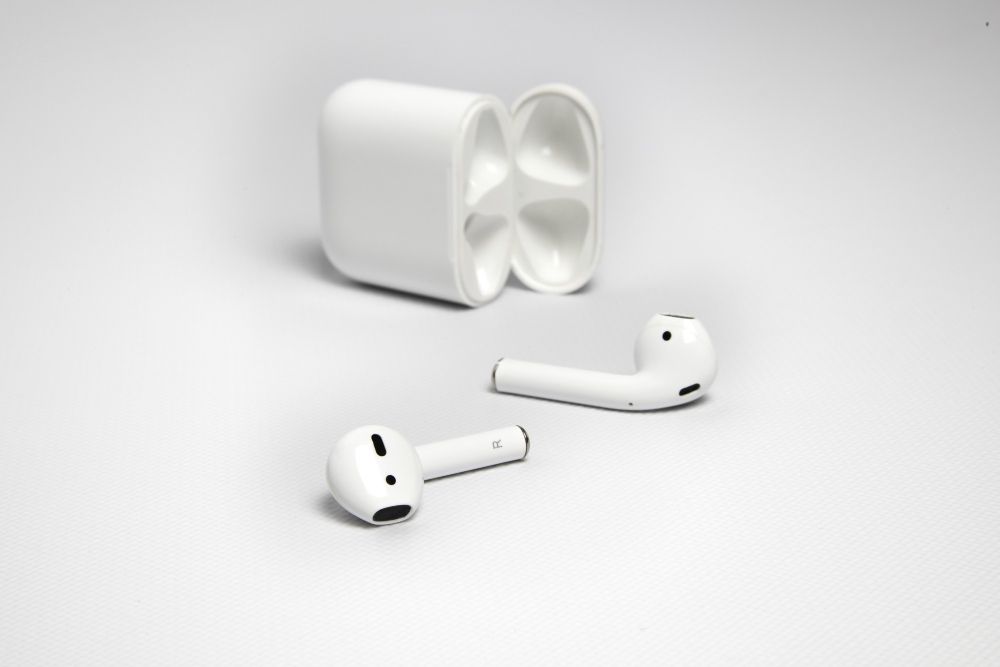
Before you reset your AirPods, make sure they have enough battery.
Put both AirPods in the charging case and close the lid. If possible, plug the case into power for a few minutes.
Also make sure your device you will be connecting to the AirPods has Bluetooth turned on.
If your AirPods are dirty, check the charging points and the inside of the case. This can stop one AirPod from charging or connecting properly. Make sure to clean your AirPods if necessary, following Apple’s official instructions.
If you are resetting AirPods from a previous owner, remember that resetting the AirPods is not always enough to be able to use them. The previous owner may have them connected to their Apple ID, in which case they also need to remove them from their Apple Account before you can connect your own.
How to Reset AirPods and AirPods Pro
These steps work for: AirPods 1, AirPods 2, AirPods 3, AirPods Pro 1, and AirPods Pro 2.
- First, put both AirPods in the charging case.
- Close the lid and wait 30 seconds.
- Next, open Settings on the iPhone or iPad that is paired with the AirPods. Tap Bluetooth.
- Find your AirPods in the list. Tap the More Info button next to them, then tap Forget This Device.
- Tap again to confirm.
- If your AirPods do not appear in the Bluetooth list, you can continue with the reset steps.
- Open the lid of the charging case.
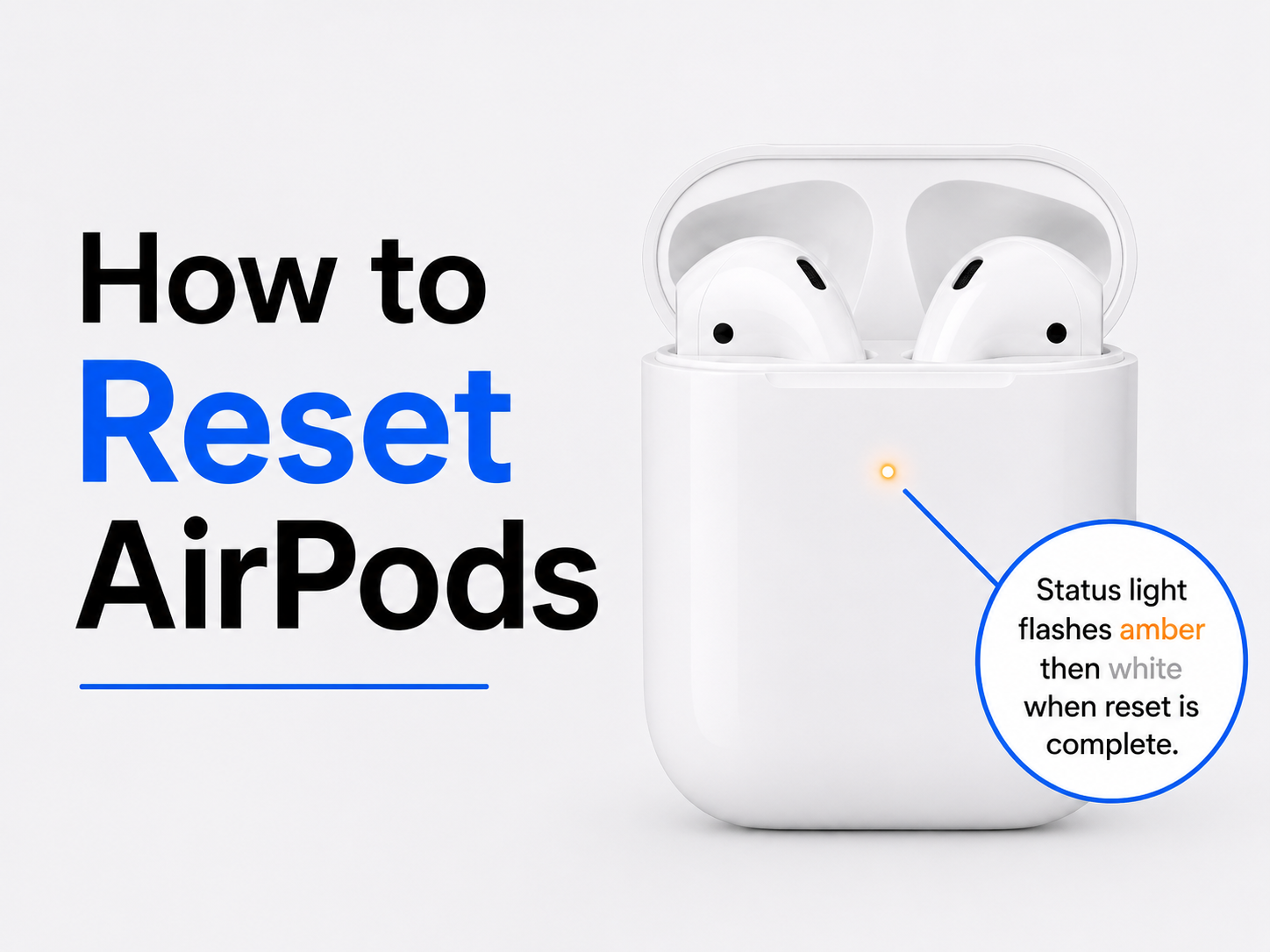
- Press and hold the setup button on the back of the case for about 15 seconds. Keep holding until the status light flashes amber and then flashes white.
- When the light flashes white, your AirPods are ready to pair again.
- Hold the case near your iPhone or iPad with the lid open. Follow the steps on the screen to reconnect them.
How to Reset AirPods Pro 3 and AirPods 4
AirPods 4 and AirPods Pro 3 reset differently because the case does not use the same back setup button method.
- First, put your AirPods in the charging case.
- Close the lid and wait 30 seconds.
- On the iPhone or iPad paired with the AirPods, go to Settings, then Bluetooth.
- If your AirPods appear in the list, tap the More Info button, then tap Forget This Device. Confirm the action.
- Open the lid of the charging case.
- Double-tap the front of the case while the status light is on.
- When the status light flashes white, double-tap the front of the case again.
- When the status light flashes faster, double-tap the front of the case a third time.
- When the status light flashes amber and then white, the reset is complete.
- You can then hold the AirPods near your device and follow the setup steps on the screen.
How to Reset AirPods Max
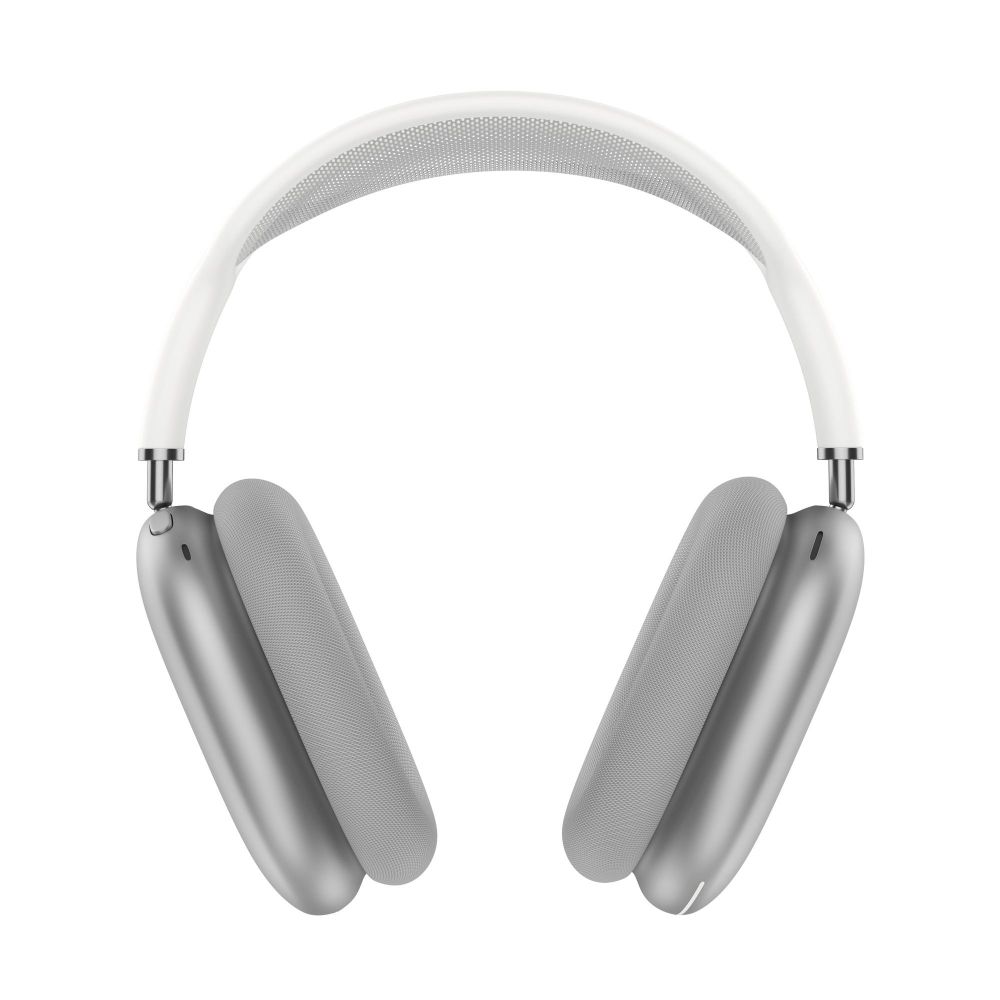
AirPods Max are overear headphones, which means they do not use a charging case like regular AirPods. Because of this, they have their own steps for resetting.
- To reset AirPods Max, press and hold the Digital Crown and the noise control button at the same time. (These are the two buttons on the right headphone side.)
- Keep holding for about 15 seconds, until the LED flashes amber and then white.
- After the reset, connect your AirPods Max to your device again.
How to Pair AirPods Again After Resetting
After you reset your AirPods, you need to pair them again with your device.
For iPhone or iPad, keep the AirPods in the case and open the lid near your device. A setup animation should appear. Tap Connect and follow the steps.
If the setup animation does not appear, go to Settings, then Bluetooth. Look for your AirPods in the list and tap them.
- For AirPods 1, 2, 3, AirPods Pro 1, or AirPods Pro 2, press and hold the setup button on the back of the case until the light flashes white.
- For AirPods 4 or AirPods Pro 3, open the case and double-tap the front of the case until the light flashes white.
- For AirPods Max, press and hold the noise control button until the light flashes white.
When the light flashes white, the AirPods are in pairing mode.
What the AirPods Status Light Means
The light on your AirPods helps you understand what is happening.
- A white flashing light means the AirPods are ready to pair.
- An amber flashing light during reset means the AirPods are being reset.
- An amber light may also mean the AirPods or case need charging.
- A green light usually means the AirPods or case are charged.
If the light does not flash white, the AirPods may not be ready to pair. Try closing the case, waiting, charging the case, and repeating the steps.
What to Do If AirPods Will Not Reset

If your AirPods will not reset, start with checking a few simple things.
- Put both AirPods in the case and close the lid for at least 20 to 30 seconds. Then open the lid and try the reset again.
- Charge the case and AirPods. A low battery can stop the reset.
- Check that both AirPods are placed properly in the case. If one AirPod is not touching the charging contact point, the case may not detect it.
- Clean the AirPods and the case. Do not use liquid inside the case and clean gently.
- Try forgetting the AirPods from Bluetooth settings before resetting.
- Restart your other device.
If the status light still will not flash amber and then white, you should contact Apple Support or visit an Apple Store, because there may be a hardware issue with the AirPods or charging case.
Resetting AirPods From a Previous Owner
If you bought used AirPods, the previous owner should remove them from their Apple Account before you can use them.
This is important because AirPods can be linked to one Apple Account for Find My. If they are still linked to the previous owner, you may have problems with setup, Find My, or other issues.
The previous owner needs to remove the AirPods from their Apple Account. After that, you can reset the AirPods and pair them with your own device.
If you cannot contact the previous owner, you may still be able to use the AirPods for basic Bluetooth audio, but you may not be able to use all features.
Be careful when buying used AirPods. Ask the seller to remove them from their Apple Account before you pay.
How to Fix One AirPod That Is Not Working
If one AirPod is unresponsive, you may not need a full reset right away.
- First, put both AirPods in the case and charge them. Wait a few minutes, then try again.
- Check the battery level for each AirPod on your iPhone or iPad.
- Clean the speaker mesh and charging contacts gently.
- Make sure the unresponsive AirPod is placed correctly in the case.
- Try forgetting the AirPods in Bluetooth settings, then pair them again.
- If one AirPod still does not work, reset the AirPods using the steps for your model.
If the problem continues after resetting, the AirPod may need to be serviced or replaced. Contact Apple Support for help.
Have Better Meetings with Summary AI
Having issues with your devices during meetings is the worst and it can really pull you out of the moment. If you spend the first part of your meetings troublshooting technical issues, you may not catch all the important things your colleagues are saying. AN AI Note Taker from Summary AI can help you by joining your call, transcribing your meeting, and generating the perfect summary which you can use for follow-ups or to share with your team. Summary AI integrates with your favorite video meeting platforms, including Meets, Teams, and Zoom.