



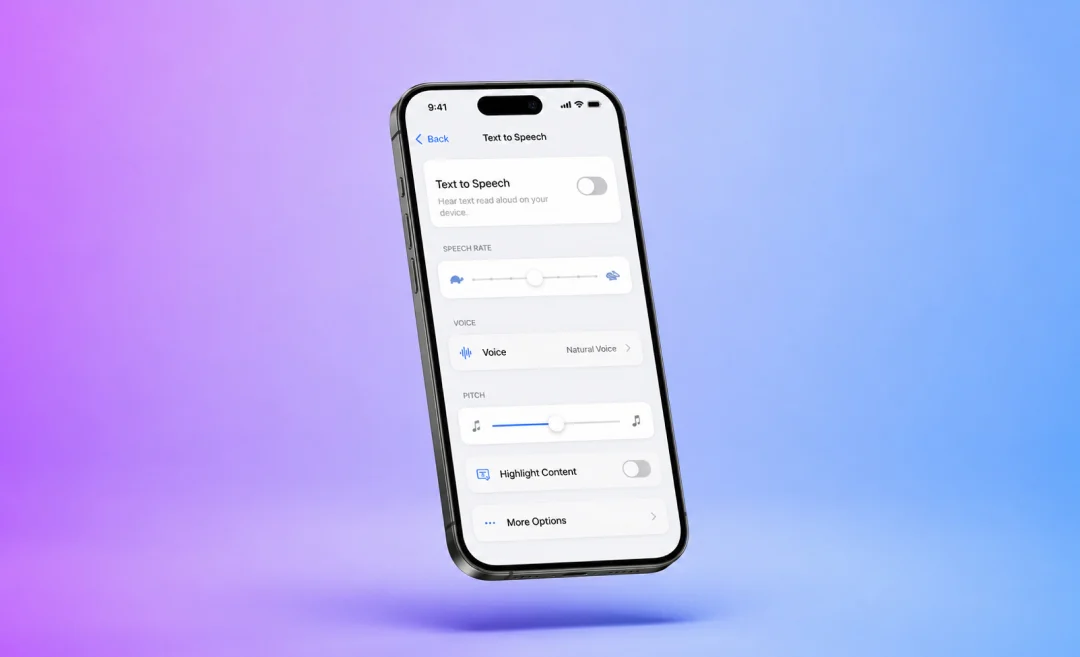


Text to speech can be very helpful when you want it to help you, but if a voice starts talking and you do not know how to stop it, it can be very annoying. The solution is almost always simple if you know where to look for it. In this guide you will learn exactly how to turn off text to speech on iPhone, Android, Windows, and Mac. Read it to finally save yourseld from a headache the next time your phone starts talking.
What text to speech is and why it turns on

Text to speech is an accessibility feature. It reads text on your screen out loud so you can listen to it instead of reading.
This can be helpful in many scenarios. It helps people who have low vision, reading difficulties, or who simply prefer to listen while they do other tasks.
On most devices, text to speech settings can be found under Accessibility settings. It can turn on because you changed a setting, updated your system, installed an app that requested accessibility access, or pressed an accessibility shortcut by mistake.
If you want to try this feature, you can try the Summary AI free text to speech tool to turn any text into audio.
How to turn off text to speech on iPhone and iPad
On Apple devices, text to speech usually appears as Spoken Content and VoiceOver inside the Accessibility settings. Spoken Content reads selected text or the screen when you ask for it, while VoiceOver is a screen reader that changes how you tap and swipe.
Turn off Spoken Content
If your iPhone only speaks sometimes, like when you swipe with two fingers or highlight text, this is usually Spoken Content. Here is how to turn it off:
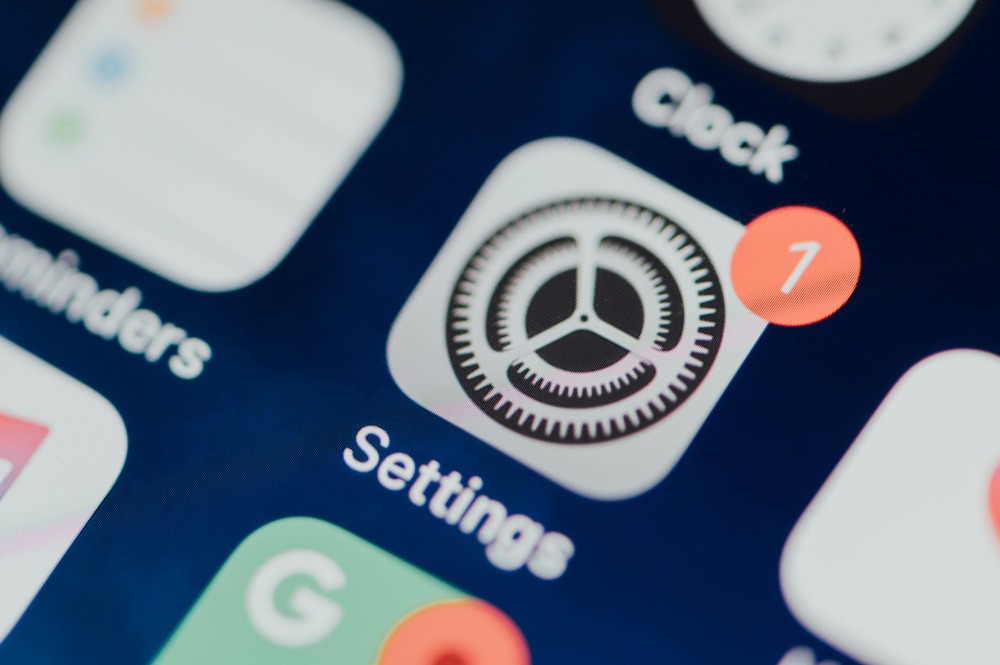
- Open the Settings app on your iPhone or iPad.
- Scroll down and tap Accessibility.
- Under the Vision section, tap Spoken Content.
- Turn off Speak Selection and Speak Screen so both switches are gray instead of green.
Apple Support describes more options for controlling these features so you can check there if your version looks a bit different.
How to turn off text to speech on Android
On Android, two things usually cause speech: TalkBack or Screen Reader, and the text to speech engine that apps use. Menus and names can vary by brand, but the general path is similar on most phones.
Turn off TalkBack or Screen Reader
TalkBack is the screen reader available for Android devices. When it is on, your phone will read every item on the screen and you will need to tap once to focus and double tap to open.
To turn TalkBack off:
- Open the Settings app. If TalkBack is on, tap once to select and double tap to confirm.
- Scroll down and tap Accessibility.
- Look for TalkBack, Screen Reader, or Voice Assistant depending on your phone brand.
- Tap it, then toggle the switch off to disable the feature.
On many Android phones, you can also hold both volume keys for a few seconds to turn TalkBack on or off if the shortcut is enabled.
Change or disable text to speech output
If only some apps or system messages speak but TalkBack is off, you might need to change the text to speech output settings.
- Open Settings.
- Go to Accessibility or System
- Tap Language and input.
- Tap Text to speech output.
Here you can:
- Choose a different preferred TTS engine.
- Adjust speed and pitch.
- Turn off or uninstall a specific engine on some devices.
Google explains how text to speech works in its
help center, including where to find Text to speech output.
If you hear spoken Google search results, you may also need to open the Google app, go to settings, and turn off spoken answers or “Read aloud” for results.
How to turn off text to speech on Windows 10 and 11
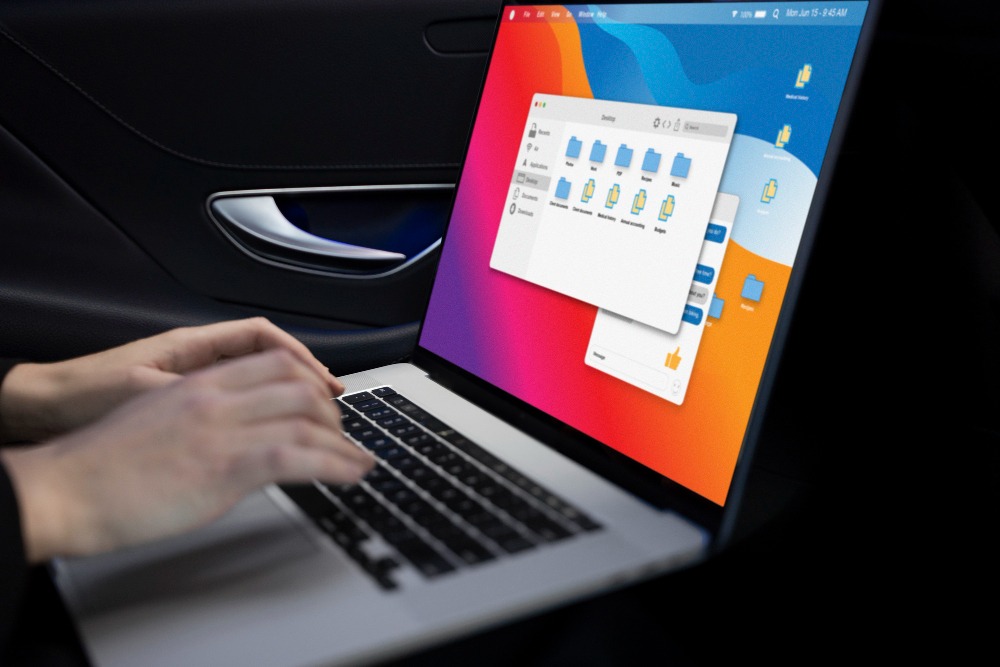
On Windows, the main feature that reads everything on the screen is called Narrator. Sometimes it can be turned on or off through a shortcut or a setting during setup.
Turn off Narrator in Settings
To stop Narrator from reading aloud:
- Press the Windows key or click the Start menu and open Settings.
- In Settings, choose Ease of Access or Accessibility, depending on your Windows version.
- Click Narrator in the left panel.
- Turn the Narrator switch to Off.
Microsoft explains these steps in detail with screenshots in their official Microsoft support articles about Narrator.
Use the keyboard shortcut
If Narrator turns on suddenly, you can also use a keyboard shortcut to turn it off.
Press Windows key + Ctrl + Enter to toggle Narrator off or on.
If you still hear other voices on Windows after turning off Narrator, check other speech and voice assistant settings in Windows.
How to turn off text to speech on Mac
On a Mac, similar to iPhone and iPad, text to speech appears mainly as Spoken Content and VoiceOver in Accessibility settings.
Turn off Spoken Content
If your Mac reads selected text or speaks while you type, follow these steps:
- Click the Apple menu and choose System Settings or System Preferences.
- Click Accessibility.
- Select Spoken Content or similar options.
- Turn off features like Speak selection, Speak typing feedback, or speak on key press.
Apple explains these options on Apple support if you aren’t sure where to find your settings.
Turn off VoiceOver
VoiceOver on Mac is a screen reader that changes how the keyboard and trackpad behave.
To turn it off:
- Open System Settings or System Preferences.
- Click Accessibility.
- Choose VoiceOver.
- Turn the VoiceOver switch off.
You can also press Command + F5 to toggle VoiceOver on or off. This and other information is documented in Apple Support articles.
Get text to speech only when you want it

Text to speech is useful, but only when you want it. When you don’t want it, it can get really annoying. Hopefully this guide covered all the devices and situations where you can shut it off. For a tool that you have more control over, try Summary AI’s free text to speech tool.
Summary AI is an app you can use to create AI transcriptions of meetings. It joins your calls, notes down everything said, and generates a perfect summary of your meeting with speaker labels, key ideas, and even action items.

