



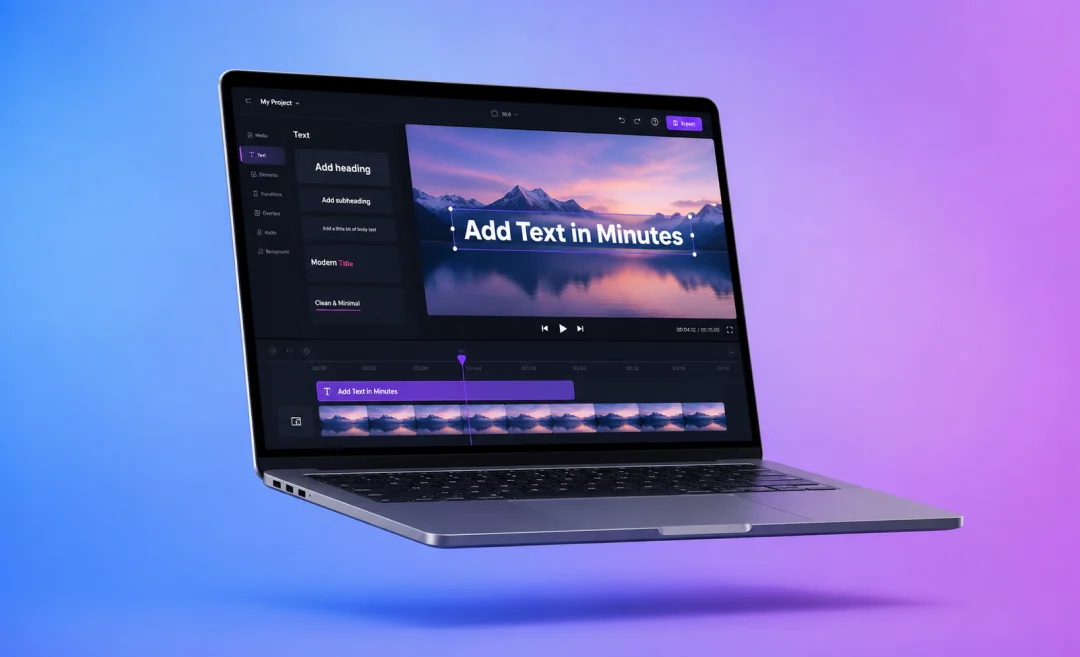


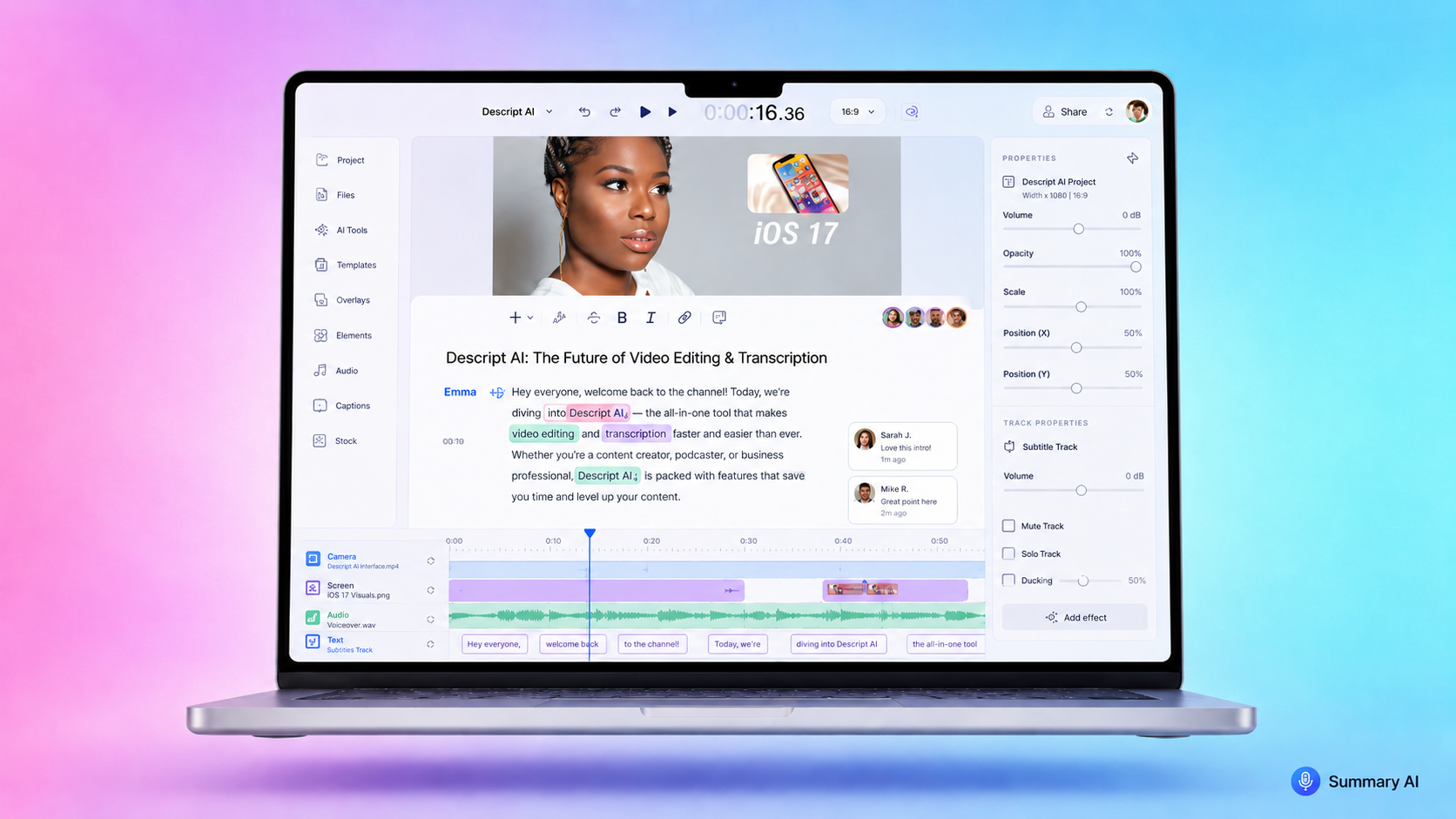

Anyone who creates content online for social media or YouTube needs to learn how to add text on a video. Adding subtitles improves your content by allowing people to watch it on mute as well.
Luckily, there are many methods of adding text to video available nowadays and many free tools that you can use as well as paid software.
General method for adding text on a video

Most of these tools for adding text on video work the same way. You open or import your video, then add a text layer above the video track. Finally, you either type of auto-generate the text or captions for the video. Either by dragging the text into place or by setting the time code yourself, you can decide when the text you placed on the video appears.
This is the process for adding text to video no matter which software or app you use, whether it’s TikTok, YouTube, Premiere Pro, or another option.
In this step‑by‑step guide, we will walk you through the steps to add text on a video across the most popular tools and platforms.
How to add text on a video on iPhone
If you want to add text on a video on iPhone, the easiest ways to do it is using iMovie, Apple Clips, or third‑party apps like CapCut and InShot. Each one lets you place a text layer above your video and control when it appears.
How to add text in iMovie on iPhone
iMovie uses “Titles” for on‑screen text and is great for simple overlays.
Steps to add text on a video in iMovie on iPhone:
- Open iMovie and tap Create Project, then choose Movie.
- Select the video clip you want, then tap Create Movie to place it on the timeline.
- Tap the clip in the timeline, then tap the Titles (T) icon.
- Browse the title styles and tap the one you like.
- In the preview window, tap the sample text and type your own words.
- Drag the title bar on the timeline to control when the text appears and disappears.
This simple process mirrors what Apple does on Mac and other editors: add a title layer, change the text, then adjust its timing.
If your video is based on spoken content, you can first turn your audio into text and pick the best phrases for your titles. Summary AI’s guide on how to do voice to text explains how to capture your words as editable text you can reuse in your videos.
How to add text in Apple Clips and other iOS apps
Apple Clips gives you animated text labels and is designed for quick social videos. According to
Apple’s Clips support, you:
- Open your project and tap the clip you want to edit.
- Tap the Effects button (the star icon).
- Tap the text icon and swipe through the different label styles.
- Tap a style to apply it, then edit the words using the keyboard.
- Drag, rotate, or pinch to move and resize the text label on screen.
This is one of the fastest ways to add playful text effects without learning a full editor.
Third‑party iOS editors
Most third‑party iOS editors follow a very similar pattern:
- Open your app (CapCut, InShot, VN, etc.) and create a new project.
- Import or record the video you want to edit.
- Tap Text, Titles, or the T icon in the toolbar.
- Type your message and pick a font, size, color, and maybe an animation.
- Drag the text box on the preview to place it where you want.
- Drag the text layer’s edges in the timeline to match the right moment in the video.
If you want to go further and also generate narration that matches your on‑screen text, the Summary AI guide text to speech explained is a useful primer on how to turn scripts into realistic voiceovers.
How to add text on a video on Android
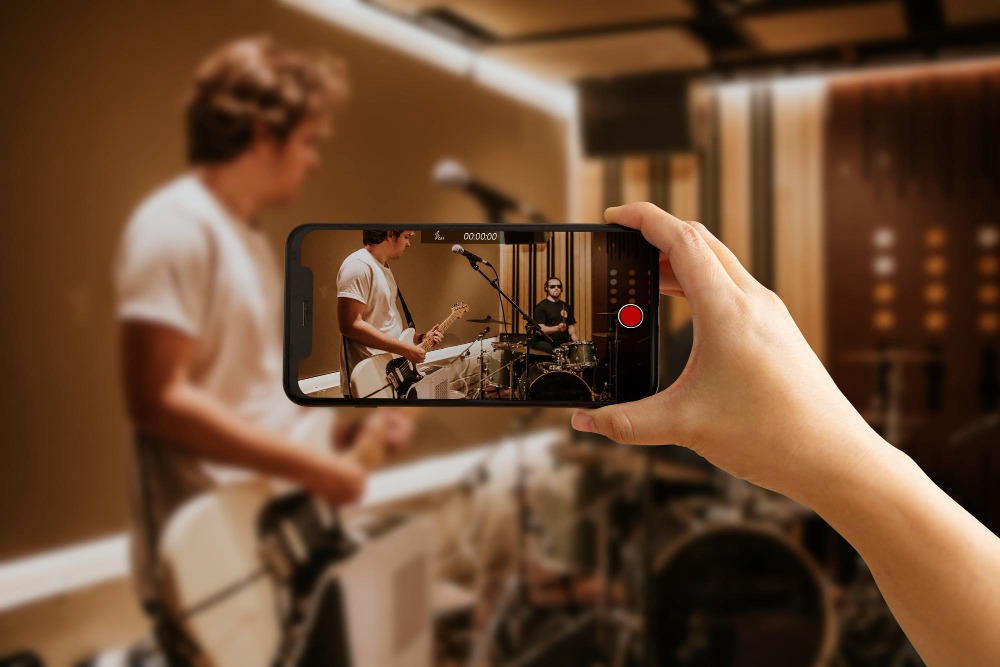
On Android, learning how to add text on a video works much the same as on iPhone. Popular apps like CapCut and InShot, plus browser‑based editors, all use a timeline where you stack text above your footage.
Typical steps to add text on an Android video:
- Open your video editing app (CapCut, InShot, VN, or your phone’s default editor).
- Create a new project and import the video you want to edit.
- Tap Text, Titles, or the T icon in the bottom menu.
- Type your text and choose a font, size, color, and any entry/exit animations.
- Drag the text box in the preview to position it exactly where you want.
- Use the timeline to drag the edges of the text clip so it appears at the right moment.
- Export your project as an MP4 to save or share it.
If you also need captions, it is often faster to let AI do the heavy lifting and then refine the result. Summary AI’s tool to add subtitles to video instantly will convert speech to text, sync it with your audio, and let you edit the captions before exporting.
How to add text on a TikTok video
Many creators want to know how to add text on a TikTok video because most viewers watch on mute. TikTok has a built‑in text tool that works the same on iOS and Android.
To add text on a TikTok video:
- Open TikTok and record a new video or upload one from your gallery.
- On the editing screen, tap the Text icon on the right side.
- Type your text in the box that appears.
- Choose a font, color, and style from the menu at the bottom.
- Drag the text box to place it where you want on the screen.
- Tap the text and select Set duration to control when it appears and disappears.
You can repeat this to add multiple text elements with different timings. This works well for step‑by‑step tips, hooks, or captions synced to the beat.
If you prefer more control, you can edit your vertical video in a browser editor first and then upload to TikTok. Microsoft’s support article on
how to add text and titles to a video shows how Clipchamp handles text: click the Text tab, drag a style onto the timeline, edit the words, and adjust timing before exporting.
How to add text on a YouTube video

When you ask how to add text on a video for YouTube, there are two main parts: on‑screen text inside the video file and subtitles or closed captions in YouTube Studio. Using both will give you the best viewer experience.
How to add on‑screen text before upload
On‑screen text is created in your editor before you upload to YouTube. You can use any app that supports text layers, such as iMovie, Premiere Pro, CapCut, or a browser‑based editor.
The general pattern:
- Add your video to the timeline as the main track.
- Add a text or title layer on a track above the video.
- Double‑click the text to type your message.
- Style the text (font, color, size, position).
- Adjust the text clip’s start and end in the timeline to match the right moment.
That’s all most editors are doing behind the scenes, whether they’re mobile apps or desktop tools.
How to add subtitles and captions in YouTube Studio
Subtitles and closed captions live inside YouTube, not in your video file. According to
YouTube Help, you add them in the Subtitles section of YouTube Studio.
To add captions in YouTube Studio:
- Sign in to YouTube Studio and choose the video you want to edit.
- In the left‑hand menu, click Subtitles.
- Click Add language and select your language.
- Under “Subtitles,” click Add.
- Choose one of three options: Upload file, Auto‑sync, or Type manually.
- Edit timings if needed, then click Publish.
To make this faster, you can generate a transcript first. Summary AI’s transcribe video to text tool turns your video’s audio into text, so you can upload it for auto‑sync or paste it straight into the YouTube caption editor.
How to add text on a video in iMovie
On Mac, iMovie gives you a simple way to add titles without the complexity of a full professional editor. The process is similar to iMovie on iPhone but with more screen space and control.
To add text on a video in iMovie on Mac:
- Open iMovie and create a new project or open an existing one.
- Drag your video clip into the timeline.
- Click the Titles tab above the viewer.
- Drag a title style into the timeline above your video clip.
- Double‑click the sample text in the preview window and type your own words.
- Drag the edges of the title clip on the timeline to set how long the text appears.
This is ideal for simple YouTube intros, credits, or name labels where you do not need advanced motion graphics.
How to add text on a video for Instagram and Snapchat
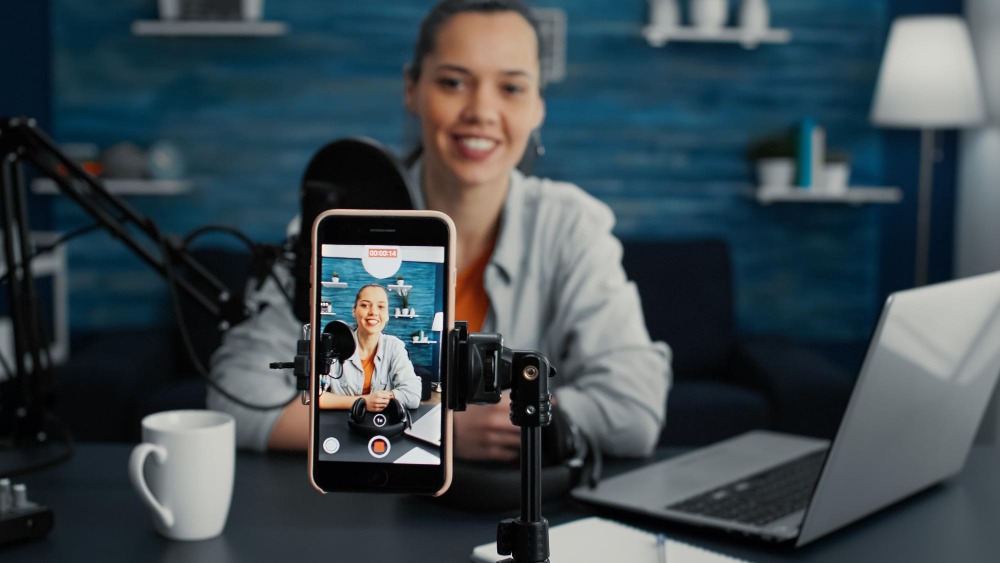
Short vertical videos on Instagram and Snapchat rely heavily on text, because many viewers watch with sound off. Both apps include built‑in tools that make it easy to add text on a video right before you post.
How to add text on Instagram Reels and Stories
According to the Instagram Help Center, you can add text using the Aa icon while creating stories or reels.
Steps:
- Open Instagram and record or upload a video in the camera.
- Tap the Aa text icon at the top.
- Type your text.
- Use the options at the bottom to pick a font and color.
- Drag and pinch to move and resize the text box on the screen.
- On reels, tap the text and adjust its duration so it appears and disappears at specific moments.
You can stack several pieces of text and give each of them different timing, which is perfect for short tutorials or list‑style content.
How to add text on a Snapchat video
On Snapchat, adding text is also very straightforward:
- Open Snapchat and record your video.
- Tap the T icon at the top of the screen.
- Type your message and tap again to cycle through style options.
- Drag the text to place it where you want on the video.
These built‑in tools are ideal when you want to add text on a video quickly, without exporting clips to another app.
Transcribe your video with Summary AI
Adding text to a video is much easier when you already have the words written out. Summary AI’s video transcription tool can take your video, turn the speech into text for you, and give you ready‑to‑use lines for titles, callouts, and captions.
Instead of pausing and typing everything by hand, let Summary AI transcribe your video first, then copy the best phrases straight into your video editor as on‑screen text. Try it on your next video to save time and keep your text clear and accurate.

