




Have you ever wondered how to extract the content from a YouTube video? You can turn a video you’d have to watch in real time into text. With this text you do as you please. You can search through it, or skim it or even reuse it. There are several ways you can do this. You can use YouTube’s built-in transcript tools, or use Summary AI’s video to text tool.
In this article we will look at how to get the content from a YouTube video, when this is useful, and tips on doing it efficiently.
Why learn how to extract the content from a YouTube video
YouTube is packed with valuable content.There are several tutorials, lectures, interviews, and you can find web seminars too. But all this content is locked in a video. If you want to study from video content, playing the whole thing back several times isn’t efficient. Learning how to extract the content from a YouTube video and turning it into something you can work with, like text, solves this issue. When you have extracted the content from a video from YouTube, you can quote, study or reuse the content.
Once you get the content you wanted from a YouTube video here are some things you can do with it:
- Search in it like a document instead of scrubbing through the timeline.
- Copy important quotes, that you can later use for different purposes.
- Turn long videos into short, scannable summaries or make a list things to do.
If you often repurpose video content for marketing or take notes from talks and webinars to study them, we recommend learning a simple system that can help you extract what you need from the YouTube video and turn it into text.
You can also transcribe video to text with artificial intelligence using Summary AI’s video‑to‑text feature. This can help for a more thorough text file.
Extract content from a YouTube video using the built-in transcript
The easiest way to get the content you need from a YouTube video is to use YouTube’s transcript feature. This works with most public videos on YouTube that have captions enabled.
Extracting the transcript from YouTube on desktop
- First, open the YouTube video you want to get test and content from.
- Under the video title, click the the link that has three dots or expand the description.
- Look for the Transcript section or a Show transcript option and click it.
- A transcript panel will open on the right or below the video. This will show the text line by line with timestamps.
- There should be an option that you can toggle on and off and clicking the timestamps that will make copying easier.
- Click inside the transcript panel, here if you press Ctrl+A on windows, or Command+A on Mac you can select all, and then you can copy it.
- Then you can paste the text into a document, or use it a notes app, or wherever you want to work with the content.
Once you’ve done this you have an extract of everything that is spoken in the video as a text file. After this you can clean it up, or highlight parts that are important for you. You can also edit it in other ways like breaking it into smaller segments of text.
Getting the content from YouTube on mobile
On your mobile, you’ll see the transcript in another place, but it uses the same logic.
- First open the video you want to transcribe in the YouTube app.
- Here tap the video title or the dot menu under the video to expand the description.
- Once opened scroll down until you see the phrase Show transcript and tap on it.
- Once the transcript appears you can press on the text long and select and copy the parts you need.
When you are trying to extract content from a YouTube video using a transcript on your phone, it’s a bit more tedious. Copying and pasting chunks of text can take a long time. Because of this many people choose to do this on a desktop instead and just use their mobile for quick lookups.
Limitations of YouTube’s built-in transcript for extracting content
The native transcript on YouTube doesn’t always work perfectly. Here are some of the limitations of this approach you should know about:
- This only works if the creator added subtitles or auto‑captions. Some videos you want to transcribe don’t have a transcript at all.
- Auto‑generated captions can include many typos. Misheard words, and odd punctuation can cause issues and more work to fix.
- The transcript is usually raw text. That means it won’t be sectioned and it won’t have headings or any structure.
Even with its’s limitations, in most cases it’s still the fastest way to extract the content from a YouTube video that’s also free.
If you’re trying to extract content from longer YouTube videos or recurring meetings, we recommend using Summary AI. It can also work when you’re transcribing videos that are in a nother format than YouTube. It has a video to text tool that can be a big help to get cleaner transcripts.
Extract on‑screen text when no transcript is available
Sometimes the transcript is missing the content you need. Like for example if the information you want is actually text in the video frame. For example a code on the screen, or the slide or a caption that’s baked into the video. In this case there’s a tool you can use to capture what you see and need.

Use Windows PowerToys Text Extractor
On Windows there’s a feature within PowerToys called Text Extractor. This lets you copy text from anywhere on your screen. This includes images, videos and also locked PDFs. Using this tool could be how to extract content from a YouTube video in your case.
Here’s a step by step guide on how to use it:
- Install Microsoft PowerToys and enable the Text Extractor module.
- Play the YouTube video and pause it on the frame with the text you want.
- Press this keyboard combination to activate Text Extractor application :
- Windows key + Shift + T
- If you click and drag, you can draw a rectangle around the text area in the video.
When you let go of the button, PowerToys will copy the text it recognized to your clipboard. - Once you have the text you need you can paste the captured text into your desired text editor or notes app.
If you don’t need a full transcript, then this could be the tool for you. It can work really well for short bits of text. For example: key quotes, a line of code, or bullet point lists on a slide.
Use screen recording and manual notes for short segments
If all the content you need to extract from a YouTube video is a small segment, here’s what you can do:
Screen record that part: Watch it once and type out the important points.
If you’re in need of large scale extraction, screen recording isn’t efficient. But it can work well for one or two key moments, so this can be the quickest path.
In the case that you’ve captured the text, you can treat it like any other document. Whether it’s via transcript or an extraction from the screen. You can search through it, you can cut it shorter, or you can feed it into a system you use for note-taking.
Convert YouTube videos to text with Summary AI
AI video‑to‑text is helpful when you need a tool like this for extracting content from longer YouTube videos. It can also be helpful if you need the text of recurring webinars or meetings.
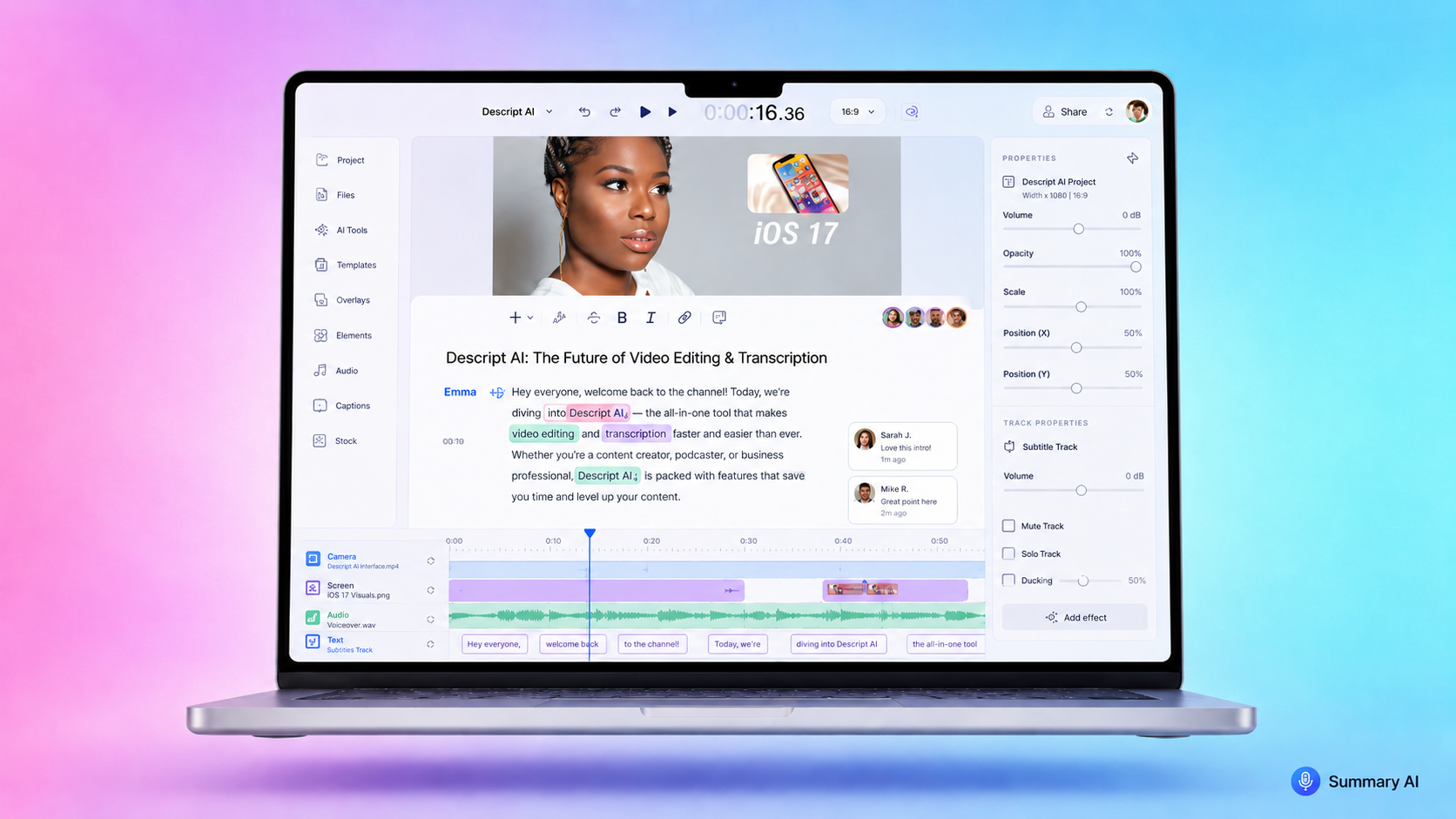
Summary AI’s video to text tool is designed to take video or audio and turn it into accurate text transcriptions. A bonus is that it also gives you organized notes and summarizes your text.
Here’s a basic way to use it if you need a transcript and a clean summary:
- Get access to the video or its audio: For your own content, if available, use the source file. (e.g. webinars, or recorded meetings)
- For videos you have the right to reuse, work from your downloaded or recorded copy.
- Upload the video or audio to Summary AI
- Use Summary AI’s video to text converter
- The system converts the speech to text, similar to what YouTube does behind the scenes, but with this you can control the format.
- Generate a transcript with AI: Summary AI creates a word-for-word transcript of the video.
The good thing about content extracted from YouTube using Summary AI for text transcription is that you can search it and edit it. You can also copy sections into your documents or summarize it automatically.
The benefit of this approach is that you’re not limited by what YouTube has available to you.
You can convert almost any video you have into text and then into clean notes using video to text with artificial intelligence.
Get instant summaries with Summary AI
Summary AI can help you save time by turning long recordings into organized notes. Using Summary AI to convert video to text and then having it summarize it for you can save you hours every week.
This can be very useful if you regularly have to sit through long meetings or presentations. It can also help with long recorded calls. This will help you use your time more efficiently.

