




ChatGPT is useful for many things and it has many features, including the ability to read a Word document aloud. But ChatGPT does not work exactly like a traditional text-to-speech tool. When people want ChatGPT to read Word documents out loud, they usually expect it to open a file and read every word out loud, just like Microsoft Word or a screen reader would. That is not how ChatGPT works.
Instead, ChatGPT reads and analyzes the content of your file first. Then it generates a response based on the instructions you give it. After that, it can speak that response out loud using voice features like ChatGPT Voice or a read-aloud option, if available on your device.

So while you can listen to your document, you are usually hearing a processed version of the content, not a direct, word-for-word reading. In many cases, this can actually be more useful, because the information is clearer and easier to follow.
How ChatGPT Reads a Word Document
To understand how ChatGPT reads things aloud, it helps to understand the process step-by-step. When you upload a Word document to ChatGPT, ChatGPT does not treat it automatically like an audio file. It treats it like text that it needs to analyze.
Here is what happens:
- You upload your Word document as DOCX file.
- ChatGPT extracts and reads the text
- You give instructions (for example: “Summarize or explain the text in simple English.”)
- ChatGPT generates a response
- The response can be played back as audio
This means that ChatGPT is not just reading, it is also analyzing the content and changing the way it is presented in a way it believes is an improvement. For this to work well and for the outcome to be what you want it to be, you have to understand how to give prompts to ChatGPT correctly.
As mentioned before, the way ChatGPT handles this task could actually be more useful for you than simply having the text read to you. If your document is long and very complex, ChatGPT can turn it into a shorter and simpler explanation before speaking it aloud with Voice or read-aloud. This can save you some time and make the content easier to understand.
Ways ChatGPT Can Speak to You
ChatGPT currently has two ways that allows you to hear responses as audio. The exact features that you have may vary depending on your device, app version, and type of account.
1. Voice Mode
With Voice Mode you can talk to ChatGPT and hear its replies.
You can speak to ChatPT, ask questions about your document, request summaries of your Word document, or ask for explanations, and ChatGPT will respond with spoken audio. In this case, the way you use ChatGPT works more like a conversation than a text-to-speech tool.
This is especially useful because you can actually interact with the content instead of just listening passively as ChatGPT reads it aloud.
2. Read-Aloud Playback
Like many free AI apps, some versions of ChatGPT include a read-aloud option for written responses.
On some devices, you can press and hold a message and a “Read aloud” option will appear. When you select it, the app will play that response as audio.
This is a helpful feature if you prefer to listen rather than read, or if you want to replay specific answers for some other reason.
ChatGPT vs. Basic Text-to-Speech
The text-to-speech tools we are familiar with read text aloud exactly as it is written, word for word. They do not change or improve the text the way ChatGPT does. It works differently, working with the text to follow your instructions.
ChatGPT can not only read out your text, but:
- Simplify difficult sentences
- Shorten long sections
- Summarize the key points
- Explain complex ideas in simple language
All of this makes ChatGPT more useful for students or professionals working with meeting or marketing materials. It can help you study and review documents, and save you a lot of time. Instead of listening to everything in your Word document, you can summarize or rewrite it first and listen only to what matters most.
Don’t know which AI app to use? Read our article on ChatGPT vs Perplexity.
What File Types Does ChatGPT Voice Support
ChatGPT supports several common file types that you can use with this feature, but remember, you will need to feed it text-based content, and Microsoft Word documents are usually DOCX files.
The file types ChatGPT supports include:
- DOCX
- TXT (plain text files)
- PPTX (PowerPoint presentations)
If your file is in Google Docs, you will not be able to upload it directly as a file. You will need to export it first as a DOCX or PDF.
What Makes a Document Easy to Read
For ChatGPT to work well with your files, you should follow a few best practices. For best results, your document should be:
- Text-based (not scanned images)
- Formatted clearly
- Free from heavy visuals
- Not password-protected
If your file contains images or scanned pages, ChatGPT may run into problems extracting the text correctly.
How to Read a Word Document Aloud with ChatGPT
Follow the simple step-by-step guide below to use ChatGPT to read Microsoft Word docs aloud.
Step 1: Upload Your Word Document
Open ChatGPT and upload your DOCX file into the chat.
Before uploading, check the following:
- The file is saved as DOCX
- It is not a Google Docs (.gdoc) file
- It is not locked or password-protected
- The text can be selected and copied
ChatGPT may not be able to process everything if your file is very long. It is often better to upload only the most important sections of your document.
Step 2: Give Clear Instructions
After uploading the file, tell ChatGPT exactly what you want it to do with your document.
ChatGPT will not automatically read the document aloud unless you ask it to generate a response.
Here are some useful prompts for reading your document aloud:
- “Read this document to me in simple English”
- “Summarize this Word document and list the key points”
- “Explain this report step by step”
- “Read only the introduction and conclusion”
- “Give me a short spoken summary”
Give clear instructions to get the best results.
Step 3: Listen to the Response
You can listen to ChatGPT’s response as audio using:
- Voice Mode
- A read-aloud option (if available in your app)
Depending on your device and your account, you may see controls for playback, or you may need to switch to voice mode.
Step 4: Adjust Settings
Some versions of ChatGPT allow you to choose different voices and adjust playback settings. However, these features may not be available for every user or platform.
Tips for Better Results
Here are some tips to follow if you want a better experience using ChatGPT to read your Microsoft Word documents aloud:
- Break down long documents into smaller chunks
- Ask for short summaries instead of full readings
- Focus on key sections
- Use short, simple prompts
For example, instead of asking for everything, you can say:
- “Summarize the first page”
- “Explain the key findings”
- “Read the conclusion out loud”
This makes the output easier to follow and hopefully closer to what you were looking for.
Common Problems and Solutions
If ChatGPT cannot read your document, here are the most common reasons:
- Unsupported file format: If your file is a .gdoc file, export it as DOCX or PDF.
- Scanned or image-based document: If your document is made of images, ChatGPT may not be able to read it properly. Use a text version instead.
- File is too large: Very long documents may not work well. Split them up into smaller segments.
- Feature unavailable: Voice features may not be available on your app or for your account type.
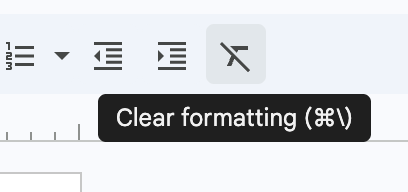
- Incorrect formatting: Messy or complicated formatting can cause confuse ChatGPT. Clean up the file by removing the formatting in Word or Google Docs using Command + \ on Mac.
When Should You Use ChatGPT To Read Word Documents?
This feature is useful in many real situations, such as listening to study notes while walking or reviewing documents for work during your commute.
It’s also a great opportunity to turn long text into shorter summaries and helps with multitasking while learning or working. Having your texts read aloud is especially helpful when you want to save time or don’t want to stare at your screen anymore.
Prepare Summaries with Summary AI
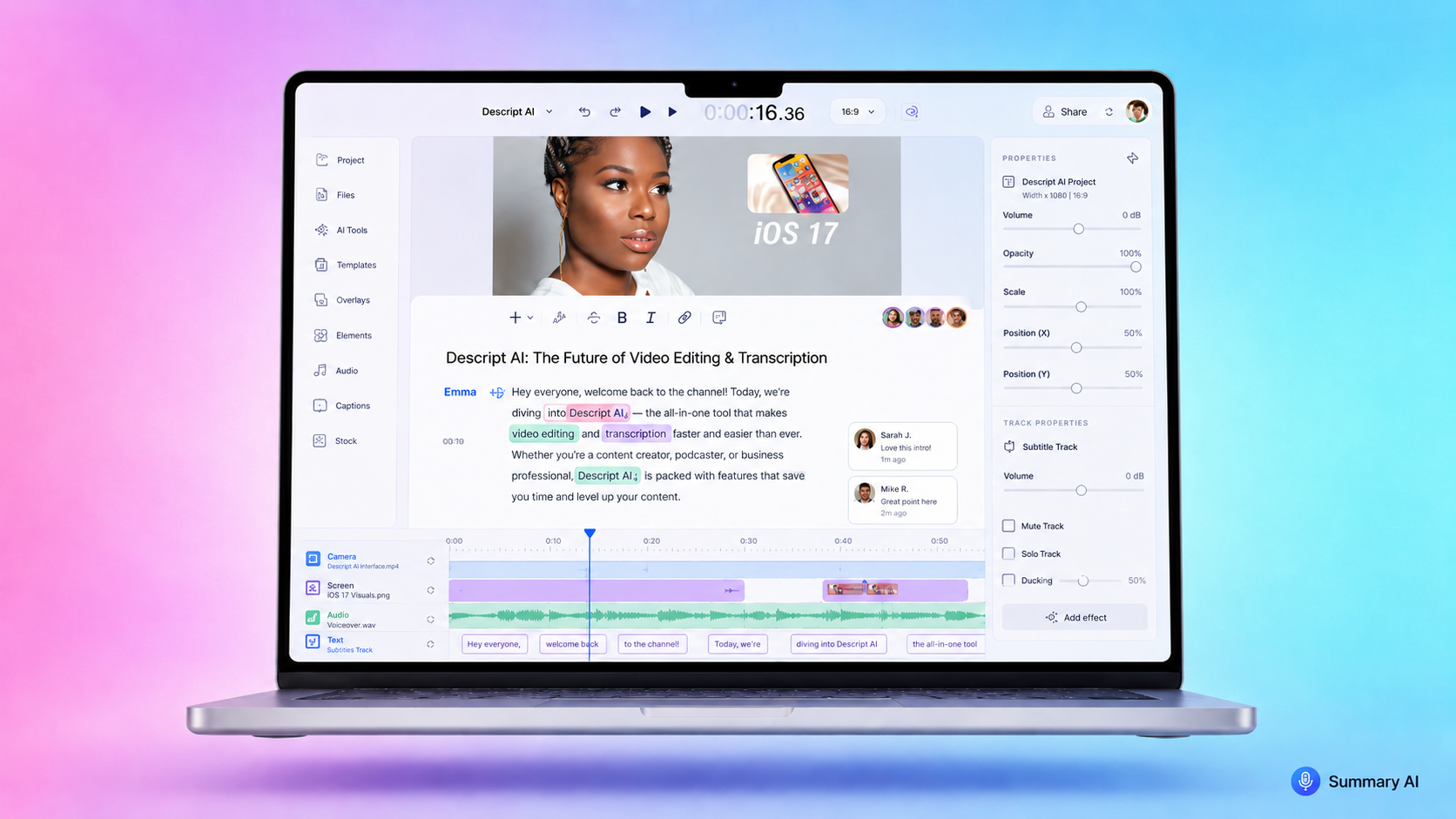
An alternative to ChatGPT when it comes to summarizing long texts is Summary AI. It is a powerful AI summarizer that you can use for all sorts of meetings.
Invite Summary AI to join your meetings so it records everything. The app gives you an automatic transcript which it immediately summarizs, highlighting key points and action items. Summary AI turns long meetings into clear, concise AI summaries in seconds saving your team hours every week.

