




Once you know how to transcribe a YouTube video you can turn one piece of content into many. You can recycle the words from the video and turn it into blog posts, study notes, social media posts, email newsletters, and more. The best thing is that it is actually really easy to do. You can transcribe a YouTube video to text quickly without having much technical knowledge, and in many cases you can do it for free.
In this guide, you will learn how to transcribe a YouTube video in a few different ways. We’ll show you a way to do it for free and an AI workflow that lets you do it faster.
Why transcribing a YouTube video is useful

Before we go into how to transcribe a YouTube video, let us reiterate on why being able to create a YouTube transcript is such a useful skill to have:
- You can search text instead of scrubbing through the video.
- You can copy quotes, stats, and ideas directly from the transcript.
- You can turn one YouTube video into many text‑based assets.
- You make your content more accessible to people who prefer reading.
You might want to:
- Transcribe a YouTube lecture to text so you can study.
- Transcribe a YouTube interview for research or notes.
- Transcribe your own YouTube video to turn it into a blog post.
- Transcribe a YouTube tutorial so you can scan the steps quickly.
To do all this, you need a simple way to convert video to text. The easiest option is to use a tool like Summary AI’s:
Transcribe YouTube videos in a few clicks with Summary AI’s free tool. All you have to do is upload a video and you get the transcript in seconds.
Method 1: Get a transcription directly from YouTube

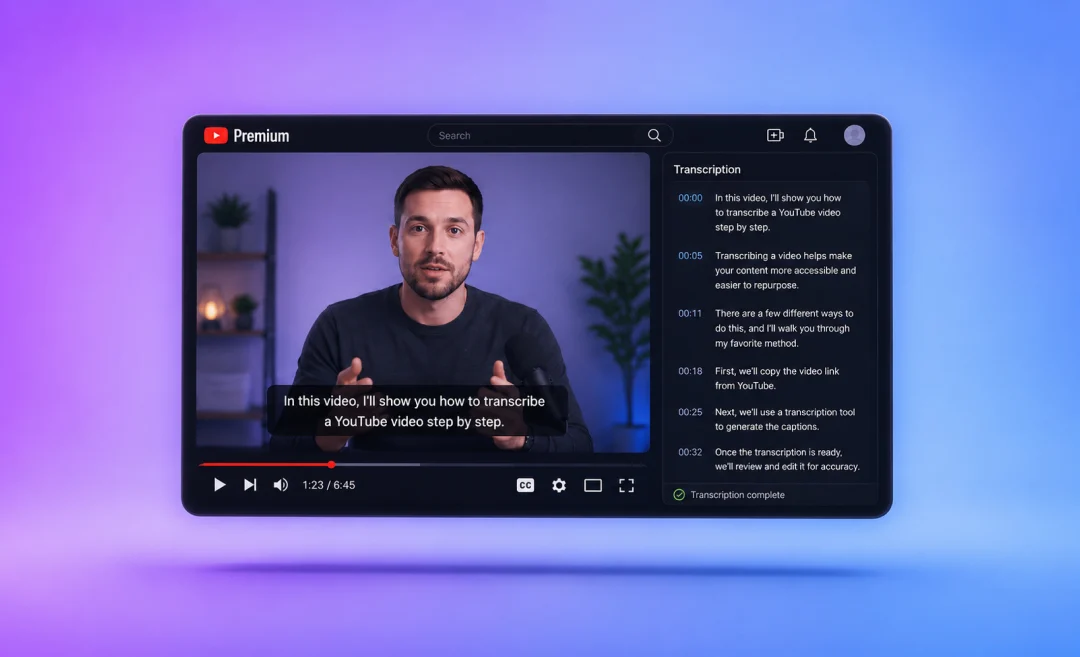
The second best way to transcribe a YouTube video for free is to skip using separate tools altogether and go straight to YouTube. Check if the channel has captions or auto‑generated subtitles turned on. If it does, you are in luck, because YouTube itself already has a transcript that you can save or copy and paste.
Here are the steps you need to follow to get a transcript from a YouTube video directly from the platform:
On desktop YouTube (simple English version of the process):
- Open the YouTube video.
- Under the video, click the “…” (More) or the Transcript option (the layout of YouTube may change)
- Look for “Show transcript” or something similar.
- A transcript panel opens with text and timestamps.
- Select the text, copy it, and paste it into a document.
This is the easiest way to transcribe a YouTube video into text when captions are available. It is not perfect. Punctuation can be basic and some words can be wrong, but it gives you a good starting point that requires a little editing on your side.
You can paste this text into your editor, clean it up, and then shorten it using summarization techniques like the ones in Summary AI’s guide on how to make a summary.
Method 2: Transcribe a YouTube video with AI
If you want to know how to transcribe a YouTube video with AI or how to use AI to transcribe a YouTube video quickly, an AI transcription tool can do it for you most efficiently and quickly.
How AI YouTube transcription works
The basic idea of how this works is very simple:
- You download the YouTube video or its audio. (Or drop the URL in the tool)
- You upload the file to an AI transcription tool.
- The tool turns the speech into text automatically.
- You edit the transcript and export it.
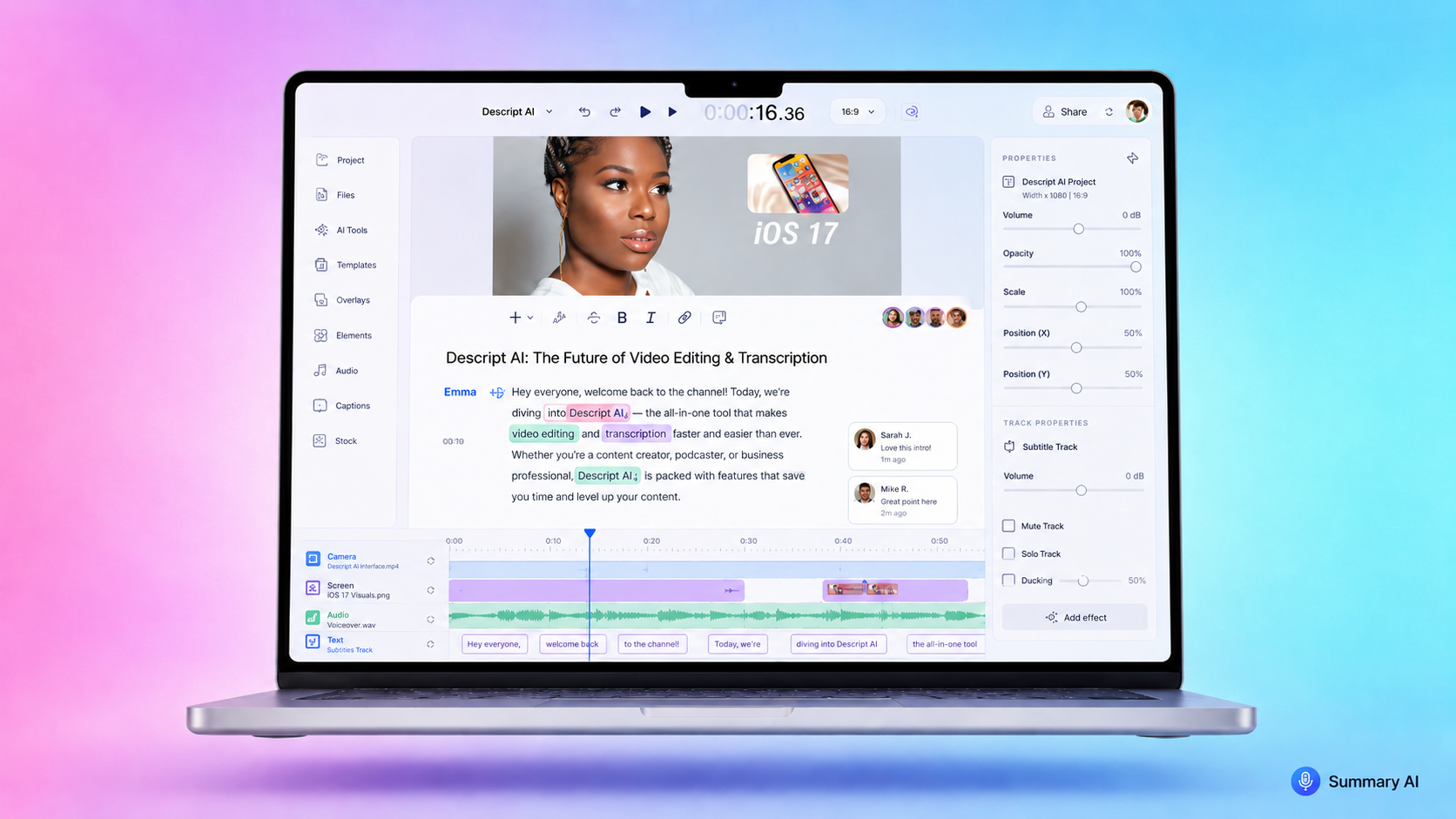
A tool like Summary AI’s can transcribe a YouTube video in seconds for you. It is designed exactly for this and it is free. You upload a video (or audio), and the tool uses speech‑to‑text models to generate a transcript you can copy, edit, and reuse.
AI can be especially helpful when:
- You need to transcribe a long YouTube video to text.
- You want a fast draft so you can focus on editing, not typing.
- You transcribe videos regularly and want a workflow that is easy to repeat.
You can also use AI to summarize the transcript once it is done. For example, after you transcribe a YouTube video, you can follow the frameworks in the objective summary guide to turn a long transcript into a short, clear summary.
Other ways to transcribe a YouTube video for free

If you want to transcribe a YouTube video and either there is no YouTube transcript or you want to use a different method than the previous ones, there are some workarounds that you can choose from.
Use built‑in transcription in Microsoft Word
If you have Microsoft 365, the web version of Word includes a Transcribe feature. It is not YouTube‑specific, but you can combine it with your downloaded audio.
Microsoft shows in its help article how you can upload an audio file and let Word generate a transcript for you:
Here are the steps you need to take for this to work with a YouTube video:
- Download the YouTube video or extract the audio.
- Go to Word on the web.
- Create a new document.
- Click Dictate > Transcribe.
- Upload the audio file.
- Wait for Word to process it.
- Review the transcript and insert it into your document.
This is a good way to transcribe a video from YouTube if you already have Microsoft 365 and want an option to transcribe at no extra cost.
Use free voice typing in a browser
If you are looking for a way to transcribe a YouTube video for free and have no access to other tools, a simple trick is to play the video and use voice typing:
- Open a Google Doc or another text editor with voice typing.
- Turn on voice typing or dictation.
- Play the YouTube video near the microphone.
- Let the tool type what it hears.
This is not very accurate, but it can work for quick, rough notes from a short video.
Transcribe a YouTube video into text manually

Manual transcription is the old‑fashioned way. You just listen and type. It is slower than the rest, but it is still probably the most accurate option depending on your listening comprehension. One way you can make it easier is to play the video at a slower speed and pause and rewind as needed. It helps if you split your screen: half of it should show the video with the controls, the other half should show your document.
Get more done with Summary AI
Transcribing YouTube videos is great, but how about other things? If you spend a lot of time in meetings, you should think about building a system for getting automatic video to text transcriptions of everything and then having instant, perfect summaries delivered straight to your inbox. The best tool for this is Summary AI, which is an AI transcription tool. It can join your calls and record everything that is said. Try it now!

