





How To Cancel YouTube TV Subscription
Some devices don’t allow you to cancel your subscription inside the YouTube TV app, so the best way to cancel is through a web browser.
Google Support says you must cancel through your account settings if you signed up directly with Google.
How to Cancel YouTube TV on a Browser
This is the easiest method to cancel your subscription. This method of cancellation works on both desktop and mobile browsers.
- Go to the website (tv.youtube.com)
- Sign in to your account
- Click the profile picture icon in the top right
- Click Settings
- Click Membership
- Click Manage
- Choose Cancel membership
- Follow the steps to confirm the cancellation of your membership
After canceling, you still have access to streaming channels until your payment period ends.
If you don’t want to cancel your full subscription, but you want to remove premium channels like HBO or Showtime, you can. Cancel those add-ons without canceling your full membership.
How to Cancel YouTube TV on iPhone
You can also cancel YouTube TV on iPhone. The steps are similar to cancelling YouTube TV on your laptop.
To end your YouTube TV subscription on iPhone, follow these steps:
- Open Safari or the browser you prefer
- Go to tv.youtube.com
- Log into your account
- Tap your profile photo in the corner
- Go to Settings
- Then tap Membership
- Select Manage
- Tap Cancel membership
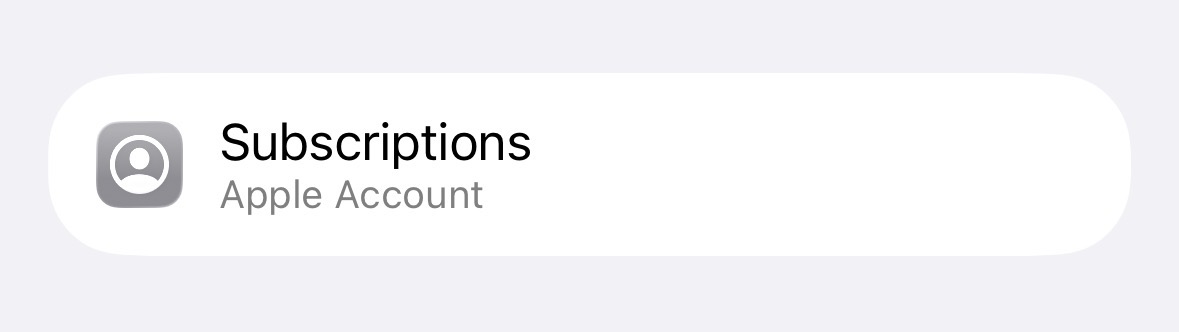
As mentioned before, you usually can’t cancel YouTube TV inside the iPhone app itself. If you subscribed through your Apple ID, check your iPhone subscription settings under Apple ID.
Note: YouTube TV is different from regular YouTube Premium. Make sure you are cancelling the right membership.
After cancelling your membership, you might want to delete the YouTube TV app from your phone.
To do this, hold the app button on your mobile screen until the option to delete it comes up. Click delete and remove all data.
How to Cancel YouTube TV on Android
If you use an Android device, you will still need a browser to end your YouTube TV subscription.
- Open your browser
- Open the website tv.youtube.com
- Sign in to your account
- Tap your profile icon
- Select Settings
- Tap Membership
- Select Manage
- Tap Cancel membership
If you signed up through Google Play billing, you may need to cancel inside your Google Play subscriptions instead.
If you cannot find the cancel option, visit youtube.com/purchases or check who your billing provider is.
How to Cancel YouTube TV Free Trial
If you signed up for a free trial of YouTube TV, you can cancel anytime before the trial ends.
Follow the same steps listed above before your trial expiration date. Once canceled, your access will continue until the free trial period ends. You will not be charged if you cancel in time.
If you are unsure about billing dates, check your account under Membership to see when the next charge is due. You will be charged on that day, so remember to cancel your subscription if you do not want to keep your membership.
What Happens After Canceling YouTube TV
After you cancel your YouTube TV subscription, here is what happens:
- You can access until the end of your billing period
- Your content is saved for a limited time
- You lose access to live streaming and channels after the next billing date
- You will not be charged again unless you restart your membership
Based on YouTube TV cancellation policies, you can restart your membership with your settings saved.
Note: YouTube TV does not do refunds for partial billing periods.
If you are unsure about whether you want to cancel, you may want to pause your subscription instead.

How to Pause Your YouTube TV Membership
Instead of completely canceling your membership, you can pause your YouTube TV subscription. Pausing is helpful if you are traveling or taking a short break from television streaming.
To pause:
- Go to Settings
- Select Membership
- Click Manage
- Choose Pause membership
- Select how long you want to pause (4 weeks-6 months)
Your billing stops during the pause period. After the selected time, your membership will resume automatically and you will be charged again until you cancel (or pause again) your subscription.
You can cancel YouTube TV anytime, but pausing it for a bit may be a better option if your break from the streaming service is temporary. You can pause from 4 weeks for up to 6 months. While paused, you can’t use YouTube TV, but you can always resume it and repause it to extend the pause period.
Conclusion
Now you know how to cancel YouTube TV using a browser on desktop, iPhone, or Android. Remember, you can cancel a free trial before it ends and you can remove add-ons without canceling your base plan. You can also pause your membership instead of ending it.
If you follow the right steps outlined above, canceling YouTube TV is quick and stress-free.
Save Time with Summary AI
Watching videos or attending virtual meetings can take up a lot of your time. With Summary AI, you can quickly convert video into text. This makes it easier to review key points, create notes, and come up with action items.

