



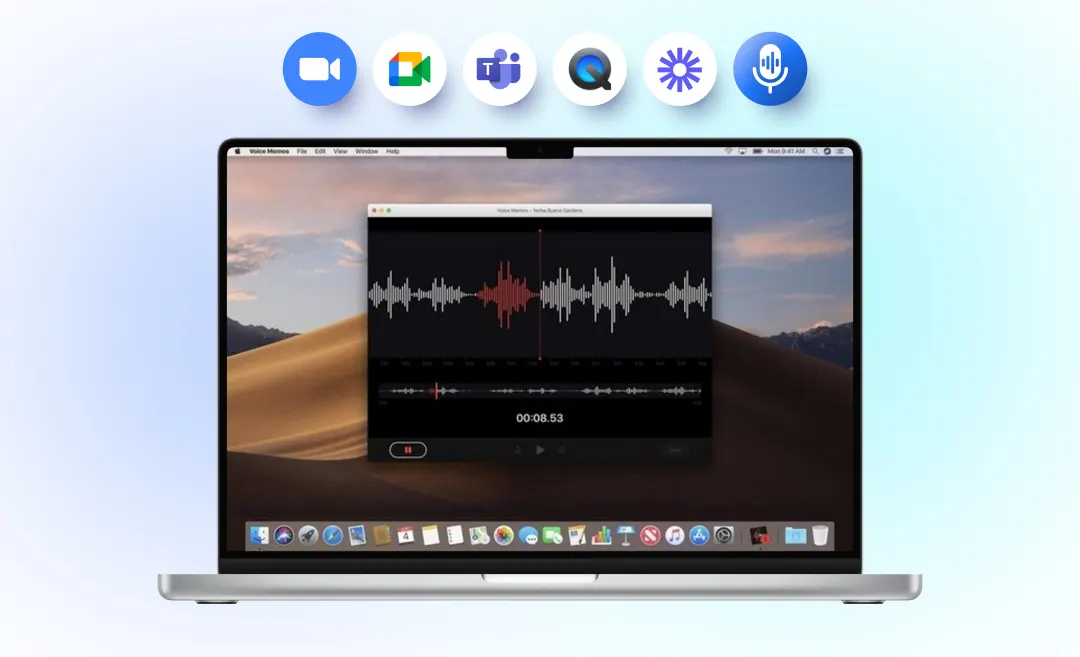

Recording voice on a Mac has never been easier — or more powerful. Whether you’re capturing lectures, meetings, interviews, podcasts, or personal voice memos, macOS now provides multiple ways to record high-quality audio directly from your Mac.
And thanks to AI tools like Summary AI, you can go beyond just recording. You can instantly transcribe, summarize, translate, and extract key points from any audio captured on your Mac.
In this complete guide, you’ll learn exactly how to record Mac voice using built-in apps, advanced software, browser tools, and AI-powered solutions.
What Does “Record Mac Voice” Mean?
“Record Mac voice” simply refers to capturing audio using your Mac’s built-in microphone or an external device. This includes:
- Recording yourself speaking
- Recording others during a meeting
- Recording system audio
- Recording video audio (a YouTube video)
- Recording voiceovers or narration
- Capturing voice notes, ideas, or reminders
In 2025, recording Mac voice can also involve using AI, which enhances clarity, eliminates noise, and converts audio to text instantly.
Why People Want to Record Mac Voice

Common Use Cases
- Students recording lectures
- Professionals recording meetings and calls
- Podcasters recording episodes or interviews
- Creators recording voiceovers
- Consultants capturing client calls
- Journalists capturing interviews
- General users saving personal notes or ideas
Why It’s More Important Than Ever
- Remote work makes voice communication essential
- Voice memos and audio notes are 5× faster than typing
- AI transcriptions boost productivity
- Recording helps with memory, accuracy, and documentation
How to Record Mac Voice: 5 Best Methods
1. Record Mac Voice with QuickTime Player (Built-In & Free)
QuickTime Player is the easiest and fastest way to record voice on a Mac.
How to Record Voice Using QuickTime Player
- Open QuickTime Player
- Click File → New Audio Recording
- Choose your microphone (Internal or external)
- Press Record
- Save your audio file
Pros
- Free and built in
- Simple interface
- Good audio quality
Cons
- No noise reduction
- No transcription
- No advanced editing
2. Record Mac Voice with Voice Memos
Voice Memos is great for quick personal recordings.
Steps
- Open Voice Memos
- Click Record
- Save recording
- Sync across devices with iCloud
Best For
- Voice notes
- Personal reminders
- Quick recordings
Limitations
- Basic audio only
- No text transcription
- No AI summaries
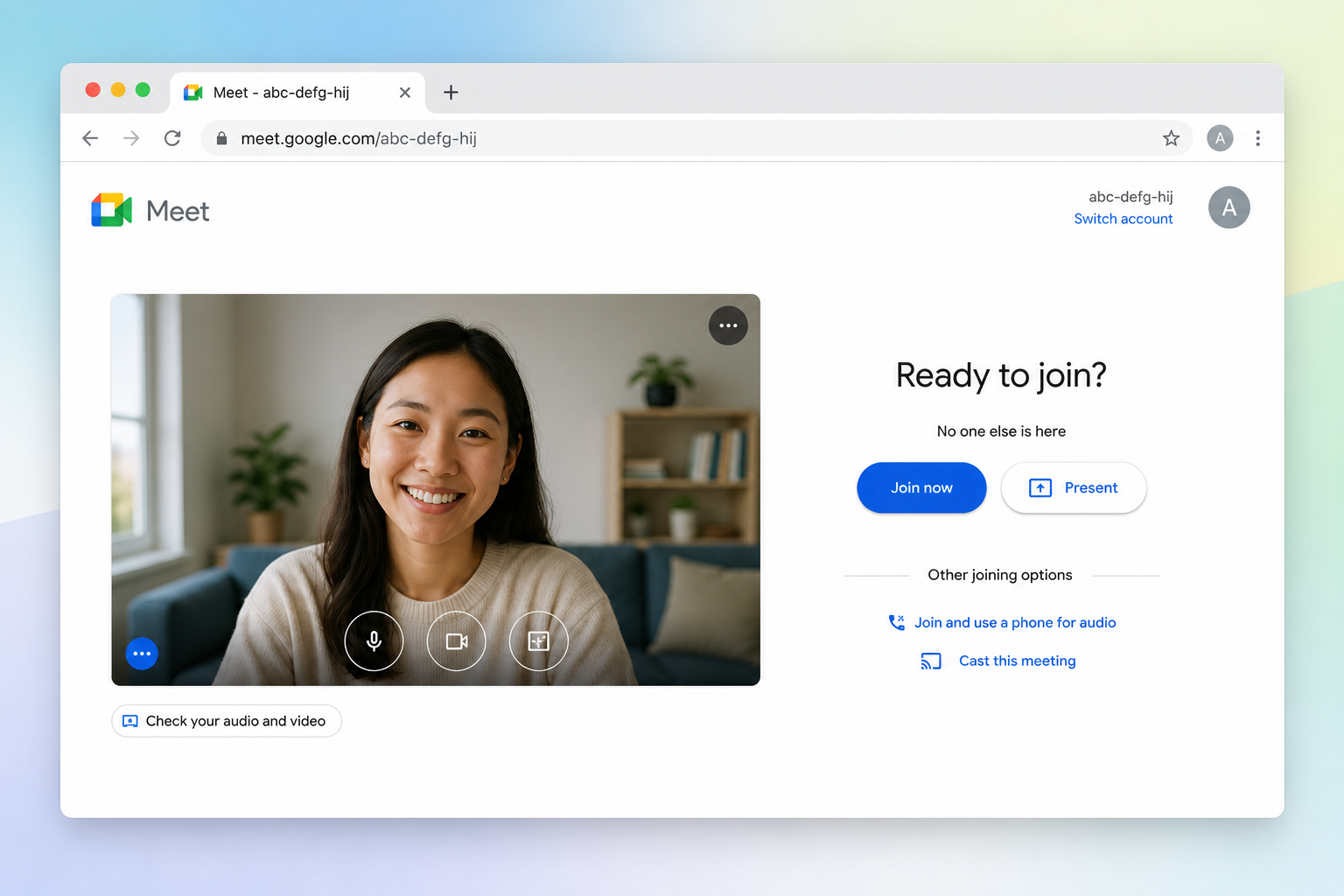
3. Record Mac Voice with Screen Recording Apps (Zoom, Teams, Loom)
If you’re in an online meeting, these tools automatically record both audio and video.
Examples
- Zoom
- Microsoft Teams
- Google Meet
- Loom
Why Use These Apps
- Great for meeting notes
- Built-in cloud storage
- Easy sharing
Downside
- No built-in AI transcription unless you pay extra
- Files can become large
4. Record Professional Mac Voice with Audacity or GarageBand
For high-quality voiceovers, podcasts, or music:
GarageBand
- Pre-installed
- Great for musicians
- Voice presets
Audacity
- Free
- Multi-track recording
- Powerful editing tools
Ideal For
- Podcasters
- Creators
- Musicians
Not Ideal For
- Meetings
- Beginners
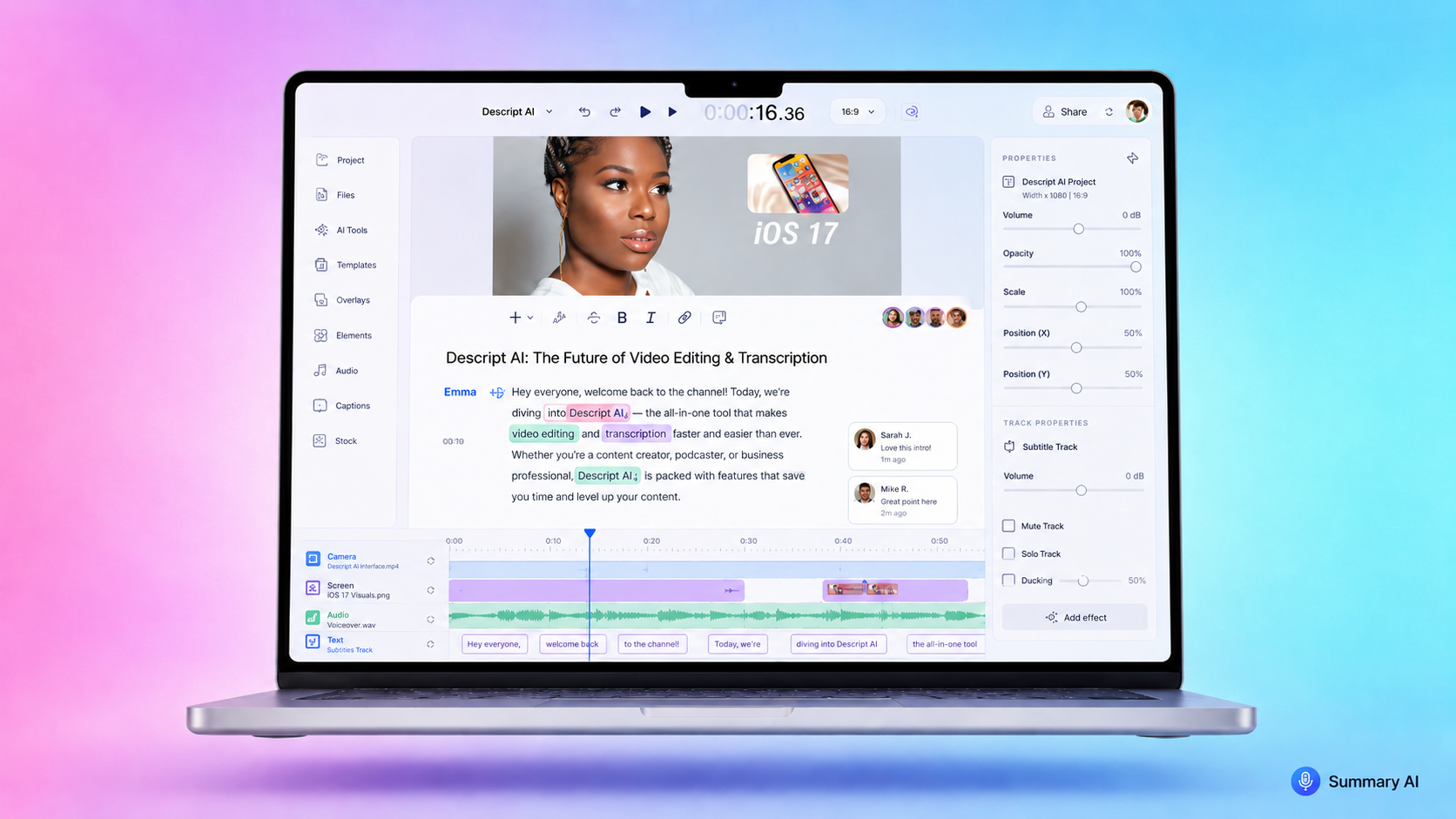
5. Record, Transcribe & Summarize Mac Voice with Summary AI (The All-in-One Solution)
If you want more than just audio recording, Summary AI is the most advanced option in 2025.
You can record:
- Physical conversations
- Online meetings
- Podcasts
- Lectures
- YouTube videos
- Voice notes on Mac
Then instantly get:
- AI transcription
- Key insights
- Action items
- Highlights
- Summaries
- Translations
How to Record Voice on Mac Using Summary AI
- Open Summary AI on your Mac browser
- Start the AI Recorder
- Upload or record audio
- Let AI generate your transcript + summary
- Download or share
Advantages
- Ultra-accurate transcription
- 50+ language support
- Speaker detection
- Noise reduction
- Translate audio in seconds
- Works with any audio source
Who It’s Perfect For
- students
- consultants
- podcasters
- business professionals
- journalists
- creators
Comparison Table: Mac Voice Recording Tools
| Tool | Cost | Best For | AI Transcription | Noise Reduction | Ease |
|---|---|---|---|---|---|
| QuickTime | Free | Simple voice capture | No | No | Easy |
| Voice Memos | Free | Personal notes | No | Basic | Very Easy |
| Zoom / Teams | Paid | Meetings | Yes (Paid) | Yes | Moderate |
| GarageBand | Free | Professional audio | No | Yes | Moderate |
| Audacity | Free | Editing & podcasts | No | Yes | Moderate |
| Summary AI | Freemium | Meetings, lectures, videos | Yes (full AI) | Yes (Advanced) | Easy |
How to Improve Mac Voice Recording Quality
Use These Tips for Cleaner Audio:
1. Use an External Microphone
Even a $20 USB mic improves clarity drastically.
2. Reduce Background Noise
- Close windows
- Turn off fans
- Use noise-reducing apps
3. Position the Mic Correctly
- 6–10 inches from your mouth
- Avoid tapping the table
4. Use AI Noise Reduction
Summary AI automatically removes:
- humming
- keyboard clicking
- echo
- static
5. Record in a Small Room
Soft surfaces = better sound.
How to Record Internal Audio on Mac
Recording internal audio (YouTube, system sounds) requires additional tools.
Options
- BlackHole (Free virtual audio driver)
- Loopback (Paid, advanced)
- Summary AI (Upload video audio directly)
Easiest Method
Use Summary AI:
- Copy the video URL
- Upload or paste into Summary AI
- AI extracts audio + transcription
- Download text, summary, or key points
Popular Use Cases for Recording Mac Voice With AI

Students
- Record lectures
- Turn them into study notes
- Highlight key concepts
Professionals
- Record meetings
- Generate action items
- Share meeting summaries
Podcasters
- Record raw audio
- Turn recordings into script outlines
Journalists
- Record interviews
- Get accurate quotes instantly
General Users
- Voice memos
- Ideas
- Personal reminders
Advanced Technique: Use AI to Turn Recordings Into Knowledge
With tools like Summary AI, you can convert long recordings into structured insights.
You get:
- Bullet summaries
- Action items
- Named entities
- Quotes
- Topics
- Chapters
- Questions & answers
Recording on Mac becomes more than audio — it becomes a productivity engine.
FAQs about How To Record Mac Voice
1. What is the easiest way to record voice on a Mac?
2. Can I record both microphone and system audio?
Yes, using tools like BlackHole or Summary AI (via upload).
3. What is the best app for AI transcription?
4. How do I improve Mac voice quality?
Use an external mic, reduce noise, and enable AI noise reduction.
5. Can I record online meetings on Mac?
Yes: Zoom, Google Meet, Teams, and Summary AI all support this.

