


A good video trimmer is the easiest way to create videos quickly. A tool like this helps you cut a long video into a shorter, cleaner clips. You can use it to remove mistakes, cut out boring parts, shorten a recording, and prepare videos for social media.
The best video trimmer depends on what you need exactly. Some tools are simple online cutters, while others are made specifically for content creators, marketing teams, or pros working with large video files. Some tools only trim videos, while others also let you add captions, subtitles, music, and effects.
In this guide, we will show you a list of the best video trimmer tools to try and walk you through how to choose the one that suits your workflow.
What Is a Video Trimmer?

A video trimmer is a tool that lets you cut a video and get it ready to publish, keeping only the parts you need. It is a simple video editing tool often used to remove sections you don’t want from the beginning, middle, or end of a video. For example, if you record a video and there are a few extra seconds before you start speaking, you can use a really simple video trimmer to remove that part. You can also cut out mistakes and pauses or even complete sections that are not needed.
Video trimmers are useful because they give people who don’t have years of content creation experience and great editing skills a tool that is really easy to use for simple editing tasks.
By trimming your video, you can make it shorter and more engaging to watch, cutting it to focus on the best moments and make the final video more successful, especially if you are making content for social media where every second counts.
Another great way to repurpose video besides cutting into bite-sized social media edits is transcribing it so you can quickly transform it into written content, for example blog posts and social media. For that, an AI transcription tool like Summary AI is your best friend. Try it out for yourself today!
How video trimmers work
Most video trimmer tools are really simple to use and that’s the whole point of them. They give you only the tools that are necessary for making quick edits to your video, without overwhelming you with too many features.
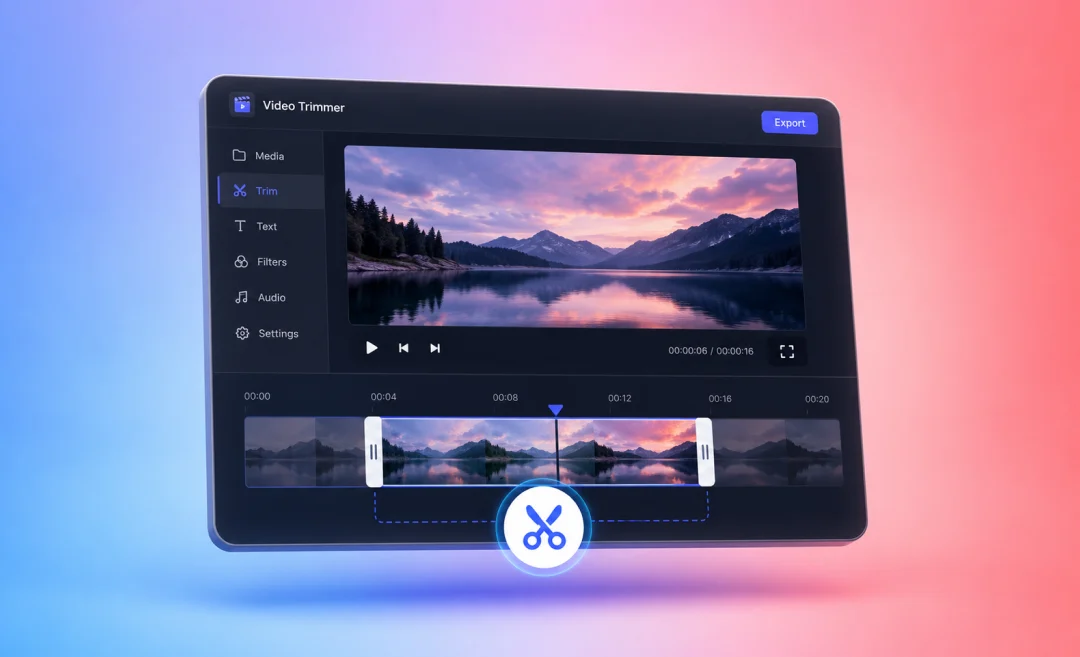
The way a video trimmer works is you usually upload your video, choose the start and end points, and then save and export the edited version. Most tools let you preview the video before downloading it, so you can check that the edited version is correct. Online video trimmers open directly in your browser, which means you do not always need to install software. This makes them even more convenient for some people.
Video trimmers vs editing software
A video trimmer is different from a full-on video editor. Video editing software usually includes many other, advanced features, such as adding more complicated effects or motion design, adding and controlling music, creating elaborate transitions, adding subtitles, or doing color correction. A video trimmer usually focuses on the one main task of cutting the video quickly and easily.
In short, a video trimmer helps you turn a longer video into a shorter and more polished version. It is a practical tool for anyone who wants to create professional-looking videos.
Best video trimmers to choose from

Now that you know what to look for in a video trimmer you can choose one that fits your needs best. Here is a list of some of the best options for video trimmers you can browse and choose from.
1. Adobe Express Free Video Trimmer
Overview: Adobe Express has a free video trimmer that is a simple browser-based tool. You upload your video, choose the start and end points, and download the shorter version.
It is a good choice if you want a trusted tool that is easy to use. You do not need advanced editing skills. The main job is simple: cut the video and save the result.
Pros
- Very easy for beginners
- Works in your browser
- No need to install software
- Good for short social media clips
Cons
- Not for advanced video editing
- Not ideal for very large video files
Best for
People who want a simple online video trimmer they can trust.
2. Canva’s Video Trimmer
Overview: Canva has a good trimmer tool which is great if you already use Canva for designs, social posts, or presentations. You can trim a video and then in the same workspace, you can add text, graphics, templates, or branding.
This makes Canva useful for creators and small businesses on a budget. You can cut your clip and turn it into a finished social media video without switching tools.
Pros
- Drag-and-drop editing
- Good for social media content
- Includes many templates
Cons
- Not the best tool for detailed editing
- Some assets and features require a paid Canva plan
Best for
Creators, marketers, and small businesses that want trimming plus design tools.
3. VEED Online Video Cutter
Overview: VEED is a simple video cutter you can use online. It is more flexible than a basic trimmer because it also includes subtitles, text, overlays, and other editing tools.
VEED is a good choice if you regularly publish videos and want to do more than just cut the beginning or end off it. You can trim, split, subtitle, and prepare your video for sharing in one place.
Pros
- Clean interface with timeline
- Easy to trim and split clips
- Includes subtitles and text tools
- Works in browser
Cons
- More features than some users need
- Free exports have limits
- Large files take time to upload
Best for
People who want an online video trimmer with extra editing features.
4. Rotato Video Trimmer
Overview: Rotato is a free online tool made for making quick edits. It is designed to help you cut videos quickly without a complex interface to learn.
This is useful if you need to trim small marketing clips, product demos, or really simple videos. It keeps the process short and easy.
Pros
- Minimalist interface
- Fast, simple to use
- No installation needed
- Good for quick edits
Cons
- Not a full video editor
- Limited controls
Best for
People who want a really simple video trimmer that stays out of the way.
5. Bandicut Video Cutter
Overview: Bandicut is a Windows desktop video trimmer. It is for cutting videos quickly while keeping good quality.
You can use this option for larger video files and longer recordings like webinars, tutorials, and even HD or 4K footage. Since it works offline, you do not need to upload big files to a website.
Pros
- Works offline
- Good for large video files
- Can keep high video quality
- Useful for long recordings
Cons
- Only for Windows
- Need to install it
Best for
Windows users who want to trim large or HQ video files.
6. Gihosoft Free Video Cutter
Overview: This is a small desktop tool for basic video trimming. It is not trying to be a full editing platform. This tool only focuses on helping you cut a video and save the clip.
It is a good choice if you want a super simple offline tool that is always available on your computer.
Pros
- Simple desktop tool
- Good for basic trimming
- Supports many video formats
- Free for basic use
- Works offline
Cons
- Interface looks a bit dated
- Not for advanced editing
Best for
People who want a free offline video trimmer for simple cuts.
7. Clipchamp
Overview: Clipchamp is a user-friendly video editor from Microsoft. It includes easy trimming tools inside a simple timeline editor.
Clipchamp is a good middle option. It is a bit more advanced than a basic video trimmer, but easier to use than professional editing software. You can trim clips, split tracks, and add text, as well as choose from a set of templates.
Pros
- Easy timeline editing
- Good for trimming and splitting clips
- Includes templates and stock footage
- Good for social media videos
Cons
- More complicated than a basic trimmer
- Some features require a paid plan
Best for
People who want a simple video editor with strong trimming tools.
8. DaVinci Resolve
Overview: DaVinci Resolve is a professional video editor. It is much more powerful than a basic video trimmer, but it also has excellent trimming tools.
It is best for people who want precise cuts, color correction, audio tools, and advanced editing features. If you only need to cut a few seconds from a casual video, DaVinci Resolve may be too much. But if you want to learn serious video editing, it is one of the best free options.
Pros
- Professional trimming tools
- Very precise editing
- Great for longer video projects
- Includes color, audio, and effects tools
- Free version
Cons
- Too advanced for some
- Takes time to learn
- Needs a stronger computer than basic online tools
Best for
Serious creators, editors, and people who want professional video editing tools.
How to Choose the Best Video Trimmer

To choose the best video trimmer, start with describing the kind of videos you usually edit. Short social media clips or long webinars? Product demos? Or high-resolution footage? These types of videos may all need different kinds of tools for editing them.
If you only need a tool to do quick cuts, look for something that is fast to learn and really simple. You should be able to upload a video, set the start and end points, and export the final clip without spending hours learning how to edit. A few clicks is all it should take to get a video from the raw footage to done.
If you create content often, look for extra features like subtitles, text, templates, aspect ratio presets, and basic editing tools. These can save time because you can trim and prepare the video for publishing in one place.
As you saw in this guide, the best video trimmer is not always the one with the most features. It is the tool that helps you cut videos quickly, keep the quality you need, and fit the way you actually work.
Transcribe Video-to-Text with Summary AI
Summary AI is not a video trimmer. You cannot use it to cut, trim, or edit video clips.
However, Summary AI can help with AI transcription to transform video into text. This is useful if you have a video and want to turn the spoken content into text. For example, you can use it to create notes from a recorded meeting, lecture, interview, webinar, or video file.
This makes Summary AI useful after or before video editing. You can trim your video with one of the tools above, then use Summary AI to create a transcript or summary of what was said. You can even use the transcript to then recycle them into social media posts or blog articles.