




Feeling tired of typing, or just realizing the need to send an e-mail urgently during your morning walk is a common reason people look for voice to text options. They daydream about texts magically appearing onscreen, out of thin air, but you have to dream no more, there is actually a solution for you. In this guide, we show you how to do voice-to-text, also known as speech-to-text or voice dictation, a technology that helps you type with your voice.
In this article, we will explore what exactly voice-to-text is and introduce you to a great variety of platforms on which you can use it. We will also provide you with simple, step-to-step guides on how to turn it on and use across apps and devices. Furthermore, we will also share some tips to ensure the quality of texts you create this way. By the end of this article, you will know how to turn your words into text hands-free, making your communication faster, more efficient and fun.

What is voice to text
Voice-to-text is an assistive technology that turns spoken language into written text with the help of speech recognition and artificial intelligence. In simple terms, when you speak to your digital device and it writes down your words automatically, a voice-to-text system enables this process.
Nowadays, voice to text systems are not just capable of converting speech into written material instantly, but can recognize speech patterns, accents ,and background noises with higher accuracy. Also, with the aid of Natural Language Processing, they can also correct words based on context. Therefore it is a highly useful tool for effective multitasking.
It also supports accessibility and inclusion for people with hearing impairments, vision issues or dyslexia. Furthermore, you can also use dedicated voice to text systems to transcribe longer audio that goes beyond real-time voice typing, such as for meetings or lectures. With these options you can make sure that the system captures every detail of your conversations. It saves energy and time, plus helps to retain all important information.
In the next paragraph we will outline which platforms allow you to access these features.
What platforms offer voice to text
Most devices and apps offer a voice-to-text feature, making it very easy to convert speech to text in everyday situations. Whether you use Android or iPhone, Mac or Windows, you will find a program that supports STT.
If you are using Android, Samsung keyboard and Gboard have built-in voice-to-text option, so any app that allows a text field will allow you to use this feature. iPhones and iPads provide built-in dictation on their keyboards and Siri also allows you to send messages using only voice commands.

Microsoft has a system-wide voice typing that works with almost any program. On Mac computers you can set dictation in the system settings, which will also enable you to use voice to text with nearly any software.
Productivity tools like Google Docs on Chrome, Microsoft Word or Office include voice typing or a Dictate button for writing e-mails, documents or texts of any kind.
It is important to note that these services require stable internet connection for accuracy, as they are using cloud servers to analyze your voice and convert it into text.
If you often record audio first and create transcripts later, a combination of voice typing and a dedicated audio-to-text program is the most efficient solution for live dictation and high-quality transcription.
In the next section we will show you how to turn on voice to text on any of the aforementioned devices.
How to turn on voice to text
In this section, we will provide clear step-by-step guides to turn on voice-to-text on various devices. They mostly use the same pattern – you need to enable Dictation in Settings, then tap the Microphone on your keyboard or use a shortcut key.
Android (using Gboard or Google Keyboard)
First, ensure that Gboard is your keyboard:
- Open Settings and find Languages and Input.
- Find On-screen Keyboard and make sure Gboard is enabled and set as default.
Next, turn on Voice typing:
- In On-screen Keyboard, choose Gboard.
- Tap Voice typing and turn it on.
If you managed to do this, a microphone icon should appear on your keyboard any time you use it.
If you want to use voice typing, simply tap the icon and start speaking. Your words will appear on the screen as text.
On Samsung phones (using Samsung Keyboard)
First, enable Voice Input:
- Go to Settings on your device.
- Find General Management and choose Keyboard list and default and make sure Samsung Keyboard is selected.
- Then go back to General Management and tap Samsung Keyboard settings and locate the Voice input option.
- Choose either Samsung Voice or Google voice typing.
Here’s how to use voice-to-text on Samsung:
- The microphone icon should appear on your keyboard.
- Tap it and start to speak
- Your words should appear as text.
Depending on the model you are using, the menus can vary slightly, but the general pattern of choices is the same – just go to settings and enable voice input in the keyboard settings.

On iPhone or iPad (using iOS Dictation)
First, turn on Dictation:
- Open Settings on your phone.
- Find and tap General, then choose Keyboard.
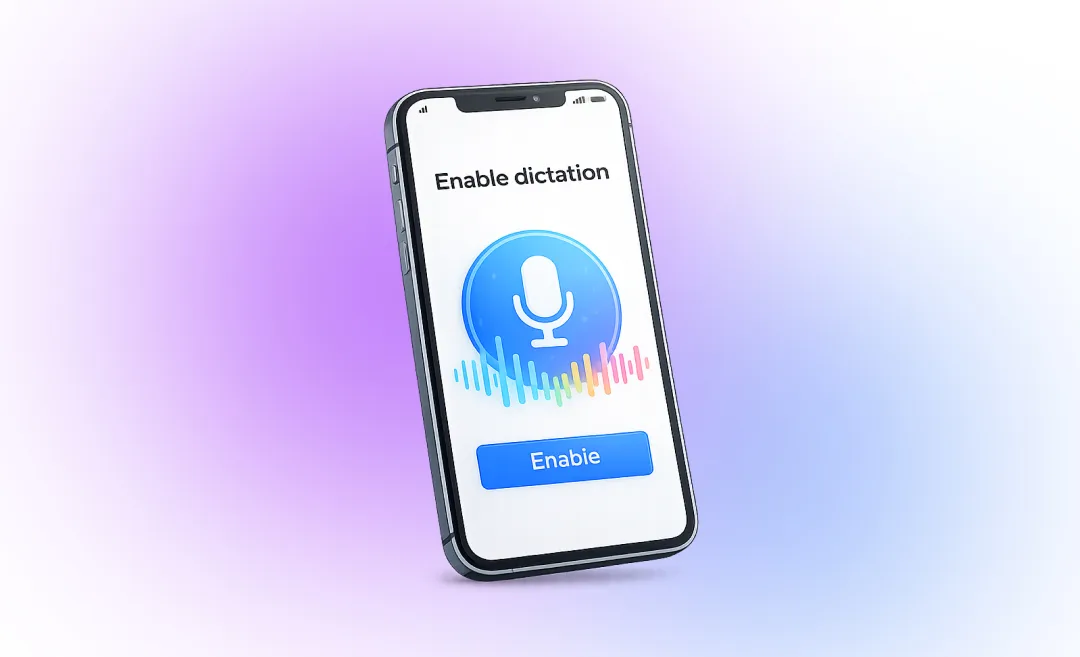
- Scroll down and turn on Enable Dictation.
Using voice-to-text on Iphone:
- You will find the microphone icon on your keyboard.
- Tap it and start to speak
- Your words will appear on the screen.
iPhones and iPads also allow you to dictate messages by using Siri. Simply prompt it by saying: “Hey Siri, send a message to [name]”, and speak your message.
On Windows 10 or 11 (using voice typing)
First, turn on Speech Settings:
- Open Settings on a desktop device.
- Click Privacy and select Speech.
- Turn on Online Speech Recognition.
How to start voice typing on Windows:
- Open any app in which you can type and click on the text field.
- Then press the key combination of Windows key + H.
- As the dictation toolbar appears, start speaking – the program is listening.
- Your words will be converted to text on the screen.
If you want to stop the dictation, you can either click the microphone icon and say “Stop dictation”, or use the same combination of Windows key + H.
Using Mac and Macbook (with macOS dictation)
First, turn on Dictation:
- Click the Apple menu and find Systems Settings.
- Choose Keyboard, locate Dictation and turn it on.
Start using voice-to-text on Mac:
- Open an app in which you can type and click in the text field.
- Press the Fn key twice, and start speaking.
- Your words will appear in the text field.
If you want to stop the dictation, simply press Fn key again.
In Google Docs (with Chrome on desktop)
First, open Google Docs:
- Go to Google Docs in your browser (preferably Chrome) and open a document.
- Turn on Voice Typing: find Tools in the top menu and select Voice Typing – a microphone will appear on the left side of the screen.
- Start Speaking: click the microphone icon, and if it is asked, allow microphone access.
- Start speaking, your words will appear on the screen.
Now that we have clarified how to turn on STT systems on several types of devices, let us take a look into how to use them well in our last section.
Tips on how to use voice to text
Once you have successfully turned on dictation on your device, using it follows the same pattern in all cases – we will share with you a simple, three-step guide you can use on any device and app. In addition we will also share some tips on how to ensure better accuracy.
How to use voice-to-text in three steps
- Open an app which features a text field (Messages, Word, Notes, or Google Docs).
- Tap or press the microphone either on the keyboard, toolbar, or shortcut (Windows + H, Fn key twice on Mac).
- Speak, and your words will appear as text. Tap the mic or press the shortcut again to stop.
For the best results in using voice-to-text make sure you always speak clearly and at a normal, steady pace. Although most STT systems are capable of cancelling background noise out, it is still wiser to avoid them to ensure better quality.

Vocal commands for editing
To save time with editing the structure of your text, use vocal commands for punctuation like “comma”, “pause”, “new line” or “new paragraph” rather than adding them later.
Also, if you experience any trouble with the system recognising your speech, don’t forget to check your language settings in the dictation preferences.
Another option for accuracy issues is an unstable internet connection, so always make sure that your connection is strong enough.
Whether you’re writing quick messages or longer documents or creating transcriptions for your meetings, this technology turns words into text quickly and accurately.
By following our simple steps for your device, using punctuation commands, and speaking clearly, you will save time every day, helping you to become the most productive version of yourself! If you dive deeper into the creating transcriptions, make sure to check out our article on transcribing audio to text.
If you need to automate meeting transcriptions and want to generate automatic summaries with action items, try Summary AI’s audio-to-text transcription tool.

