





Recording sound on a PC can be really useful in more situations than most people realize. You might be looking for a way to record audio from a meeting or lecture, save a voice note you can’t save any other way, or get the audio from a video or webinar.
Windows gives you a few built-in options for basic sound recordings, and free third-party tools like Audacity give you more control over your audio recordings on PC when you need to record system audio or want to adjust the sound later.
This guide walks through both mic and internal sound, then shows how Summary AI can turn those recordings into written notes.
What sound you can record on a PC
On a PC you can record more than just your voice. The two main types of audio that you can record are audio from your microphone and internal sounds.
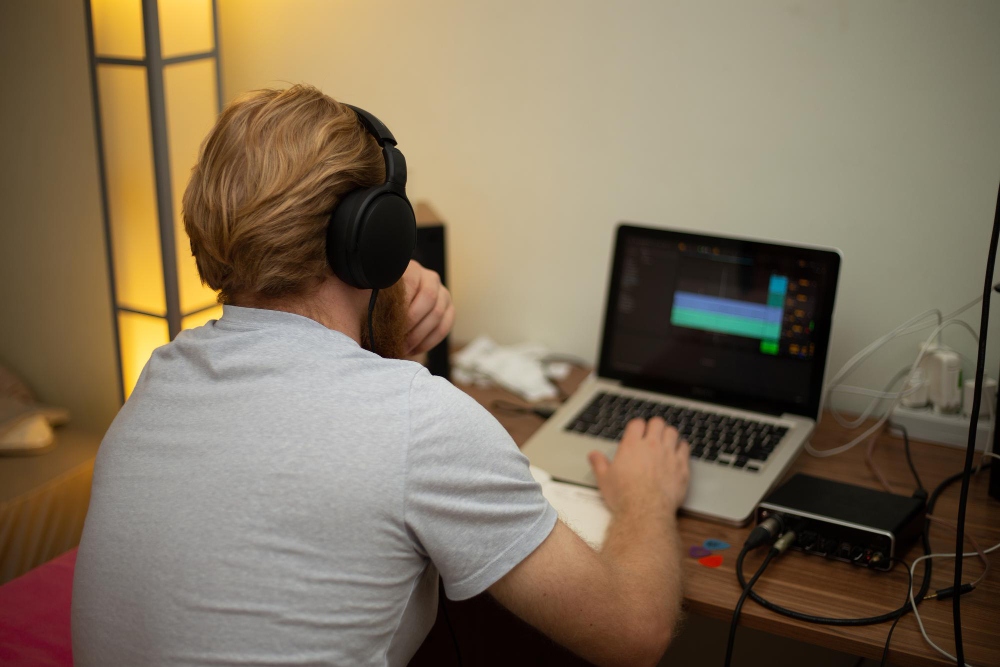
Microphone audio is what your mic picks up, like your voice, for example. You can also record an interview, or an instrument being played using either your built-in microphone or an external one.
Internal sound is what your computer is playing, like a YouTube video, a webinar, music, or audio from an app.
What you need to record sound on a PC
To record either internal or external audio, you need to have the right setup. At minimum, that means a microphone that is compatible with your system if you want to record your voice, plus the right sound settings on Windows. If you also want to record system audio, you may need Stereo Mix or a loopback option.
Having good sound recordings matters a lot in meetings. A clear recording lets you have a record of all the decisions, questions, and action points discussed during the meeting without trying to write everything down in real time–something difficult even when using the best method for taking notes. It also gives you something you can review later if you need to turn the conversation you recorded into notes. The easiest way to do that is with an audio-to-text transcript summarizer.
Record sound on PC with Windows Sound Recorder
Windows already includes a simple recording app pre-installed on your device called Sound Recorder. (Or Voice Recorder on older versions of the operating system.)
According to Microsoft, the app is meant for recording sounds, lectures, interviews, and other events and you can mark key moments as you record, edit, or play them back.
Here’s how to use Sound Recorder on Windows:
- First, open the app: Open the Start menu and search for the app called Sound Recorder or Voice Recorder. Click on the app when you find it in the search results.
- Next, choose your microphone: Before you push record, check that Windows is using the right input device. To do this, you can open settings or click the microphone icon and choose the mic you want. This can be a built-in mic, a USB mic, or a headset.
- Start recording: Click the red Record button, or press Ctrl + R. Then speak into the microphone at a normal pace.
- Stop recording and save your file: When you are done, click Stop. The file is saved automatically in the app and in your system folder.
This is probably the easiest method for recording on PC if you just need a quick voice note or a basic recording of a meeting.
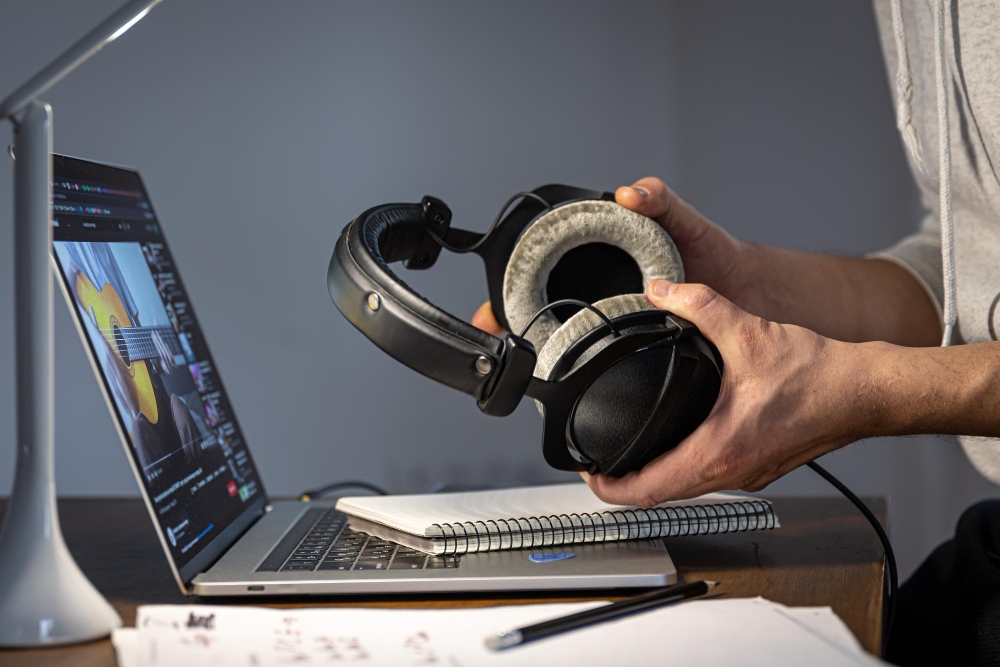
If you already have a meeting or voice note recorded, you can convert the audio to a text summary you can scan quickly with Summary AI and then turn that into notes, summaries, and key points. Summary AI is the fastest way to create summaries.
Record with Audacity for more control
If you want more control over your recording, you can use Audacity for a slightly more complex, but better choice. It is a free, widely used third-party tool that is especially useful when you want to record, trim, or edit audio.
Here’s how to use Audacity to record sound on your PC:
- First, download and install Audacity on your computer: Go to the official Audacity website and install it on your PC.
- Set the audio host: Open Audacity and choose either MME or Windows WASAPI. These are usually the most reliable options for Windows.
- Select the microphone you want to use for your recording: Use the input dropdown to pick your microphone. Choose the device you actually want to record from.
- Start recording: Click the red Record button and start speaking. You can also play audio into the mic if that is what you need to capture.
- Export the file you recorded: When you are finished, go to File, then click Export, and save the recording as MP3 or WAV.
If something goes wrong, check the input device first. If the recording is too quiet, raise the input level. If nothing is coming through, switching the audio host often fixes the problem.
Audacity is especially useful when you want more control over the final recorded file.

Record internal sound on your PC
Sometimes the goal is not something you record with your microphone at all. Sometimes you want the sound your computer is already playing. That is what we call internal sound, or system audio recording. Before you do that, make sure you are allowed to record the content. If you record and use audio you do not have the rights to, you could be in violation of copyright and may have your content removed after uploading it to YouTube, for example.
The easiest way to record internal system audio is using Audacity and recording with Stereo Mix or WASAPI.
Using Stereo Mix to record internal audio
When you want to record internal audio on your PC using Stereo Mix but it doesn’t appear as an option in Audacity, you have to right-click the speaker icon and open Sound settings. Then go to the Recording tab and right-click inside the list and choose Show Disabled Devices. If Stereo Mix appears on the list, click to enable it and set it as the default recording device.
After that, open Audacity or another recorder, choose Stereo Mix as the input method and click Record.
Use WASAPI loopback for internal audio
If you can’t use Stereo Mix for recording for some reason or because it is missing, Audacity’s Windows WASAPI loopback option can also be useful for capturing internal sound. This is useful on systems where Stereo Mix is hidden for any reason or unavailable.
Before you record anything important, do a short test recording first. A short test helps you check the sound level and avoid audio distortion (popping or other distortion) later.
Tips for better sound recordings on PC
Often, you only get one chance at making a recording, so try to prepare in advance and have a few things in mind for what to watch out for. A few small habits for these situations make recordings much better.
Here are six tips for making the most of your recordings:
- Check your input device before you start.
- Do a test recording before anything important.
- Use a quiet room when you can.
- Use a decent quality microphone if you record often and can afford it.
- Keep track of where the file saves.
- Make sure your laptop has enough battery and storage for longer recordings.
These steps may seem pretty basic, but they will save you a lot of time later. Being prepared ahead of recordings can help you avoid files without sound, crackling and popping audio, and recordings you cannot find when you need them.
Turn audio into text with Summary AI
With Summary AI, you can upload or record meetings, lectures, or calls and get accurate audio-to-text transcription. If you have a lot of meetings, this tool can save you a lot of time and boost the productivity of your entire team. You can use Summary AI to generate perfect summaries with key points and action items from the same recording.
Instead of listening to the same recording over and over, you can read only the important parts that matter in a few minutes and share insights with your collaborators. This is useful for team meetings, online calls, lecture notes, and all types of project discussions.
You can convert audio to text effortlessly with Summary AI and turn your recordings into written notes without the extra work.

