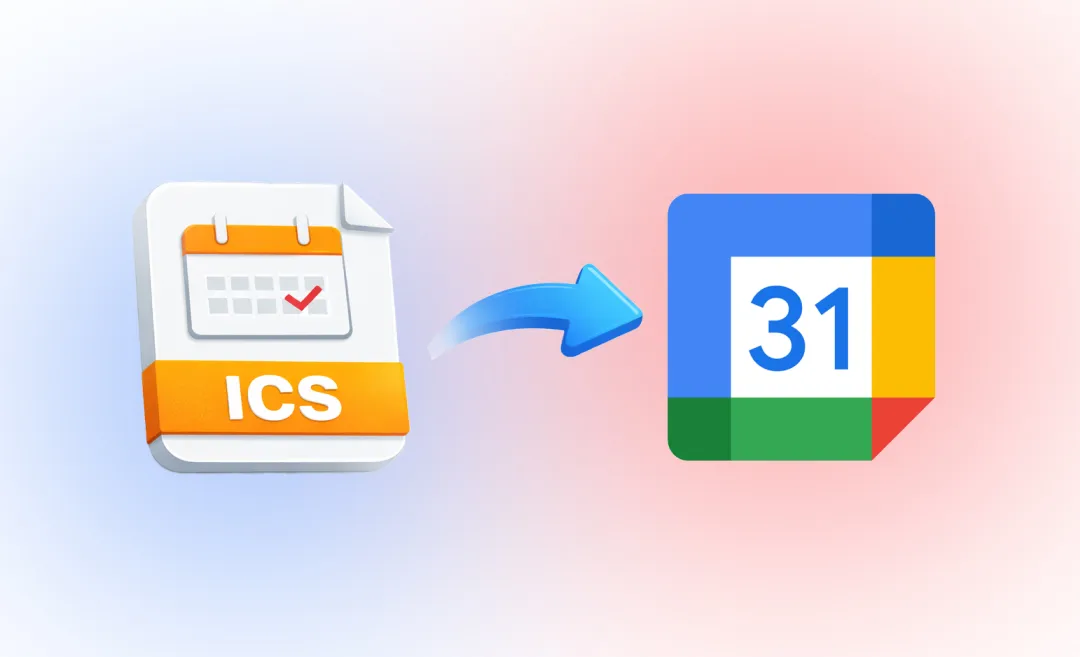

If you want to move events from other Calendar tools like Outlook or Apple Calendar to Google Calendar, you need to learn how to import ICS to Google Calendar. Importing an ICS file to Google Calendar is the quickest way to move events from other tools into the calendar you actually use every day. You can do this from Google Calendar on desktop, and once you have imported your events, you can sync them to your phone automatically.
In this guide we will show you everything you need to know about how to import ICS to Google Calendar from a file, what you need to do to stay updated, and how you can manage all of the meetings you add.
Why import ICS to Google Calendar?
An ICS file is the standard file format used for iCalendar. This is what we use to share events and schedules with others. You’ll most often get .ics files when:
- You get a meeting invite from Outlook or Apple Calendar sent to you by someone
- You download a course schedule or conference agenda
- You “export” your calendar with a tool
When you import an ICS file to Google Calendar, it lets you:
- Keep all your events in one place
- See personal, work, and external schedules in one place
- Avoid having to re‑type dates and times manually
Google Calendar lets you either import a .ics file once as a static snapshot of events, or keep a separate calendar updated automatically by subscribing to an ICS URL.

Once your events are in Google Calendar, you will be able to attach links, join calls, and connect tools like Summary AI that help you get more from each meeting more easily.
How to import ICS files on a computer
You need to use the desktop web version in a browser to import an .ics file to Google Calendar. You cannot import .ics files on mobile. The app doesn’t currently support direct ICS import either.
Follow the step‑by‑step process below to successfully import .ics files on a computer.
1. Open Google Calendar on the web
Go to calendar.google.com in your browser and sign in with the Google account where you want the events to live.
2. Open Settings and find import & export
- Click on the gear icon in the top right of the screen.
- Click on Settings.
- In the left sidebar, click Import & export.
- You’ll find a section called Import at the top and a section called Export below it.
3. Select your .ics file
- In the Import section, click on the option Select file from your computer.
- Find the .ics file you downloaded from email or another calendar.
This file ends in the file format “.ics”. The file can come from Outlook, Apple Calendar, or a booking tool.
4. Choose which calendar to add the events to
- Under the option for “Add to calendar,” open the dropdown.
- Choose the calendar where you want the events in the .ics file to appear (for example, you can choose your main calendar or a separate calendar for “Imported events” or something more specific).
If you’re importing a schedule from work or the agenda from a specific event, use a separate calendar as a good way to keep things organized.
5. Click Import and wait for confirmation
- Click Import.
- Wait for Google Calendar to display the message that shows you how many events were added to your calendar.
- Open your calendar view to confirm the events are there.
Important note: This method imports the one‑time snapshot of the events that is in the ICS file. This means that if the original calendar changes later, the events you imported won’t be automatically update.

Once those events are in your calendar, you can combine them with a good workflow for managing your meetings and boosting your productivity (and collaboration with your team) using our guides on productive staff meetings and clear meeting notes.
If you have many meetings, the best way to optimize them is using Summary AI to record and summarize those meetings and generate a list of action items you can share with your team in any language.
How to add an ICS URL to Google Calendar
Sometimes instead of a file you need to use a URL that ends in .ics. This is most often used so you can subscribe to a calendar instead of importing a static copy that doesn’t update when the calendar is updated.
When you subscribe to an ICS URL it allows Google Calendar to:
- Create a separate calendar under “Other calendars”
- Automatically get updates when the source calendar is changed
Now let’s look at how to add an ICS URL.
1. Copy the ICS URL
Copy the link that ends in .ics from the source.
The link might be labeled something like “Subscribe via iCal” or “Add to calendar.” You can right click on it and choose “copy link address.”
2. Open Google Calendar on the web
Sign in to your profile at calendar.google.com.
3. Use Other calendars: From URL
- On the left side of the screen, find Other calendars.
- Click the plus icon next to it to add a calendar.
- Choose the option called “From URL” from the menu.
4. Paste the ICS URL
- Paste the .ics URL into the empty URL field.
- Click Add calendar.
Google Calendar will now create a new calendar under Other calendars using the ICS feed you added.
5. View and manage the subscribed calendar
You’ll see the new calendar listed with a colored check box.
If you want, you can rename it or change the color in Calendar settings.
When the source calendar is updated in any way, for example new events are added or time/place is changed, those updates will automatically appear in your Google Calendar.
Subscribing using ICS is good for shared calendars such as team schedules and school timetables.

Troubleshooting common ICS import issues
If your ICS file doesn’t import correctly, it’s usually one of these few common problems below.
The file is too large
Google Calendar has a file size limit and a total events per import. According to Google Support, this limit is 1MB. Here’s what you can do if your ICS file is too large:
- Open it in a text editor (e.g. Notepad).
- Divide it into smaller ICS files by cutting sections of events into separate files.
- Import each smaller file one at a time.
- This issue is most common when you have a lot of events and you export an entire year of events at once.
The file is zipped
Sometimes you download a .zip file that contains more than one .ics file. Google Calendar will not recognize the ZIP file if you try to import it directly.
To import these files:
- First, extract the contents of the ZIP. You should see multiple .ics files inside.
- Then import each individual ICS file into Google Calendar individually using the method outlined above.
The ICS file is corrupted or invalid
If Google Calendar gives you an error message when you try to import ICS, the file might not follow the right iCalendar specifications.
You can try this to fix the issue:
- Open the ICS file in a text editor and check that it’s not cut off or full of strange characters.
- Try re‑exporting the calendar.
If all else fails, you will have to add the events manually.
Events show up on the wrong calendar or time zone
If events are on a different calendar than the one you expected them to be imported to:
- Check the “Add to calendar” dropdown you chose during import.
- Look in the left sidebar to see if the events landed on another calendar.
If time zones or event times look wrong:
- Check what your time zone is set to in Google Calendar settings under “Time zone.”
- Make sure your computer’s time zone matches the one you are in.
It is always a good idea to keep a copy of the original ICS file until you make sure everything is correct.

How Summary AI can help make your meetings more productive
Importing ICS to Google Calendar gets all your events in one place, but it doesn’t help you remember what actually happened in those meetings. That’s where Summary AI can help you with integrations. Once your meetings are scheduled in Google Calendar, you can use Summary AI with your tools and let it handle all the work of transcribing what is said in 120 languages and generating a clear summary with key points and action items you can share with your team.
This way, importing ICS to Google Calendar handles when and where you meet, and Summary AI keeps track of what happened and what to do next.