



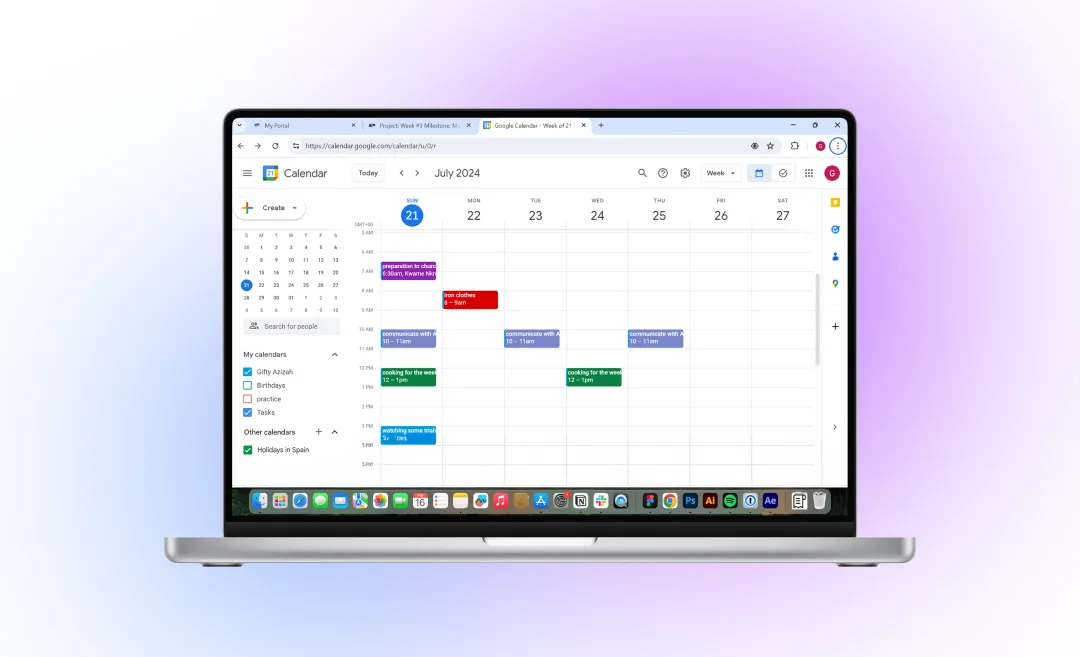


If you want to learn how to share a Google Calendar with someone, you probably want an easier way to plan meetings and manage schedules. Google Calendars are a great way to coordinate tasks with colleagues, and being able to share your calendar is a necessary skill to know.
Sharing your calendar helps others see your availability, that way you are all on the same page. Whether you are using Google Workspace for work or organizing a group calendar at home for your family, Google Calendar makes working together easy.
In this guide, you will learn how to share your calendar with specific people, how to share it with your organization, how to share Google Calendar on iPhone, and how to manage permissions. We will also explain how to view shared calendars, add events, share tasks, and unshare a Google Calendar when you no longer want others to be able to view yours.
How to Share Your Google Calendar
According to Google Support, the easiest way to manage your calendar sharing settings are on a computer. If you want a quick and easy way to share your Google Calendar, do it through a desktop browser.
Share Your Google Calendar With Specific People
Follow these steps to share your calendar with specific people:
- Open Google Calendar in your browser.
- On the left side, find My calendars.

- Hover over the calendar you want to share.
- Click the three dots next to it.
- Select Settings and sharing.
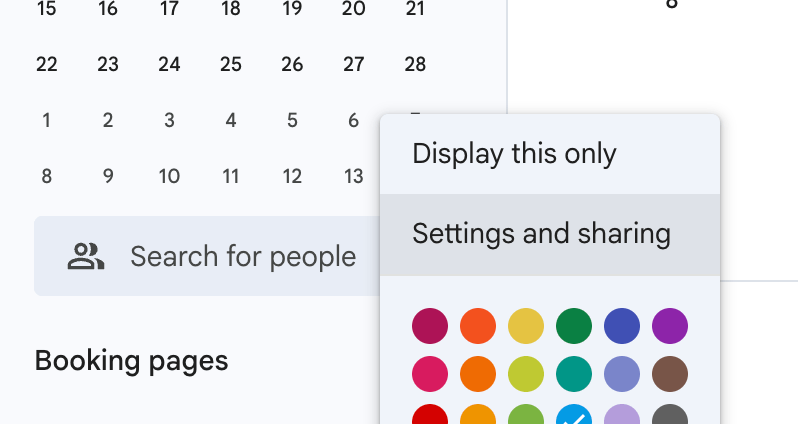
- Scroll down to “Shared with“
- Click “Add people and groups.”
- Enter the person’s email address you want to share with.
- Choose permissions for the person.
- Click “Send.”
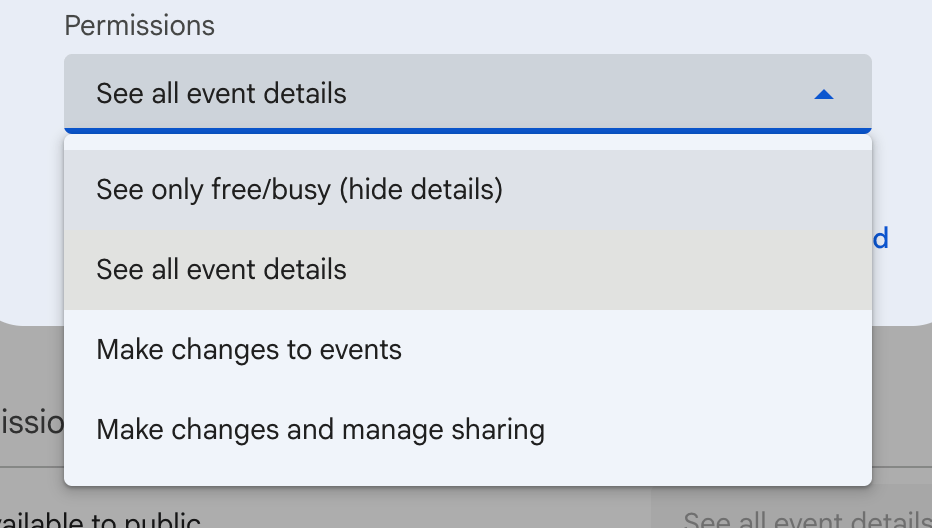
You can choose from different permission levels:
- See only free/busy
- See all event details
- Make changes to events
- Make changes and manage sharing
These settings allow you to control the access people you share your calendar with have to your calendar.
Share Your Google Calendar With Your Organization
If you use Google Workspace at work or school, you can share your calendar with your entire organization.
To share your calendar with your organization, follow these steps:
- Go to “Settings and sharing.“
- Scroll to “Access permissions for events.”
- Copy the shareable link or add your organization as before with a specific person
- Choose the permissions.
Your organization’s admin may limit what you can share. If you see the message “you don’t have permission to share your calendar with group,” contact your administrator.

Make Your Google Calendar Public
You can also make your calendar public.
- Open Settings and sharing.
- Go to Access permissions for events.
- Check Make available to public.
With this option, anyone with the link can see your events based on the permission level that you chose.
How to Share My Google Calendar on iPhone
Follow these steps to know how to share your Google Calendar on iPhone. The options for sharing are more limited in the mobile app, but you can still have the option to add people to certain calendars.
To share your calendar from iPhone:
- Open the Google Calendar app.
- Tap the three lines in the top corner.
- Tap “Settings.”
- Choose which calendar you want to share.
- Tap “Shared with.”
- Type the person’s email address.
If you do not see sharing options, try using a browser on your phone instead of the app. Open Google Calendar in desktop mode from your phone and follow the steps above.
If you use the Calendar app on your iPhone or an Outlook calendar, you may need to sync your accounts first. Once they have synced, you can manage all of your calendars from a single calendar app.
How to Share a Google Calendar Event
Sometimes you do not want to share your entire calendar with people. In this case, you also have the possibility to share a single calendar event.
Add Someone to Your Google Calendar Event
To share a single event:
- Open Google Calendar.
- Click on the event you want to share.
- Select the “edit” icon.
- Add all of the guest email addresses under “Guests.”
- Click “Save.”
This will send a calendar invite to each of your guests.
Note: If you have a lot of meetings for work, you probably take notes often. Check out our free meeting notes template to make your job easier!
Sharing Events and Meetings
When sharing meetings, you have the option to choose whether guests have permission to:
- Edit the event
- Invite others to the event
- See the guest list
This can be helpful for staff meetings or team planning. When planning work meetings, make sure to follow virtual meeting etiquette.
Sharing Out Of Office Dates
You can also set up an Out of Office event. This option blocks your time and shows others your availability in your calendar.

Sharing Birthdays
For birthdays or personal events, you can share any details you want or keep the event private while still showing others with access to your calendar that you are busy. You can also set the events to recurring.
Share a Link to Your Google Calendar Event
You can also copy the link of the event and send it directly to people through email or messaging apps. This is especially helpful when someone needs quick access to the event without needing permissions to access the calendar fully.
How to View Shared Google Calendar
When someone shares their Google calendar with you, it will appear under “Other calendars.”

To see events from other shared Google Calendars:
- Open Google Calendar.
- Look under “Other calendars.”
- Click the calendar name to show events from thos calendars in your calendar.
If you do not see a certain calendar, you may need to accept the invitation the owner of that calendar sent to your email. Once accepted, the calendar will show up automatically in your calendar list.
Using multiple calendars can make your Google calendar quite cluttered. You can turn calendars on or off to see events or hide them to reduce clutter in the side bar.
How to Add Events to a Shared Google Calendar
If the owner of a calendar gives you permissions to make changes, you can add events to a shared Google Calendar.
- To do this, select the shared calendar from your list.
- Click on a date.
- Create a new event.
- Save it.
If you cannot add events to a shared calendar, check your permissions, because you may only have viewing access.
How to Share Tasks on Google Calendar
Google Calendar can be connected to Google Tasks.
When you open the calendar where tasks are connected, you can share the calendar with permission to edit.
That way the person you share it with can make changes, and they can see and manage tasks connected to that calendar.
Sharing tasks are really useful for team deadlines and tracking progress on projects.
How to Unshare a Google Calendar
If you no longer want someone to access your calendar, you can remove them with a few clicks.
- Open “Settings and sharing.”
- Go to “Shared with.”
- Find the person’s name by typing it.
- Click to remove their access from your calendar.
If your calendar is public, you can also turn this off under the “Access permissions” tab.
Conclusion
Now you know how to share a Google Calendar with someone using a desktop browser or mobile device. You can share your entire calendar, share it with your organization, make it public, or send a single calendar invite for an event.
You also learned how to view shared calendars, add events to a shared Google Calendar, manage tasks, and unshare access when needed.
Save Time with Summary AI
Taking notes during meetings is easy with AI summaries. Summary AI helps you organize notes, as well as create and track action items automatically.

