





If you want a smooth, interruption-free video call, one of the smartest things you can do is run a Zoom test meeting. Whether you’re joining a client call, hosting a webinar, interviewing candidates, presenting to your team, or attending an online class, testing Zoom beforehand ensures your audio, video, and connection are ready before the meeting starts.
In this complete guide, you’ll learn exactly how to run a Zoom test meeting, what to check, how to troubleshoot issues, and how Summary AI can help you record, transcribe, and summarize your Zoom meetings automatically.
What Is a Zoom Test Meeting?
A Zoom test meeting is a virtual testing room provided by Zoom that lets you check your:
- Microphone
- Speakers
- Camera
- Internet connection stability
- Virtual background
- Meeting settings
Running a test prevents awkward technical issues like:
- “Can you hear me?”
- “Your mic is off!”
- “You’re frozen.”
- “We can’t see your screen.”
Why You Should Always Do a Zoom Test Meeting

Zoom test meetings help avoid:
1. Audio Issues
- Low volume
- Background noise
- Echo effects
- Microphone not detected
2. Video Problems
- Blurry camera
- Poor lighting
- Camera not recognized
3. Internet Instability
- Lag
- Freezing
- Call drop-offs
4. Presentation Mistakes
- Wrong window shared
- Notifications popping up
- Files unprepared
5. Professional Embarrassment
Especially important for:
- Sales presentations
- Client pitches
- Job interviews
- Virtual events
- Online classes
How to Run a Zoom Test Meeting (Step-by-Step)
Zoom makes testing easy. Here’s how to do it:
1. Test Your Zoom Meeting via the Official Test Link
You can join Zoom’s test meeting directly:
This opens a private room where you can test all your settings.
What You’ll Check:
- Join audio
- Test microphone
- Test speakers
- Test camera
- Review background
- Check internet quality
- Adjust Zoom preferences
2. Test From the Zoom App
If you’re using the desktop Zoom app:
Step-by-Step
- Open Zoom Desktop Client
- Click Settings
- Go to Video → check your camera
- Go to Audio → test mic + speakers
- Go to Background & Effects
- Go to Share Screen → test presentation mode
3. Test Zoom During the Meeting
Even inside a live meeting, you can test:
- Click the arrow next to Mute → Test Mic
- Click the arrow next to Start Video → Test Camera
This helps if you join the meeting early and want to double-check everything.
Checklist: What to Test Before Every Zoom Meeting
Use this quick checklist to avoid problems:
Audio
- ✔ Microphone connected
- ✔ Speakers working
- ✔ Background noise reduced
- ✔ Voice loud and clear
Video
- ✔ Camera positioned correctly
- ✔ Lighting is good
- ✔ Background professional
- ✔ HD video enabled
Internet
- ✔ Speed above 10 Mbps
- ✔ No heavy downloads running
- ✔ Strong Wi-Fi or wired connection
Environment
- ✔ Quiet room
- ✔ No distractions
- ✔ Notifications OFF
Presentation Materials
- ✔ Slides open
- ✔ Tabs cleaned
- ✔ Sensitive files closed
Zoom Test Meeting: Common Problems & How to Fix Them
Microphone Not Working
- Change input device
- Restart Zoom
- Check macOS permissions
Camera Not Showing
- Close apps using the camera (FaceTime, Teams)
- Switch camera source
- Restart Zoom
Internet Lag
- Move closer to router
- Disable HD video
- Turn off other devices using bandwidth
Echo or Feedback
- Use headphones
- Mute secondary device
- Disable “Automatically adjust volume”
Advanced Testing for Power Users
If you host webinars, sales demos, or events, take your testing further:
1. Test Breakout Rooms
Make sure they are properly configured.
2. Test Screen Sharing Settings
Decide if participants can share screens.
3. Test Waiting Room
Useful for interviews or controlled events.
4. Test Smooth Recording
Especially if creating content or running training.
Why AI Makes Zoom Meetings Better
Running a Zoom test meeting ensures smooth audio and video — but that’s only half the story.
Once your meeting runs smoothly, you still need:
- Accurate notes
- Action items
- Recaps
- Summaries
- Translations
- Documentation
That’s where Summary AI transforms your Zoom experience.
How Summary AI Enhances Every Zoom Meeting
Summary AI is an AI-powered recorder and transcription tool that lets you:
Record Zoom meetings discreetly
Perfect for capturing important details without the pressure of note-taking.
Automatically transcribe every word
No more missing key information.
Summarize the entire call in seconds
Useful for students, teams, consultants, salespeople, and customer success.
Generate action items automatically
Great for follow-ups and project management.
Translate Zoom meetings live or after recording
Ideal for global teams.
Extract key points or insights
Great for content creators, journalists, and executives.
Import Zoom recordings with one tap
Upload the MP4/M4A file and get instant AI analysis.
Comparison Table: Zoom Test Meeting vs Summary AI Features
| Feature | Zoom Test Meeting | Summary AI |
|---|---|---|
| Test audio / video | Yes | – |
| Improve call quality | Yes | – |
| AI meeting transcription | No | Yes |
| Meeting summaries | No | Yes |
| Action items | No | Yes |
| Language translation | No | Yes |
| Import MP4 / M4A recordings | No | Yes |
| Multi-speaker detection | No | Yes |
Best Practices Before Joining a Zoom Meeting
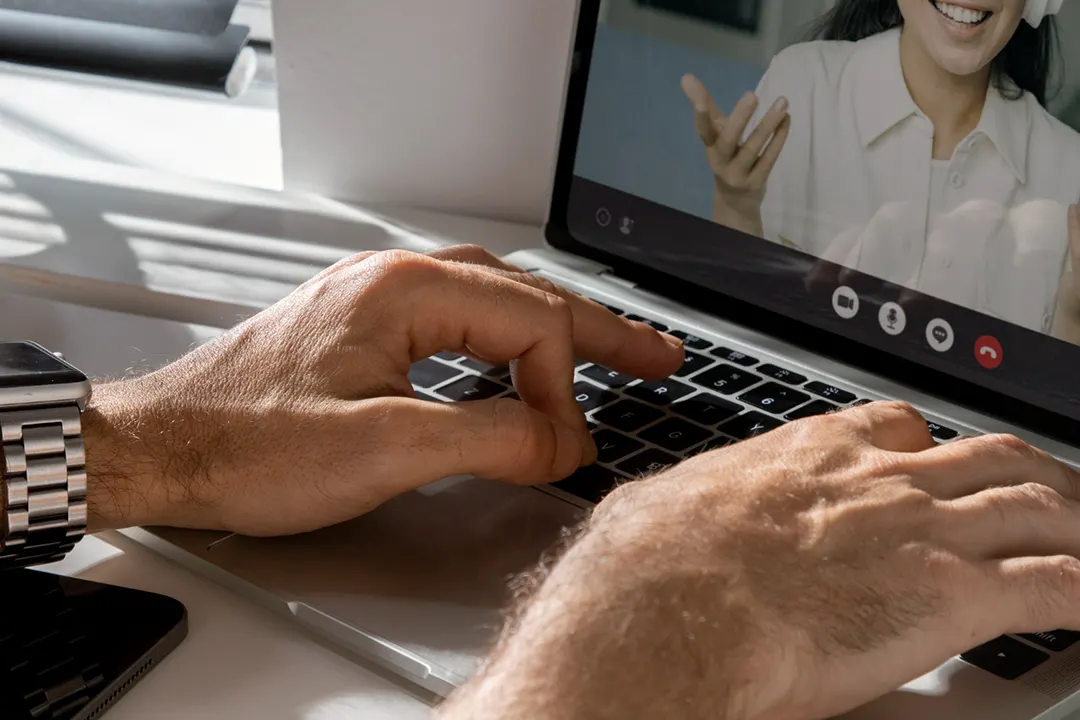
Follow these expert tips to ensure a professional presence:
1. Use an External Microphone
Even an inexpensive mic dramatically improves audio.
2. Sit Facing a Light Source
Avoid backlighting.
3. Simplify Your Background
A clean area looks more professional.
4. Test Your Internet
10–20 Mbps minimum.
5. Restart Your Mac
Clears apps using system resources.
6. Join Early
Arriving 5 minutes early ensures everything works.
Zoom Test Meeting for Different Use Cases
Students
- Test audio/video for classes
- Improve participation
- Ensure group projects run smoothly
Sales Teams
- Test pitches
- Reduce technical failures
- Look more professional
Consultants
- Test presentations
- Verify screen sharing
- Ensure smooth client calls
Remote Teams
- Reduce delays
- Improve communication
- Ensure clarity during daily stand-ups
Podcasters & Creators
- Test guest audio
- Validate lighting
- Simulate interview setup
FAQs about Zoom Test Meetings
1. What is a Zoom test meeting?
2. How do I start a Zoom test meeting?
Visit zoom.us/test, join the test room, and check your microphone, camera, and speakers.
3. Do I need a Zoom account to run a test meeting?
No — the test room works without signing in.

