






Do you wish to hide your surroundings during a Teams meeting? Or just to introduce some fun to a call? If you are curious about how to change your background in Microsoft Teams, look no further! In this article we will show you how to do so in an easy and efficient way.
Changing your background in Teams will hide your real environment and replace it with a virtual one. It comes in handy, especially if you are conducting a call from your home or from a public space. Many professionals, remote workers and students decide to use a virtual background, as it provides privacy and a cleaner and more organized look during a meeting. It hides all forms of distractions and makes you appear more professional as well.

Teams offers a great variety of backgrounds, from simple office backgrounds to natural landscapes, even options for holiday backgrounds. You can also choose to upload custom images. In this article we will walk you through all options. In the following we will explain what Microsoft backgrounds are and how to download, add, remove and change them. Read on to learn all about virtual backgrounds for Teams, to enhance your self-presentation and to create a world of your own.
To boost the productivity of your Teams meetings, use the Summary AI Teams integration to transcribe and summarize your meeting recordings. Summary AI even has live meeting translation for international teams.
What are Microsoft Teams backgrounds
If you would like to hide your surroundings during a meeting, Microsoft Teams provides the option to choose a virtual background instead of your original one. Instead of showing your office, Teams can easily cut your shape and blur or replace the rest of your display.
Microsoft Teams offers you two options to replace your background; you can either blur the area behind you or replace it with an image of your choice. Both of these options will provide privacy and help to eliminate distractions of all kinds.
If you are choosing to blur your surroundings, the details of your background will be covered, but your environment remains visible. If you seek privacy but do not wish to display a personal choice of a virtual background, this option fits you best.
Choosing a virtual background provides you with a whole new background of your liking. Teams offers a variety of options and also allows users to upload their own images. With this option, you are not only hiding your living space or office, but you can also customize the image you display of yourself.
In the next section we will show you where you can download Microsoft Teams backgrounds.
Where to download Microsoft Teams backgrounds
If you want to download Microsoft Teams backgrounds you can find multiple resources both in Teams and across the internet. In the following section we will introduce you to multiple options to access free Teams backgrounds.

Microsoft Teams Backgrounds Library
Microsoft Teams offers virtual backgrounds to their users. In order to access them visit the official Microsoft Teams background page. Here you can explore a wide selection of images, from office scenes to nature backgrounds.
These images are tailored for Microsoft teams. Therefore, this is a great option if you would like to play around with the Teams background effects.
Free Background Websites
Many websites offer ready-to-use backgrounds for free. They work perfectly with Teams and Zoom as well.
The options you can choose from are endless with this method. You can find backgrounds for office spaces and libraries, but also themed backgrounds, such as Christmas or Minecraft. If you wish to add some fun to online team events or informal calls, with this method you will surely find some images to brighten your screen up!
Create Your Own Teams Background
If you wish to create a customized background for your calls, there are many design tools available on the internet, such as Canva or Photoshop. This option is especially great for companies who wish to create branded meeting backgrounds for their calls to maintain consistent branding in their online meetings.
Now that you know where to find virtual backgrounds in Teams and on the internet, let us explore how to add Teams backgrounds. In the next section, you can find an easy, step-by-step guide for the process.
How to add Microsoft Teams backgrounds
In this section we will explore how to use Microsoft Teams backgrounds – how to upload them, where you can access them inside the program, and how to set them for your call.
Upload background to Teams
To upload your virtual background to Teams is a very easy process. Follow the steps below to successfully complete the procedure.
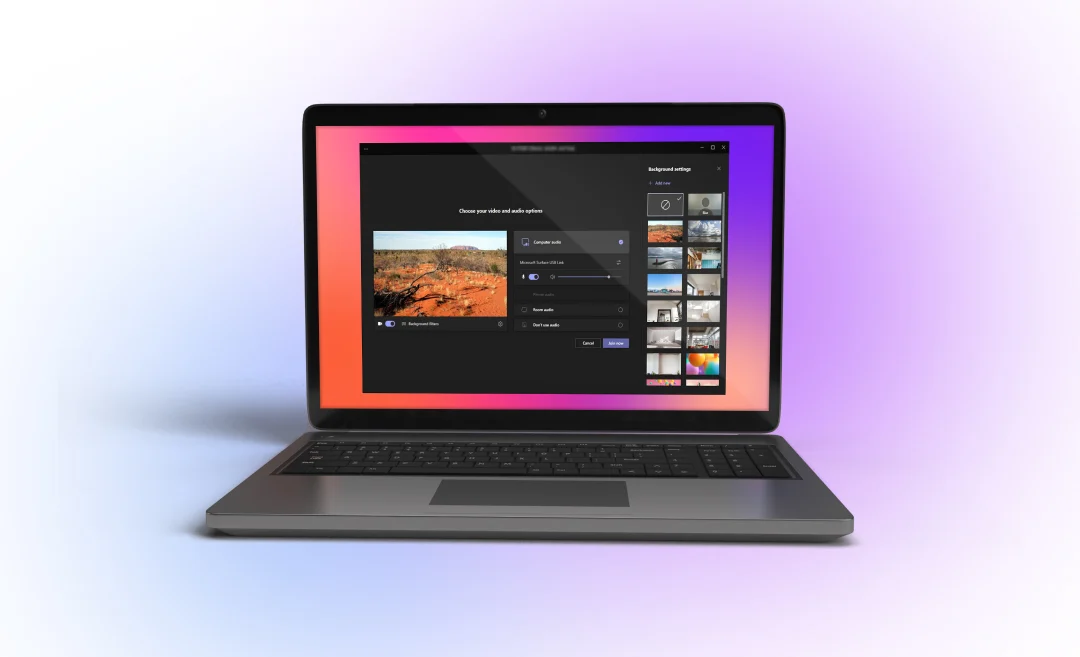
First you should open Microsoft Teams and join or start a call. Make sure your camera is turned on and select Background filters. Then, click add new and upload your background image.
Now that we reviewed how to add a background image, let us see where Teams stores your files.
Where are Teams backgrounds stored
If you are wondering where Teams stores all your uploaded backgrounds, look no further. In this paragraph we will explain where you can find them on your computer.
In the majority of the cases, Teams saves your uploaded backgrounds in a folder inside the Teams application directory. If you want to find this folder, go to Microsoft Teams settings and look for it under your user profile. However, most users do not find the need to access this folder as Teams immediately manages background images.
In the next section, we will explain how to set your background during a Teams meeting.

Set virtual Teams background
If you want to set your background during a meeting, follow the steps outlined below.
- Join or start a meeting in Microsoft Teams.
- In the Meeting controls, select More actions and click Video effects and settings.
- Select Video effects.
- If you want to blur or your background: select Blur and choose Standard Blur or Portrait Blur.
- If you want to select a Teams background, choose that option, and apply it to your video.
- If you want to set your own creation: click Add new and upload your own creation from your computer.
- Choose Preview to review your background before applying it.
- Select Apply.
As you successfully complete all these steps, a new background will appear behind you during the call. But what to do if you change your mind, and wish to remove it? We will show you the process in our next section.
How to remove Microsoft Teams background
If you want to return to your original background, you should just follow these very simple series of steps.
To remove your background, open More actions in the Meeting Controls and select Video effects and settings. Then click None to remove background images. You can also select Blur, if you do not wish to reveal your surroundings entirely. If you want to change your background during a meeting that is a possibility too. These options are especially great, if you want to showcase a professional environment for clients, but have some fun with the internal team.
Now that you are familiar with changing your background during a call, let us explore the possibility of setting it before the meeting starts.
Changing background in Teams before meeting
If you do not want to fully concentrate on your meeting during the call, the easiest solution is to set your background before it. Microsoft Teams offers a very easy and efficient way to do so.
Start the process by finding the meeting you want to set the background for in your Teams calendar, and select it. Click Join and in the pre-join screen find Video settings.
You can blur your background by selecting Blur and choose Standard Blur or Portrait Blur.
If you would like to work with a Teams background, select your preferred choice.
Want to showcase a background that you created? Select More video effects and click Add new. Then choose the background you want to use and upload it from your computer.
Your background will be set for the meeting. With this method you ensure that your original background is hidden before anyone can see it and it will not change until you decide to do so yourself. This solution is great for professionals who are conducting a business meeting and want to avoid showing their personal environment.
You can further enhance your productivity by integrating Teams with Summary AI. In the next paragraph we will show you how to create a summary of your meetings without any extra effort on your part.

Integrate Teams with Summary AI for more productive meetings
The Summary AI Teams integration can transcribe and summarize your meeting recordings. Summary AI even has live meeting translation for international teams.
Invite Summary AI’s Meeting assistant to your Zoom, Google Meet, or Microsoft Teams calls. It joins automatically, captures every word with precision, and sends you a clear summary the moment the meeting ends.

