



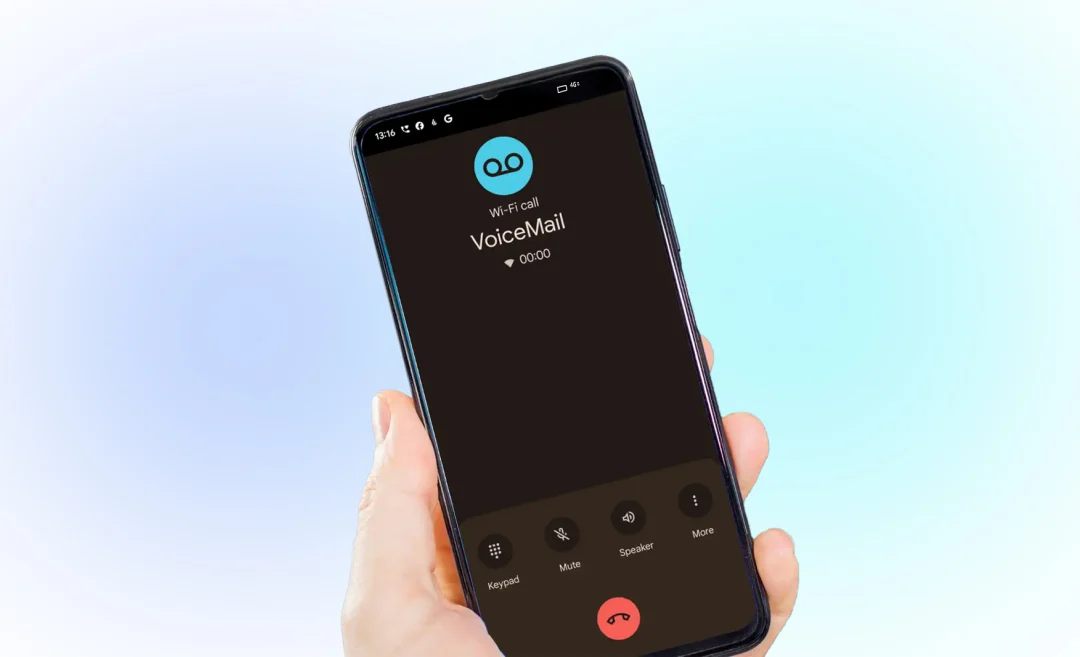




Just got a new Android device or changed carriers? Then you probably want to learn how to set up voicemail on Android. Voicemail is a great feature that helps ensure that you never miss an important message. Android phones, including Samsung Galaxy devices, support standard voicemail and even other useful features like Visual Voicemail.
This guide will walk you through you how to set up and customize your voicemail for Android. If you hit any bumps along the way, we have a section on troubleshooting common issues as well.
Before setting up Android voicemail
In case you have never used it before, voicemail is a way for callers to leave a voice message when you can’t answer the phone.
Before we get into how you can set up voicemail on Android, it’s helpful to know that most Android devices come with a built-in voicemail app. If yours doesn’t, yours may use Google Voice. A third option is using your carrier’s voicemail service.

Is There a Voicemail App for Android?
As mentioned previously, most Android phones come with a voicemail feature inside the Phone app. Usually, you don’t need to download a separate app. Unless you want extra features, you are perfectly fine continuing with Android’s voicemail feature in the Phone app.
Some carriers, like Verizon, AT&T, and T-Mobile, also offer their own voicemail apps. These are usually specifically for visual voicemail. That’s another useful feature that can show your messages as a list where you can easily play back or delete voicemail messages.
Another option for voicemail is Google Voice. Google Voice also works on any Android phone and it gives you voicemail that transcribes messages into text. That way you can read or listen to them from the app.
This feature can be especially useful if you get a lot of calls and miss them often or need to keep a record of your calls and messages for work.
Using voicemail makes it faster to check and manage your messages, especially if you receive a lot of calls on your business phone.
A great tool for transcribing audio to text is Summary AI, which is great for saving long meeting recordings as text, converting videos to written content, and creating text out of phone calls.
How to set up voicemail on Android
It is usually really quick to set up voicemail on your Android phone. You do it through the Phone app. Follow these steps to get started:
- Open the phone app by tapping the phone icon on your home screen or among the other apps.
- Set up your voicemail by pressing and holding the 1 key on the dial pad. This is how you can start the voicemail setup automatically.
- Select your carrier if prompted. You can set up voicemail by choosing your mobile carrier.
- Enter your voicemail number. Some carriers require a specific number to access voicemail, which you can usually find on your carrier’s support page.
- Follow the prompts that the system walks you through. It will ask you to create a 4 to 6 digit PIN and record your name or voice mail greeting. Make sure you follow each step carefully.
- Record your greeting that callers hear when you don’t pick up the phone. Remember to speak clearly and give callers clear instructions. Re-record the message if you are not satisfied.
- Finish setup and when you completed it, your voicemail is ready to receive messages.
If you followed the steps above correctly, you should have no trouble setting up voicemail on Android.
Changing your voicemail settings on Android
Once your voicemail is set up, you can customize it to make it easier to use and manage. Android phones offer several settings for personalization and convenience.

How to customize voicemail on Android
- Open the Phone App by tapping the phone icon.
- Access voicemail settings by tapping the menu with three-dots in the top-right corner of the screen, and then select Settings, then Voicemail.
- Change the greeting by tapping Voicemail greeting to record a new greeting message or change it to a default greeting.
- Set up notifications: You can turn on notifications for new voicemails so you never miss a message.
- Update PIN or add a password to keep your messages secure.
How to change your voicemail on Android
When you switch carriers or reset your phone, you might need to update your voicemail number.
You can do it in the same Voicemail settings menu and it’s very easy to do:
- Select Voicemail number
- Enter the new number
- Save the changes

How to set up visual voicemail
Visual Voicemail is a feature that lets you see a list of new voicemails and you can choose which ones you want to listen to or delete.
Not all carriers support this, but if your carrier does:
- Open the Phone app and tap the Voicemail tab or envelope icon.
- Follow the instructions on the screen to activate Visual Voicemail.
- Set up a PIN if required and choose or record your greeting.
Customizing your voicemail and using Visual Voicemail can save a lot of time and make managing your messages so much easier.
How to use voicemail on Android
After you set up and customize your voicemail, you are ready to sart using it. The next step is understanding how to mkae the most of voicemail and for that you need to know how to access and manage your messages. Android makes it really simple to check voicemails and even recover messages that you deleted.
How to check voicemail on Android
To check your voicemail on Android, you need to open the Phone App. Once you are in the app, you need to go to the voicemail tab and press and hold 1 on the dial pad.
To listen to messages people left on voicemail, you can select the one you want to hear and tap Play. You can also pause messages, skip it, or delete messages as needed.
How to retrieve deleted voicemail
Some Android phones and carriers allow you to recover recently deleted voicemails. To do this, you open the Voicemail app and look for a folder or tab called Deleted Messages or Trash. Access it, find the message you deleted and restore it. If the option isn’t available, contact your carrier for help or go to Google Support.
Make the most of voicemail so you never miss out on important information.
Transcribe audio to text with Summary AI
Attend many meetings or record many calls? Listening to all of the recordings can take way too much time. Summary AI can turn your voicemails or other recorded audio into text, making it super easy to read, organize, and share important messages without replaying them. It helps you save time, stay organized, and summarize key info quickly.

