
Nobody likes missing important important video calls. In this guide we will cover how to record a Zoom meeting both as a host and as a participant, on desktop and mobile devices to make sure you don’t miss anything in case you or your colleagues cannot participate. As you learn the various recording options available in Zoom you may also want to know how to effectively manage and share those recordings you can create. We have you covered for all of these questions with a clear outline and guide to all of these processes.
Whether you’re leading the meeting or participating in a Zoom Meeting, now we walk you through the process of recording a session with ease.
How to record a Zoom meeting as a host
As a host, you retain full control over meeting recordings. Zoom gives you two options to use for recording: cloud recording and local recording.
First, we will give you a step-to-step guide to recording meetings on desktop devices, whether you are using a Mac or PC.

Record a meeting on Zoom using laptop or Mac
To record a meeting using a Laptop or Mac is the same, simple process. Follow these steps to save your meeting for future references.
- Step 1: Start a Zoom meeting as a host.
- Step 2: Find the Record button in the bottom toolbar.
- Step 3: Click on it to start recording.
- Step 4: Select one of two options: Record to this Computer or Record to the Cloud.
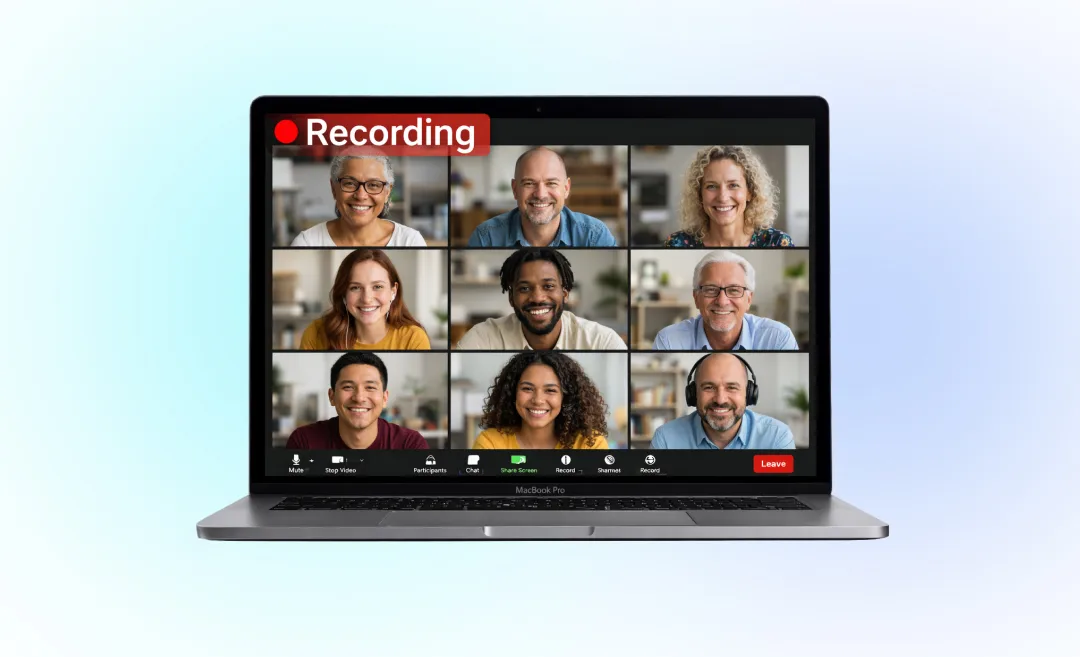
If you successfully turned on recording, the “recording” icon should appear in the top-left corner of your screen. You can easily click Pause/Stop to temporarily stop or end your recording. It is important to note, that as the meeting ends, Zoom will need a short time to process your recorded file. Make sure you do not turn off your PC during this step.
Cloud recordings are saved online and meetings recorded to the computer are stored locally on your device. First, let us go through the process of recording your meetings online.
Record a meeting in Zoom using cloud recording
Recording your Meeting with Cloud enables you to store your past sessions in the Zoom cloud. It is a highly useful option if you want to access it from any device and share it easily – the recordings can be downloaded or streamed online. Bear in mind that this option is only available for paid subscribers.
Step 1: Turn on Cloud Recording
Sign in to your Zoom account, find Settings and click the Recording tab, then turn on Cloud recording in order to enable Cloud Recording for your Zoom sessions.
Step 2: Set up your recording settings
As a host, you can also customize the settings of your recording according to your needs. You may choose to record the audio only of the meeting, either as a single file containing all the participants or as separate tracks for all the joining parties. If you wish to record the video material, Zoom allows you to record the active speaker, gallery view, shared screen, or any combination of these, either in a single video or as separate files. Additionally, you can also add automatic transcription for your meeting.
Public messages on Zoom can be saved into the recording, but private messages sent between participants will not be included.
Step 3: Start Recording
Cloud recordings can only be started by hosts or co-hosts. To allow a participant to begin recording, you need to grant them co-host permissions.
To start a recording, start your meeting as the host. In the meeting controls toolbar, click the Record icon and select Record to the Cloud to initiate the recording.

After the meeting ends, Zoom will automatically process and save your recording to your cloud account, available for playback or sharing. Next, we are going to cover how to record your Zoom meeting straight to your desktop.
Record a meeting on Zoom locally
Local recording saves your recording directly to your computer instead of the Zoom cloud. The main benefit of computer recording is its accessibility, as it is available to both free and paid subscribers. If you choose this option, your file is going to be saved to your Zoom folder on your computer in MP4 format.
Step 1: Turn on local recording
Sign in to your Zoom account, find Settings and click the Recording tab. Turn on Local recording in order to enable Local Recording for your sessions.
Step 2: Update recording settings
Local recording saves meeting files directly to your computer, providing you with full control over the management of storage and your files. However, it does not include cloud features such as automatic transcription, separate audio files for each participant, or saved chat transcripts.
Step 3: Start Recording
Local recordings can only be started by hosts. To allow a participant to begin recording, you need to grant them permission, even if they are co-hosts of the event.
To start a recording, start your meeting as the host. In the meeting controls toolbar, click the Record icon and select Record on this Computer to initiate the recording.
Recording meetings as a host really boosts your team efficiency by having all of your discussions documented so that you are all on the same page. Recordings can resolve misunderstandings and providing a reliable reference for follow-ups. Recordings can also be repurposed with tools like the video to text transcription by Summary AI, which also integrates with Zoom, so you can have it join your meetings directly. Having covered recording as a host, the next chapter will guide you through the same process for participants.

How to record a Zoom meeting as a participant
As a Participant you can only record a meeting if the host gives you permission. You will know that permission has been granted when the Record button appears on your screen. In the following section, we will explain how to record with permission and share other possible ways to record without being a host.
Record with host permission
Follow this easy four step guide to record a meeting with the hosts permission.
Step 1: Ask the host to allow recording
You need to gain permission from the host of the meeting to be able to record your session locally. If you are the host, you can grant permission, by opening the Participants panel, clicking More next to the name of the participant you are letting to record, and select Allow Record.
Step 2: Find Record
If you have been granted permission, the Record button will appear in the meetings toolbar.
Step 3: Start recording
Click the Record button, and choose Record on this Computer or Record on the Cloud, if available.
Step 4: Pause or stop a recording
Click Pause, if you want to temporarily stop recording, or Stop to end it. The recording will automatically stop as the Meeting is finished.
Now that we covered how to record a Zoom meeting with permission, let us explore the possibility of recording without being a host.
Can you record on Zoom without being the host?
If recording is not enabled in a Zoom meeting, it is technically still possible to do so with third-party tools. Various programmes are available online, and both Windows and Mac have built-in screen recording features. Even mobile devices can capture the meeting. Nevertheless, it is important to always inform the participants of the meeting as part of basic virtual meeting etiquette before you start a recording to respect their privacy and Zoom’s rules.
Now that you are familiar with recording Zoom meetings on a desktop in various circumstances, let us explore how to do the same on mobile devices.
How to record Zoom meetings on mobile devices
You can record Zoom meetings on mobile devices, including Android and iOS devices, but only to the Zoom cloud. Local Recording is not available for mobile devices via Zoom.
To record a Zoom Meeting on your mobile device, join or start a session as the host. In the meeting controls toolbar tap the Record icon and then choose Start Recording. If you successfully done so, in the top-left corner the Zoom app will indicate that you are recording the meeting.
If you want to stop or pause the recording, tap Record, and choose either Stop or Pause Recording.
As your meeting has ended, Zoom will process the recorded material and place it under Recordings on the Zoom web portal.
As we have outlined how to record a Zoom both on desktop and mobile devices, you might start to wonder how to efficiently manage and share the recordings you would create. In the next section we will cover the best and simplest way to do so.
Managing you Zoom recording
Once you have recorded your Zoom meeting, you can easily locate, share and watch it. The following section outlines the steps for efficiently managing and organizing your recordings. We will look at how to find, share, and playback Zoom recordings.
Where to find your Zoom recordings
If you want to access your Zoom meetings, your procedure will depend on if you recorded them to the Zoom Cloud or locally. In the following we will guide you through both of these options.
For managing your cloud recordings, sign in to the Zoom web portal. Find the navigation menu, and choose Recordings and Transcripts. Then click the Cloud recordings tab, where you will be able to access all the finished and processed recordings of yours.
For local recordings, open the desktop Zoom app on your computer. Click on Meetings and choose Recorded. By default local recordings are saved in the Documents/Zoom folder, unless you have chosen an alternative location for your files.
Now that you are familiar with accessing your recordings, let’s explore how to share them with others efficiently.
How to share your recorded Zoom meeting
Knowing how to share Zoom meeting recordings helps all participants have access to the same information. This makes it key for collaborating effectively. This next section outlines how to share both cloud and local recordings.
In the case of Cloud recordings, start by selecting the desired cloud recording and click on Share. This lets you generate a link that can optionally also be secured with a password.
For local recordings, locate the MP4 file on your computer and distribute it via email or messaging applications, depending on what is most convenient for your recipients.
Now that you know how to share recordings with colleagues, let’s review how to watch and playback your Zoom recordings.

How to watch or playback a Zoom recording
Watching and playback of Zoom recordings lets you review key points, clarify details, and keep everyone informed.
For cloud recordings, you can play them directly in your browser through the Zoom portal.
For local recordings, simply double-click the MP4 file on your computer to open it in your preferred media player.
Now you are capable of locating, managing, and sharing your recordings.
Double the power of Zoom with Summary AI
Knowing how to record Zoom meetings is of great importance as it allows you to capture discussions, decisions, and presentations for future reference.
It ensures that absent team members can stay informed, supports training and documentation, and provides a reliable record for accountability and review, providing key components for productive teamwork.
Summary AI integrates with Zoom, allowing it to join any Zoom call that you allow it to so you don’t have to worry about setting up recordings. Summary AI translates real time and trasncribes everything, turning your meeting transcruption into a concise summary with action items. Start free today!