




In a world where meetings, tutorials, and content are all happening online, screen recording software has become an essential productivity tool.
Whether you’re a student recording a lecture, a freelancer capturing client feedback, or a sales professional logging product demos, the right screen recording software can make or break your workflow.
But now, in 2025, recording your screen is only the beginning — AI-powered recorders like Summary AI are taking it further by automatically transcribing, summarizing, and translating what’s on screen.
Let’s explore how screen recording software works, compare the best options available, and uncover how AI is changing the game.
What Is Screen Recording Software?
Screen recording software allows you to capture everything displayed on your device’s screen, often along with audio and webcam input.
It’s used by:
- Business professionals for video meetings and product demos
- Educators for tutorials and online classes
- Content creators for YouTube, podcasts, and gaming
- Teams for training materials or performance reviews
“A good screen recorder doesn’t just record — it helps you capture, organize, and share knowledge effortlessly.”
Why You Need Screen Recording Software in 2025
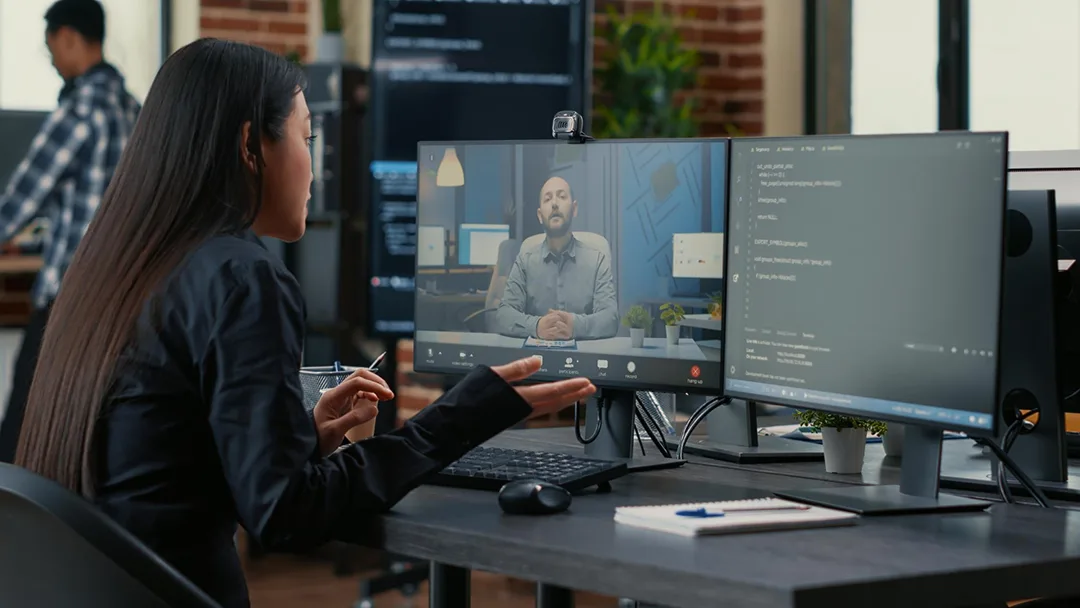
In today’s remote-first, fast-paced environment, screen recording has evolved from a convenience to a necessity.
Here’s why professionals rely on it daily:
1. Never Miss Important Information
Record meetings, webinars, or calls to revisit key details or share with absent teammates.
2. Improve Productivity
Skip manual note-taking — use AI-based recorders like Summary AI to automatically transcribe and summarize your sessions.
3. Enhance Communication
Visual walkthroughs and recorded demos reduce misunderstandings and make training easier.
4. Save Time and Resources
Instead of re-explaining complex workflows, just record once and share with your entire team.
Top Screen Recording Software of 2025 (Comparison Table)
| Software | Best For | Key Features | AI Capabilities | Price |
|---|---|---|---|---|
| Summary AI | Meetings, productivity, transcription | Record screen + audio, live transcription, summaries, translation | Summaries, translations, action items | Free & Pro Plans |
| Loom | Teams & presentations | Instant sharing, cloud storage, comments | None | From $12.50/mo |
| OBS Studio | Streaming & content creation | High-quality video, full control | None | Free |
| Camtasia | Video editing & training | Built-in editing suite | None | From $179 one-time |
| Snagit | Quick tutorials & screenshots | Simple capture tools | None | From $62.99 |
| Zoom | Meetings & calls | Record calls, transcripts (paid only) | Basic transcription | From $15/mo |
Winner for professionals: Summary AI — the only all-in-one screen recording app with AI-powered transcription, summarization, and translation.
How Screen Recording Software Works
Modern screen recording tools combine video capture, audio processing, and data compression technologies.
Here’s a breakdown of the process:
1. Capture: The software records your screen display and optional webcam feed.
2. Audio Input: It records internal or external audio (microphone, system sound, etc.).
3. Processing: The recording is converted into a compressed video file (MP4, MOV, etc.).
4. Enhancement (AI tools): Summary AI adds an intelligent layer — speech-to-text transcription, AI summaries, and language translation.
5. Storage & Sharing: The video is saved locally or to the cloud for easy access.
The Rise of AI in Screen Recording
Traditional recorders capture — but AI recorders interpret.
With AI technology, tools like Summary AI don’t just record — they listen, understand, and summarize.
Key AI Enhancements
- Automatic Transcription: Instantly turns spoken words into text.
- Summaries & Action Items: Detects key topics, decisions, and follow-ups.
- Translation: Converts video content into multiple languages in seconds.
- Smart Search: Search for keywords inside recordings and transcripts.
“Summary AI doesn’t just capture your screen — it captures the meaning of your conversations.”
How to Use Screen Recording Software (Step-by-Step)
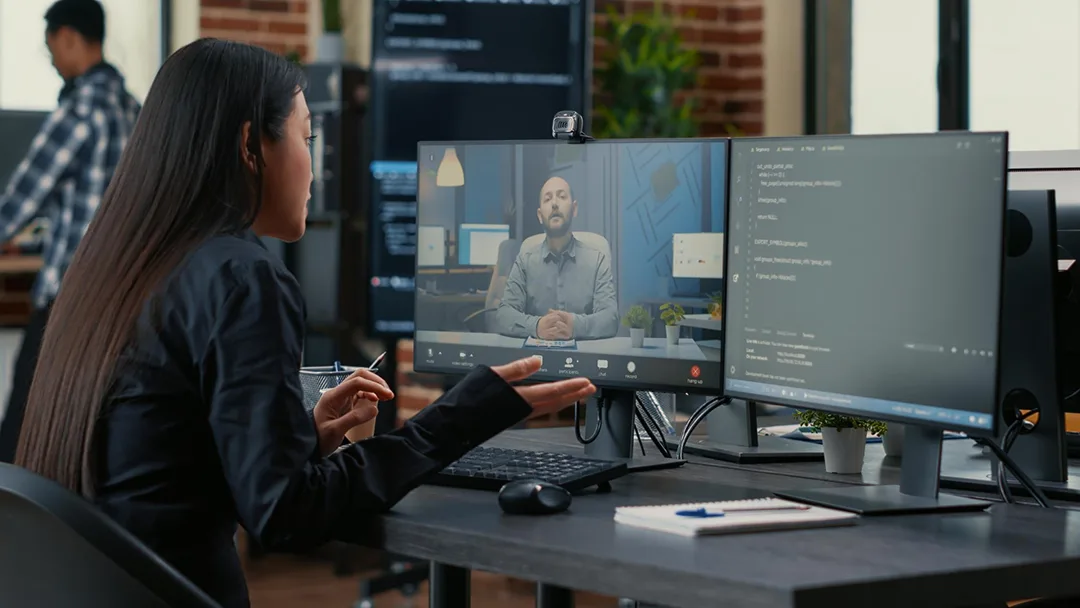
Let’s walk through how you can record your screen using Summary AI or similar tools.
Step 1 – Download and Set Up
Install your chosen app. On Summary AI, simply open the mobile or desktop app and allow microphone permissions.
Step 2 – Choose Recording Mode
Select what to record:
- Full screen
- App window only
- With or without webcam
Step 3 – Record Your Session
Click “Start Recording.” You can multitask while Summary AI runs in the background, capturing everything seamlessly.
Step 4 – Auto Transcription & Summary
When the recording ends, Summary AI automatically:
- Converts audio to text
- Summarizes key points
- Highlights next steps and speaker details
Step 5 – Save or Share
Save your video locally or share the summary link with your team securely.
Benefits of Using AI-Powered Screen Recording Software
| Traditional Recorders | AI Recorders (like Summary AI) |
|---|---|
| Only record video / audio | Record + transcribe + summarize |
| Manual note-taking | Automated meeting notes |
| No language support | Real-time translation |
| File-based search only | Text and keyword search |
| No automation | AI follow-ups and action tracking |
With AI-powered recorders, your video becomes a searchable, shareable source of truth.
Real-World Use Cases
1. For Sales Teams
Capture client calls and demos, then automatically generate:
- Meeting summaries
- Action items by speaker
- CRM notes
2. For Students
Record online lectures and get instant text transcripts to review later.
3. For Consultants
Keep private, AI-generated summaries of your sessions for reference without sharing sensitive client details.
4. For Project Managers
Record brainstorming sessions and automatically extract next steps for each team member.
Tips for Choosing the Right Screen Recording Software
Before committing, consider:
- Recording Quality: Minimum 1080p resolution
- Ease of Use: Simple interface, quick setup
- Storage Options: Cloud and local
- AI Features: Transcription, summary, and translation
- Security: End-to-end encryption for sensitive content
Pro Tip: Choose tools that include private summary modes, like Summary AI, to ensure full data confidentiality.
Future of Screen Recording Software
The next wave of screen recorders will be fully autonomous AI assistants. Expect:
- Voice-activated commands (“Record this call and summarize it.”)
- Real-time collaboration summaries
- Automatic task detection and integration with tools like Notion, Slack, or Trello
- Advanced analytics, such as speaker sentiment or productivity tracking
AI is turning simple screen capture into intelligent knowledge management.
Why Summary AI Is Leading the Shift
Unlike traditional recorders, Summary AI merges screen recording, transcription, and AI summaries in one seamless workflow.
Key Advantages
- Record meetings, calls, and screens in the background
- Automatically transcribe audio to text
- Generate clean, structured summaries instantly
- Translate content into multiple languages
- Keep recordings 100% private and secure
It’s not just screen recording — it’s AI-powered communication efficiency.
Conclusion
Screen recording software is no longer just about capturing what’s on your screen — it’s about capturing insight, action, and clarity.
Whether you’re managing projects, creating tutorials, or leading sales calls, AI-powered tools like Summary AI take your recordings to the next level with automatic transcription, summaries, and translation.
Record smarter. Work faster. Let Summary AI do the heavy lifting.
FAQs about Screen Recording Software
1. What is the best screen recording software in 2025?
The best screen recording software depends on your needs. Summary AI is perfect for professionals who want recording plus AI transcription, while Loom and OBS Studio are great for creators and streamers.
2. Can I record my screen with audio?
Yes, most recorders support both system audio and microphone input. Apps like Summary AI even transcribe the audio automatically.
3. Is screen recording legal?
Yes, but you should always inform participants before recording meetings or calls, especially for business use. Laws vary by country.
4. How do I transcribe my screen recording?
With Summary AI, transcription happens automatically as you record. Other tools require you to export the video and use a separate transcription service.

