






If you’re wondering how to translate a PDF, you’re not alone. A lot of people want to know how to translate PDF files because they are unsure how it works. The reason for this is that translating PDF files consists of many different steps.
The reason for translating PDF files could be many different ones, because PDFs are the standard format for many types of documents, including contracts, and they often need to be shared in different languages.
In this article, we will take a look at the different options for translating PDF documents.
How to translate a PDF file (3 methods)
You can translate a PDF in many different ways. One of the most popular ways of translating anything is using tools like Google Translate or Google Docs.
These are popular tools because they are free and easy to use. Another way to translate documents is to use professional tools such as Adobe Acrobat and Canva. These tools are a bit better at preserving the layout and the design of the original document.
Let’s take a look at how to translate a PDF document step by step using these methods including scanned PDFs, large documents, and other file types where formatting really matters.
1. How to translate a PDF in Google Translate
Google Translate is a good option for quick translations when you are copy and pasting text or if your PDF file is quite small. It is best for simple layouts because the formatting may change the design a bit and for documents under 10 MB or 300 pages.
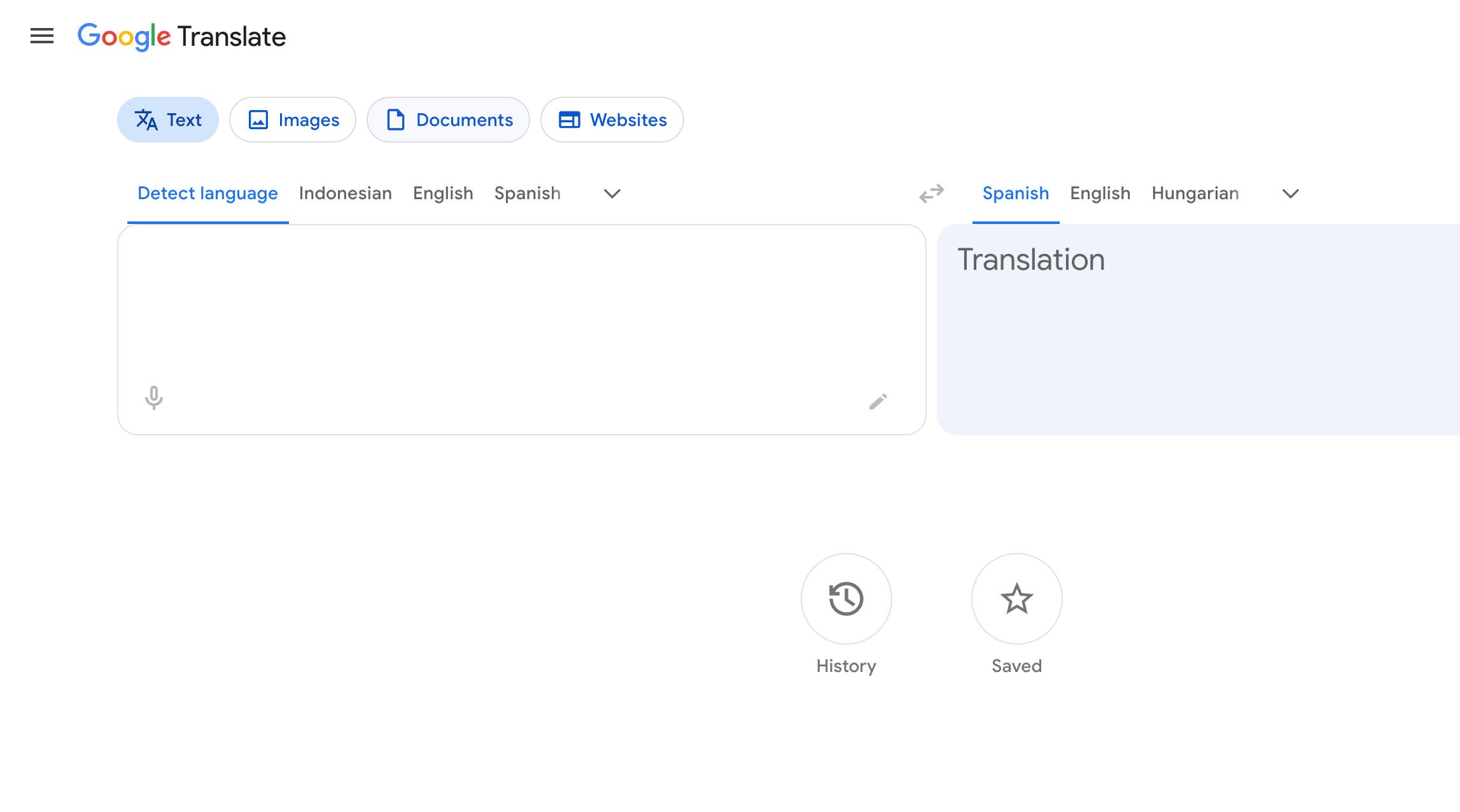
If you want the fastest solution for how to translate a PDF in Google Translate, follow these steps:
Step 1: Go to Google Translate
Open Google Translate in your browser and select the Documents tab.
Step 2: Upload your PDF file
Click Browse your files and select your PDF or drag it and drop it.
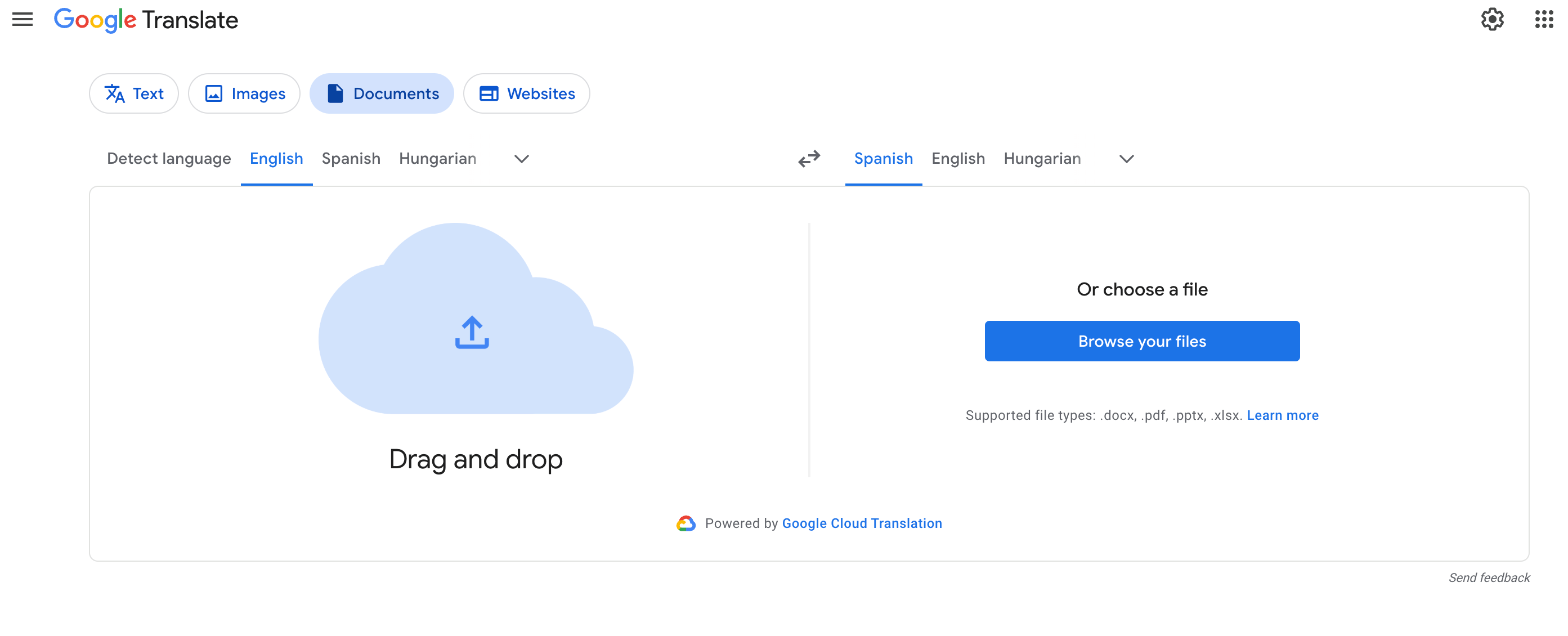
Google Translate accepts PDFs up to 10 MB and 300 pages.
Step 3: Choose Languages
You can now select the original language of the document (or use Detect language) and pick your target language that you want to translate the PDF document to (for example, English, Spanish, French).
Step 4: Translate the PDF and check it
Click Translate and voila. Google will show the translated document in your browser. In many cases, you can either copy the results, or print or save from the page.
Changed formatting after translating in Google Translate
Formatting often changes during the translation of PDF docs. Columns, layouts, tables, and fonts may not be preserved from your original file. Because of this, this method is best for translating the content to be able to understand, not for keeping a polished design that you can keep and use as a product or for marketing purposes, for example.
Translating scanned PDFs in Google Translate
If your PDF is just images (a scan), Google Translate’s document mode cannot read the text because it does not perform OCR on PDFs. In this case, you have to convert the scan to editable text first.
Method 2: How to translate a PDF document using Google Docs
This method is best if you also want to edit the translated text after conversion.
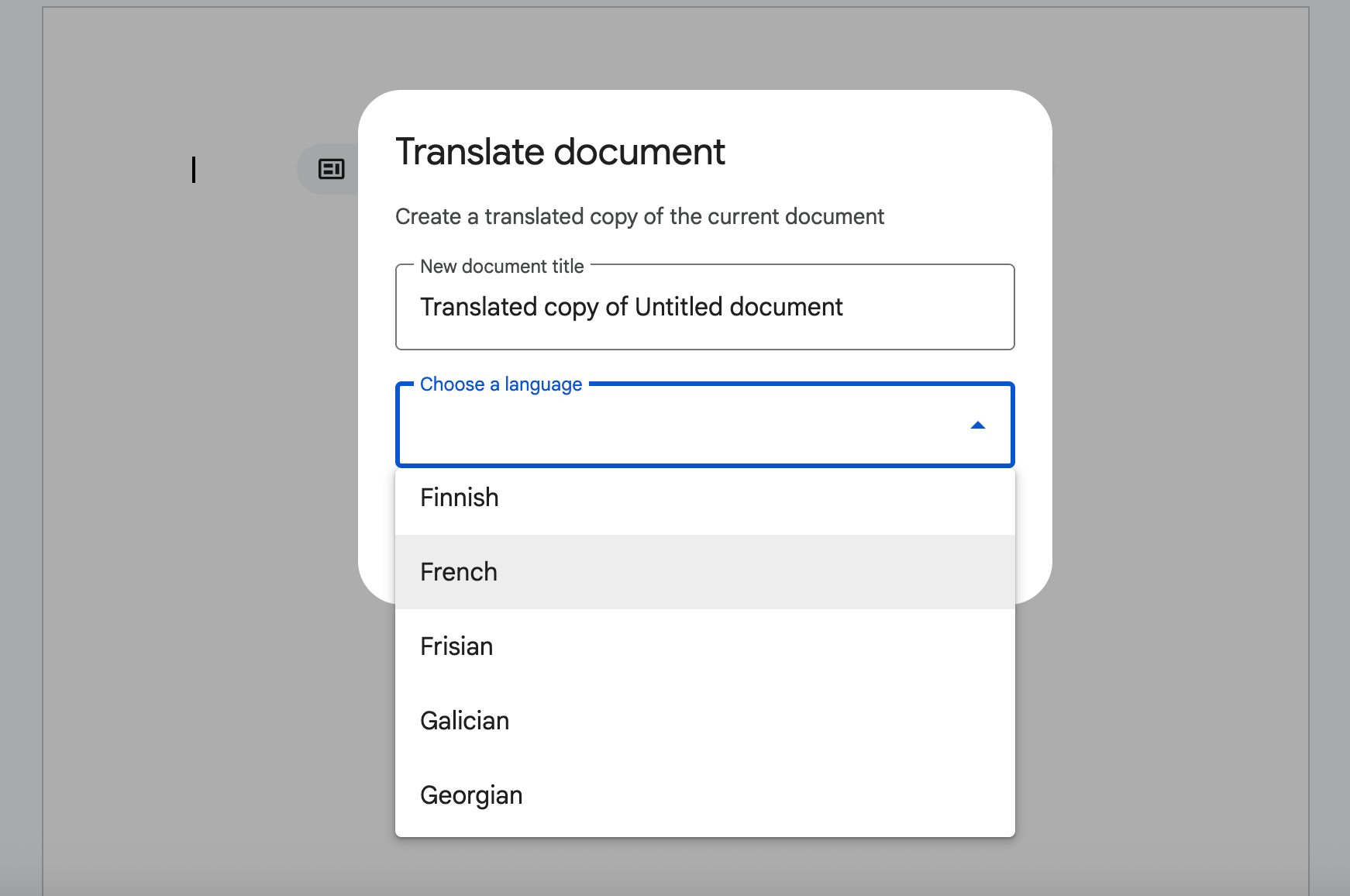
Google Docs is great when you need to fix wording, correct errors, or adjust formatting after translation.
Step 1: Upload the PDF to Google Drive
To begin, upload your PDF to Google Drive.
Step 2: Open with Google Docs (with OCR)
Right‑click the PDF in Drive and choose to Open the file with Google Docs. Google converts your PDF into an editable Google Docs file, and for scanned PDFs it performs OCR to extract text.
Step 3: Translate the document
In Google Docs, go to Tools and click Translate document. Give the translated copy a name, choose the language you want to translate it to, and click Translate.
Step 4: Export back to PDF
Once you’ve reviewed the translation and edited any mistakes, you can go to File and clcik Download. Choose PDF document.
This is the workflow for translating PDF files in Google Docs and it is excellent if you need to translate a PDF file to any language and need to edit, reformat, and proofread the result before sharing it.
Method 3: How to translate a PDF with Adobe Acrobat
Adobe Acrobat is the best for translating documents where you want to keep the layout and formatting in tact, like contracts and branded materials.
The most recent versions of Adobe Acrobat integrate with Adobe Express to translate PDFs in a way that keeps the layout and fonts as intact as possible.
Steps:
- To translate a PDF using Adobe Acrobat and Adobe Express, open your PDF in Adobe Acrobat.
- In the global bar, select Convert and click Translate this PDF.
- Acrobat opens the file in Adobe Express.
- In the Translate panel, select the language you want to translate to. The source language of the document is detected automatically.
- Now choose whether to translate all pages, a specific page, or just selected text.
- Optionally, you can even set the Tone of voice to formal or informal.
- Click Translate, preview the result, then download or share the translated PDF from Adobe Express.
Some of these workflows and features require a subscription of Acrobat or Adobe Express, so this is generally a paid option of translating your PDFs.
Method 4: How to translate PDF with Canva
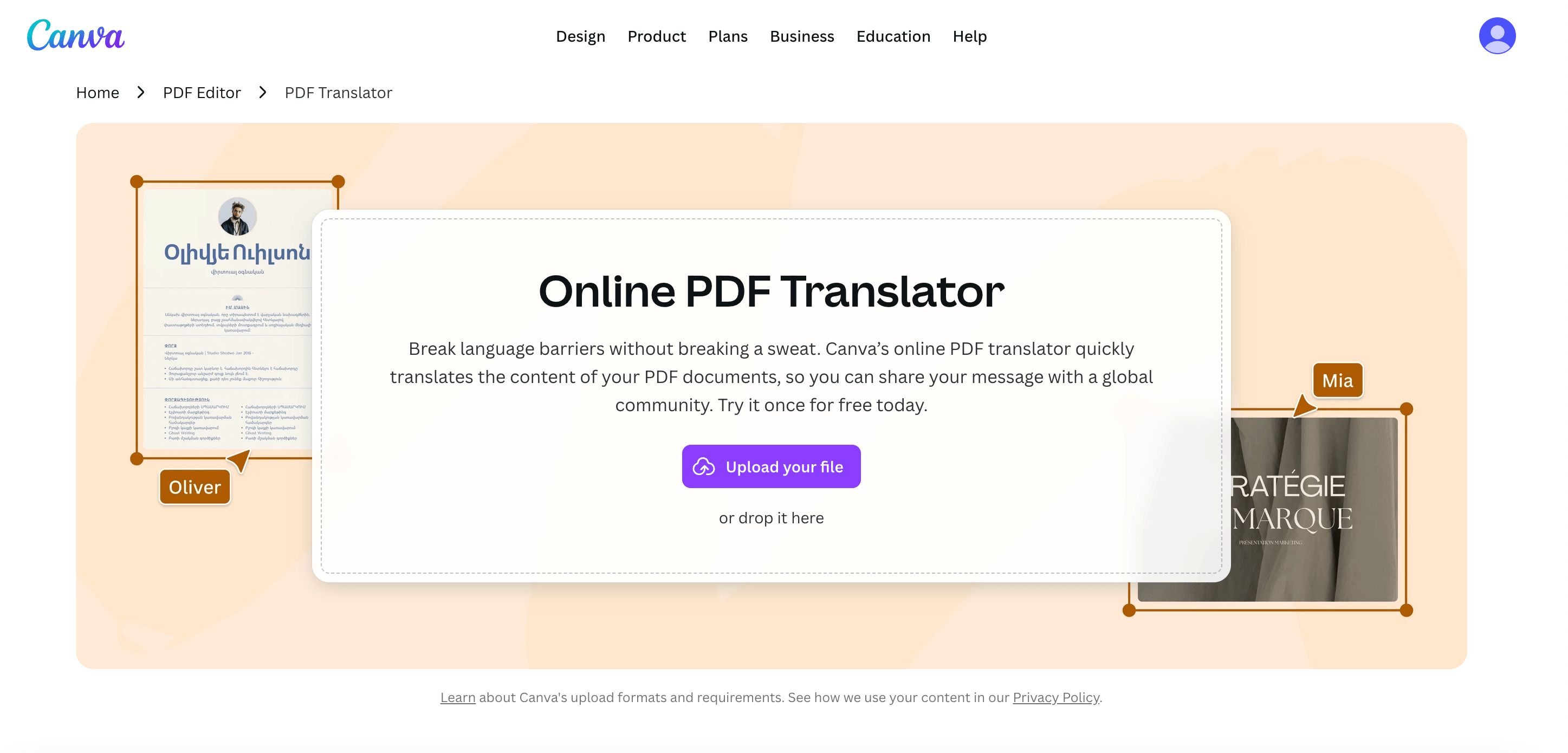
If you want to translate PDF files that you are using as marketing materials, such flyers, then Canva is probably the best solution. This is also a premium feature of Canva as part of Canva Pro, but you have one free use without having to pay.
- To begin, upload your PDF to Canva
- Open it as a design
- Use Canva’s Translate feature
- You can choose to translate Choose whether to translate specific the entire design, pages you have selected, or text boxes
- Select language and click Translate
Review your translated document and adjust fonts where needed, as well as the layout if necessary. Finally, click download to save your translated file as a new PDF.
Use AI to translate your live meetings
Working with an international team, language can sometimes get in the way. To boost your productivity, use a live AI meeting translator from Summary AI. With this app, you can instantly translate meetings, interviews, and voice recordings live accurately and efficiently in over 120 languages.
To use the translator, you simply select your language of preference and watch conversations translate as they happen. This way everyone stays on the same page, no matter where they’re from, and working together becomes a lot easier.

