



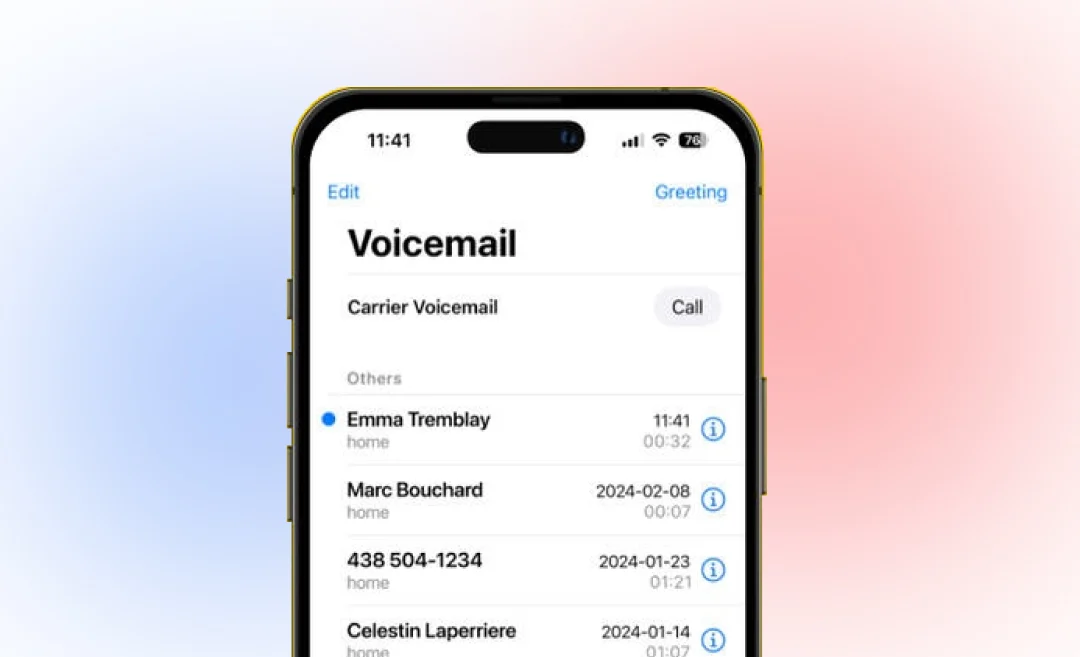



Want to learn how to set up voicemail on your iPhone? Voicemail is a really helpful feature for when you can’t pick up the phone. This feature lets callers leave you a message so you don’t miss important information.
This guide will walk you through step by step on how to set up and customize your voicemail on iPhone before giving you an introduction into how to use voicemail for maximum benefits. Let’s go through the basics first.
Before starting setup
If you are new to voicemail, it is a way people who call you can leave a voice message in case you can’t answer the phone.
Setting up voicemail on iPhone is easy, but before we get started you need to know that all iPhones include voicemail controls inside the Phone app. However, your carrier is the provider of the actual voicemail service. There is no need to download a separate app for voicemail as long as your carrier plan includes it.
Is There a Voicemail App for iPhone?
The voicemail controls are inside the Phone app. Usually, you don’t need to download a separate app if all you want to do is listen to or manage your voicemail. Unless you want extra features from your carrier, you are usually fine using iPhone’s built-in Phone app for voicemail.

Verizon, AT&T, and T‑Mobile and most carriers offer their own voicemail services, as well as features like Visual Voicemail. This is a useful feature that lets you view your messages as a list from which you can easily play back or delete voicemail messages.
Another common option is to use Google Voice for voicemail, although this is more common on Android devices. On iPhone, it works through its own Google Voice app so you can listen to your voicemail messages or read them within the app with voice messages converted into text.
If you get a lot of calls in general and miss them often or need to keep a record of your calls and messages for work, then transcription can be especially useful. Using voicemail and tools that help you review messages can make it faster for you to check and manage your messages, especially if you receive a lot of calls on your business phone.
An audio‑to‑text transcriber can save long meeting recordings as text, convert videos to written content, or create text from phone calls, so it’s easier to scan and search key points and summarize recordings later.
How to set up voicemail on iPhone
Setting up voicemail on your iPhone is really quick and easy through the Phone app, as long as voicemail is activated on your line by your carrier. Follow these steps to get started:
- First of all, open the Phone app on your iPhone. You can do this by tapping the Phone icon on your Home Screen.
- Then tap the Voicemail tab in the bottom-right corner
- Tap Set Up Now if you see this option
- Create a voicemail password and then tap Done
- Re-enter your password to confirm it and tap Done yet again
- To use the standard greeting choose Default. To create your own greeting, you choose Custom and proceed to record your own greeting
- When you choose Custom, you must tap Record and record your greeting, making sure to speak clearly. When finished recordding, tap Stop, and then Save
- Once setup is completed, you are ready to start using voicemail! The app is now ready to receive messages from callers through your carrier’s voicemail service
Changing voicemail settings
Once you have set up your voicemail, you can also customize it to make it your own. What does this mean? It means your voicemail will be easier for you to use and manage. Your iPhone offers you several ways to personalize your voicemail settings, so take advantage of them and set things up the way you like them. Please note, however, that some options will still depend on your carrier.

How to Customize Voicemail on iPhone
- Open the Phone app and tap the Voicemail tab
- Tap Greeting to record a new greeting message or switch between Default and Custom
- To change your voicemail password, go to Settings – Phone – Change Voicemail Password and follow the prompts to set up
- To change voicemail notifications go to Settings – Notifications – Phone to turn on alerts or badges for new voicemails so you never miss a message
How to Change Your Voicemail on iPhone
Because voicemail is tied to your account with your current carrier, you might need to repeat the set up process for your voicemail when you change that account. This includes switching carriers, changing your plan, or resetting your iPhone.
This is easy to do from the Voicemail tab on your phone:
- Tap Voicemail in the Phone app
- Tap Set Up Now if prompted and follow the instructions on screen
- Enter the new password or update your greeting as needed (You have to follow your carrier’s requirements to set this up)
How to Set Up Visual Voicemail
Visual Voicemail lets you see a list of new voicemails and choose which ones you want to listen to or delete, instead of calling into a voicemail number.

This feature is just as easy to set up as regular voicemail, provided that yoour carrier supports this feature and your iPhone has a compatible iOS version:
- Open the Phone app and tap the Voicemail tab
- If you haven’t already activated voicemail, tap Set Up Now
- Follow the instructions on the screen to activate Visual Voicemail. This usually requires cellular data.
- Choose or record your greeting
Customizing your voicemail and using Visual Voicemail in your day-to-day can save a lot of time and it can really make managing your messages easier, especially when you have a lot of calls to handle.
How to use voicemail on iPhone
After you set up and customize your voicemail, you are ready to start using it. The next step is understanding how to access and manage your messages so you can really take advantage of voicemail.
iPhone makes it simple to check voicemails and, in many cases, recover messages that you recently deleted.
How to Check Voicemail on iPhone
To check your voicemail on iPhone, open the Phone app and tap the Voicemail tab.
Listen to messages people left on voicemail by selecting the voicemail message you want to hear and tap Play. You can also pause messages, skip them, or delete messages.
How to retrieve deleted voicemail
On iPhone you can recover recently deleted voicemails, but only as long as they are still in the Deleted Messages section and not permanently removed. To check this, and restore deleted voicemails, open the Phone app and tap the Voicemail tab. Scroll to the bottom of the tab and tap Deleted Messages. Select the message you deleted and tap Undelete (or the restore icon) to move it back to your main voicemail list.
Make the most of voicemail so you never miss out on important information, and contact your carrier if voicemail options do not appear or you can’t complete the setup, since they may need to enable voicemail on your line.

Transcribe Audio to Text with Summary AI
Attend many meetings or record many calls? Listening to all of the recordings can take a lot of time. An audio‑to‑text tool such as Summary AI can turn your voicemails or other recorded audio into text, making it easier to read, organize, and share important messages without replaying them. This helps you save time, stay organized, as well as summarize information quickly, so you always have access to it thanks to a document you can search.

