
If you want to download YouTube Shorts, there are several ways to do it depending on your needs. If you want to download your own Shorts, you can do it directly from the YouTube app or from YouTube Studio. For the Shorts of other creators, your options are a bit more limited. You may need to use third-party tools. Downloading YouTube Shorts created by other people also depends on copyright laws and what you want to use the videos for.
In this guide we will take a look at how to download Shorts step-by-step on different devices, including PC and on your phone. We’ll also discuss watermarks and offline viewing in more detail, as well as a more in-depth look at copyright.
Can I download Shorts from YouTube?
The short answer is yes. The method for downloading, however, depends on whether the video you want to download is your own or someone else’s.
The two main ways to download:
- If the video is your own: Download it through the YouTube app or Studio
- If the video is another user’s: YouTube Premium allows you to download the video for offline viewing and third-party tools let you save it on your device.
Note: According to YouTube’s copyright rules, creators own their content. When you download someone else’s content and use it without permission, you may be in violation of these rules.
Downloading your own YouTube Shorts
If you want to download a Short that you created, it’s easy to do. You can read Google’s official instructions or follow the steps below.
Downloading Shorts on your phone
The way to download Shorts on your phone is through the YouTube app. Follow the steps below:
- Open the YouTube app.
- Tap your profile.
- Go to “Your videos.”
- Select the Shorts tab.
- Tap the three dots.
- Choose “Save to device.”
Downloading Shorts on desktop
To download Shorts on your computer, you have to follow the steps below using YouTube Studio.
- Go to YouTube Studio.
- Click “Content.”
- Select the Shorts tab.
- Click the three-dot menu next to your video.
- Click “Download.”
This is the best method if you want to repurpose your content across other mediums. Reusing your own videos for other platforms is a great way to extend the life of your content and reach a wider audience.
One way to repurpose your videos is to create written content out of it. For this you first need to create a transcript of the video. You can easily do that using Summary AI’s tool to convert video to text. Once you have a clean transcript of your Short, you can turn it into blog posts or social media posts quickly.
Downloading someone else’s Shorts
To download someone else’s videos, the process is a bit different. To download someone else’s video files on PC or mobile follow the steps below.
Downloading on PC or mobile
The only way to do this is using a third-party browser extension or site created specifically for downloading YouTube shorts.
- Open the Short.
- Select Share.
- Copy the link.
- Paste the link into a downloader site.
- Download the file to your PC/mobile device.
Many third-party sites try to sell services of some sort or are overloaded with ads. Be cautious when entering personal information or being asked to register.
Watch offline with YouTube Premium
Another way to watch Shorts offline, but not download them, is using YouTube Premium. If you have a YouTUbe Premium membership, you can follow the steps below to make videos available for offline viewing.
- Open the Short.
- Choose Download.
- The video saves inside the YouTube app.
This does not save the file to the gallery of your phone. It only allows offline viewing inside the YouTube app.
How to Download YouTube Shorts Without Watermark
A watermark usually includes the Shorts logo or a YouTube watermark burned into the video when it is downloaded.
Downloading YouTube Shorts without a watermark is a bit tricky. Whether you can get a clean version without the watermark depends on the source.
Download Your Own Shorts Without Watermark
If the Short is yours, the easiest way to avoid a watermark is to download it directly from YouTube Studio on desktop or use Save to device inside the YouTube app. Using this method gives you the original file which should not include the added Shorts watermark.
Note: If you edited your video inside YouTube, keep in mind that music from the YouTube library will be included with your video and that may still be tied to platform rules regarding copyright.
Download Others’ Shorts Without Watermark
Removing the YouTube watermark from a Short that belongs to someone else is a lot more complicated. Some online third-party tools claim to be able to remove watermarks. These often require you to download the video file and reprocess the video, usually cropping the watermark in the process.
This method may lower the quality of your video and it may also violate YouTube’s terms of use depending on what you plan to do with the video you downloaded.
Important things to know
- Read the rules: downloading for personal offline viewing is different from reposting content.
- Removing a watermark does not give you ownership of the content.
- Reusing someone else’s material for commercial use may require permission.
- If your main goal is to reuse the information in a Short, you may not need the video file at all.
How to Download Audio from YouTube Shorts
Depending on what you plan to do with the Short, you may not need to download the full video. Perhaps you only need the sound or the information from the Short.
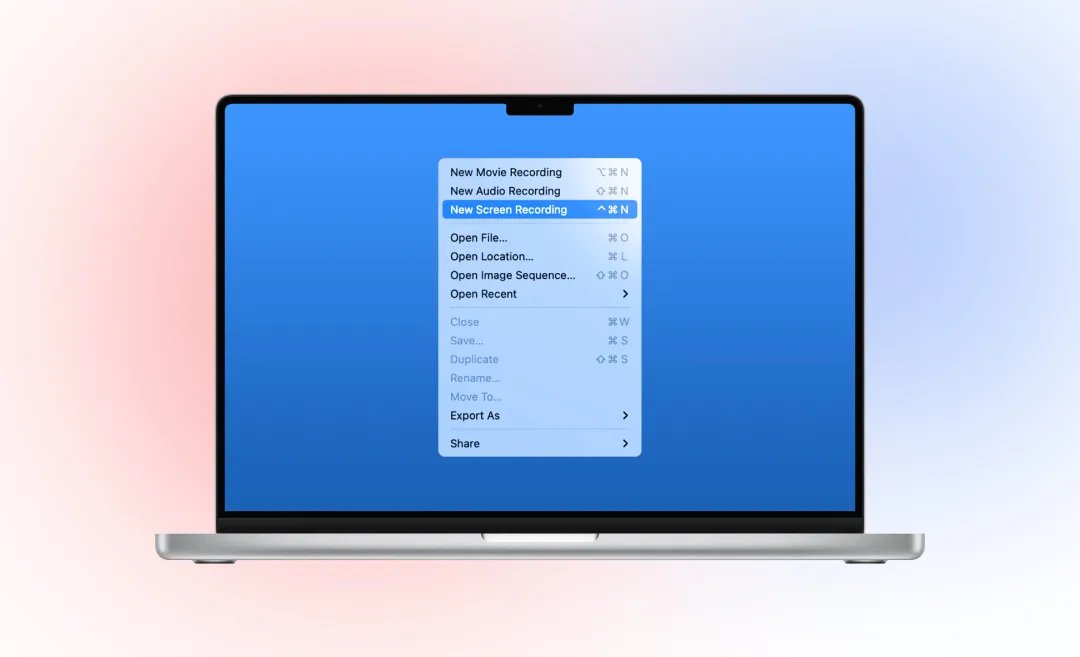
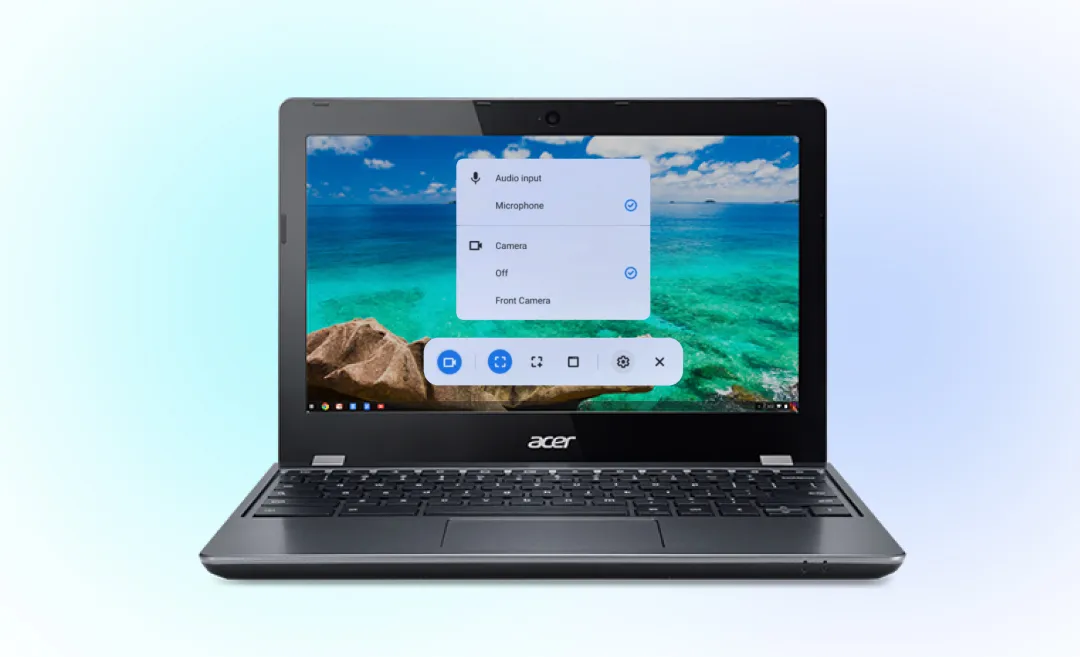
The two main ways to do this involve finding an online video to mp3 converter or by using a transcriber to create a text transcription of the audio, that is to create text from mp3. If the Short uses music from YouTube’s library, copyright rules may still apply. Another simple way to get the audio of the Short is by recording audio on a MacBook.
If your goal is to reuse spoken content from the Short, you may not need the audio. In this case, converting speech into text can be more useful. You can create a transcript of the content using Summary AI’s video to text tools.
Transcribe Videos to Text with Summary AI
Downloading YouTube short videos isn’t always necessary. If you are a marketer or researcher and you need the info in the video to repurpose it across other channels or use it for writing, the best way to save that information is as a transcript that you can easily annotate, summarize, and use. Summary AI has fantastic video to text transcription tools that will help you.